Array
(
[Fleet Tracking Portal] => Array
(
[Enterprise] => Array
(
[documentation] => Array
(
[14] => Array
(
[posts] => WP_Query Object
(
[query] => Array
(
[orderby] => title
[order] => ASC
[post_type] => documentation
[posts_per_page] => 999
[tax_query] => Array
(
[0] => Array
(
[taxonomy] => feature
[field] => term_id
[terms] => 14
[include_children] => 1
)
[1] => Array
(
[taxonomy] => solution
[field] => term_id
[terms] => 12
)
[relation] => AND
[2] => Array
(
[taxonomy] => product
[field] => term_id
[terms] => 585
)
)
[meta_query] => Array
(
[0] => Array
(
[key] => _exclude_whitelabel_default
[compare] => NOT EXISTS
)
)
)
[query_vars] => Array
(
[orderby] => title
[order] => ASC
[post_type] => documentation
[posts_per_page] => 999
[tax_query] => Array
(
[0] => Array
(
[taxonomy] => feature
[field] => term_id
[terms] => 14
[include_children] => 1
)
[1] => Array
(
[taxonomy] => solution
[field] => term_id
[terms] => 12
)
[relation] => AND
[2] => Array
(
[taxonomy] => product
[field] => term_id
[terms] => 585
)
)
[meta_query] => Array
(
[0] => Array
(
[key] => _exclude_whitelabel_default
[compare] => NOT EXISTS
)
)
[error] =>
[m] =>
[p] => 0
[post_parent] =>
[subpost] =>
[subpost_id] =>
[attachment] =>
[attachment_id] => 0
[name] =>
[pagename] =>
[page_id] => 0
[second] =>
[minute] =>
[hour] =>
[day] => 0
[monthnum] => 0
[year] => 0
[w] => 0
[category_name] =>
[tag] =>
[cat] =>
[tag_id] =>
[author] =>
[author_name] =>
[feed] =>
[tb] =>
[paged] => 0
[meta_key] =>
[meta_value] =>
[preview] =>
[s] =>
[sentence] =>
[title] =>
[fields] => all
[menu_order] =>
[embed] =>
[category__in] => Array
(
)
[category__not_in] => Array
(
)
[category__and] => Array
(
)
[post__in] => Array
(
)
[post__not_in] => Array
(
[0] => 14750
[1] => 23436
[2] => 27424
[3] => 27817
[4] => 30225
[5] => 31065
[6] => 31175
[7] => 32017
[8] => 32296
[9] => 32565
[10] => 32605
[11] => 32636
[12] => 33723
[13] => 33737
[14] => 33761
[15] => 34344
[16] => 34459
[17] => 34553
[18] => 34586
[19] => 34590
)
[post_name__in] => Array
(
)
[tag__in] => Array
(
)
[tag__not_in] => Array
(
)
[tag__and] => Array
(
)
[tag_slug__in] => Array
(
)
[tag_slug__and] => Array
(
)
[post_parent__in] => Array
(
)
[post_parent__not_in] => Array
(
)
[author__in] => Array
(
)
[author__not_in] => Array
(
)
[search_columns] => Array
(
)
[ignore_sticky_posts] =>
[suppress_filters] =>
[cache_results] => 1
[update_post_term_cache] => 1
[update_menu_item_cache] =>
[lazy_load_term_meta] => 1
[update_post_meta_cache] => 1
[nopaging] =>
[comments_per_page] => 50
[no_found_rows] =>
[taxonomy] => feature
[term_id] => 14
)
[tax_query] => WP_Tax_Query Object
(
[queries] => Array
(
[0] => Array
(
[taxonomy] => feature
[terms] => Array
(
[0] => 14
)
[field] => term_id
[operator] => IN
[include_children] => 1
)
[1] => Array
(
[taxonomy] => solution
[terms] => Array
(
[0] => 12
)
[field] => term_id
[operator] => IN
[include_children] => 1
)
[relation] => AND
[2] => Array
(
[taxonomy] => product
[terms] => Array
(
[0] => 585
)
[field] => term_id
[operator] => IN
[include_children] => 1
)
)
[relation] => AND
[table_aliases:protected] => Array
(
[0] => wp_term_relationships
[1] => tt1
[2] => tt2
)
[queried_terms] => Array
(
[feature] => Array
(
[terms] => Array
(
[0] => 14
)
[field] => term_id
)
[solution] => Array
(
[terms] => Array
(
[0] => 12
)
[field] => term_id
)
[product] => Array
(
[terms] => Array
(
[0] => 585
)
[field] => term_id
)
)
[primary_table] => wp_posts
[primary_id_column] => ID
)
[meta_query] => WP_Meta_Query Object
(
[queries] => Array
(
[0] => Array
(
[key] => _exclude_whitelabel_default
[compare] => NOT EXISTS
)
[relation] => OR
)
[relation] => AND
[meta_table] => wp_postmeta
[meta_id_column] => post_id
[primary_table] => wp_posts
[primary_id_column] => ID
[table_aliases:protected] => Array
(
[0] => wp_postmeta
)
[clauses:protected] => Array
(
[wp_postmeta] => Array
(
[key] => _exclude_whitelabel_default
[compare] => NOT EXISTS
[compare_key] => =
[alias] => wp_postmeta
[cast] => CHAR
)
)
[has_or_relation:protected] =>
)
[date_query] =>
[request] => SELECT SQL_CALC_FOUND_ROWS wp_posts.*
FROM wp_posts LEFT JOIN wp_term_relationships ON (wp_posts.ID = wp_term_relationships.object_id) LEFT JOIN wp_term_relationships AS tt1 ON (wp_posts.ID = tt1.object_id) LEFT JOIN wp_term_relationships AS tt2 ON (wp_posts.ID = tt2.object_id) LEFT JOIN wp_postmeta ON ( wp_posts.ID = wp_postmeta.post_id AND wp_postmeta.meta_key = '_exclude_whitelabel_default' )
WHERE 1=1 AND wp_posts.ID NOT IN (14750,23436,27424,27817,30225,31065,31175,32017,32296,32565,32605,32636,33723,33737,33761,34344,34459,34553,34586,34590) AND (
wp_term_relationships.term_taxonomy_id IN (14)
AND
tt1.term_taxonomy_id IN (12)
AND
tt2.term_taxonomy_id IN (585)
) AND (
wp_postmeta.post_id IS NULL
) AND ((wp_posts.post_type = 'documentation' AND (wp_posts.post_status = 'publish' OR wp_posts.post_status = 'graded' OR wp_posts.post_status = 'not_graded')))
GROUP BY wp_posts.ID
ORDER BY wp_posts.post_title ASC
LIMIT 0, 999
[posts] => Array
(
[0] => WP_Post Object
(
[ID] => 21339
[post_author] => 12
[post_date] => 2020-11-03 14:48:32
[post_date_gmt] => 2020-11-03 21:48:32
[post_content] => You can create and manage alerts from the Alerts page of the Portal. In addition, you can view alert details (e.g., data source, selected options, active or inactive status, etc.) at a glance, filter displayed alerts, download a .csv file, and search for a previously created alert by title.
If you are a Basic, Standard, Enterprise, or Advanced Administration user looking for information on using Alerts from the Legacy (Classic) Portal, please see Classic Portal – About Alerts.
Filtering the Alerts Page
You can filter the alerts page by Alert Type, Data Source (Assets, Vehicles, Vehicle Groups, Vehicle Hierarchies), and/or Alert Status (Active, Conditionally Active, Inactive). You may also use the Search field to search for a specific alert.
To clear filters, use the close button (x) next to the All Filters drop-down. You may also undo a filtering action by clicking the Undo button.
Alert Types
There are 25+ configurable alert types available. Please view the following list of alert types and corresponding descriptions and use cases in the table below.
Reports applicable only to Enterprise customers have been indicated below accordingly.
[et colwidth="25%|75%" class="table-zebra"]
Alert Type,Description
"Accel (Enterprise only),Alert when a vehicle violates the specified accel threshold (in [glossary slug="g-force"]g-force[/glossary] or Gs). The default threshold is set at .50 Gs. This alert requires device to be installed with bracket/frame hardware and high-bond tape to avoid inaccurate readings (due to whip effect).~~~~Example: Truck 150 just accelerated at .70 gs\, which could indicate aggressive driving. Alert the fleet manager to schedule driver coaching."
"Asset Inputs (Enterprise only),Alert when an asset's input changes status.~~~~Example: Company XYZ equips its generators with lights. Alert the fleet manager\, whenever the asset's light is activated."
"Braking (Decel) (Enterprise only),Alert when a vehicle violates the specified decel threshold in ([glossary slug="g-force"]g-force[/glossary] or Gs). The default threshold is set at .50 Gs. This alert requires device to be installed with bracket/frame hardware and high-bond tape to avoid inaccurate readings (due to whip effect).~~~~Example: Truck 150 just decelerated at .70 gs\, which could indicate aggressive driving. Alert the fleet manager to schedule driver coaching."
"Diagnostic,Alert when a specific threshold is passed (either greater or lower). Specify a Diagnostic Type: Temperature\, Coolant Temperature\, Engine Speed\, Low Internal Battery (TT-600s/BeMini - 20% default)\, Low Battery (All-in-One - 11.9V default)\, or Low Fuel Level (percentage). The system does not check for alert conditions when the ignition is turned off. Temperatures reported are those provided by the sensor at the time of the update.~~~~Example: Company XYZ transports cargo that must be stored in temperatures below 80 degrees. Alert the Fleet Manager and optionally the driver if the trailer temperature reaches a temperature above the threshold."
[whitelabel tier="gpsi"]Diagnostic - Low Battery (EVs only)[/whitelabel],[whitelabel tier="gpsi"]Alert when a specific threshold is passed (either greater or lower) for Low Battery. This alert is available for EV Fleet Plan customers with EVs equipped with GO9 devices.[/whitelabel]
"Driver Login (Enterprise only),Alert when a driver does not log in when starting a trip.~~~~Example: Truck 150 is on the move\, but the driver did not log in to the vehicle's Driver ID keyfob reader. Either the driver forgot or the vehicle could be subject to unauthorized use (possible theft). Alert the fleet manager after 2 minutes\, and optionally send the driver a login reminder message."
"Driver Assign (Enterprise only),Alert when a driver has successfully been assigned to a vehicle via Driver ID key fob or another method. (Buzzer or light in-cab notification of successful login requires additional equipment and installation.)~~~~Example: The driver of Truck 150 just logged into the vehicle using the keyfob reader. Using SMS\, a Buzzer\, or Light (if installed)\, alert the fleet manager and/or driver that his login was successful."
"DTC,Alert on Diagnostic Trouble Codes for supported devices*.~~~~Example: The axle for 54 MIKE is below normal operational range according to J1365005BA. Alert the fleet manager to schedule immediate maintenance\, and optionally notify the driver to go to the maintenance lot after his last delivery today."
"DVIR (Enterprise only),Alert when a Driver Vehicle Inspection Report is received with defects. (Requires HOS enabled on your account.)~~~~Example: Bill just noted that his driver-side mirror was missing (high priority) on his DVIR and submitted the report. Alert Bill's immediate supervisor indicating that a DVIR was submitted by Bill\, the defects included\, and the time/date of the defect."
"DVIR Status (Enterprise only),Alert when a vehicle is moving without a DVIR completed or marked unsafe. (Requires HOS enabled on your account.)~~~~Example: Steven has started driving the company vehicle without completing a DVIR. Alert Steven's immediate supervisor that a DVIR has not been submitted on a vehicle that is currently being operated and notify the driver that a DVIR must be submitted."
"Heartbeat,Alert when a heartbeat is received (usually once a day).~~~~Example: Company XYZ tracks its assets (yellow iron) but does not have motion-based reporting. The heartbeat for an excavator that had been sitting on a trailer just occurred outside of their yard (via landmark)\, which alerted the fleet manager that the equipment had been stolen."
"Hours of Service (Enterprise only),Alert before daily hours of service limit is reached. (Only available to accounts with Hours of Service.)~~~~Example: Joe Marks is within 30 minutes of reaching his daily hours of service limit. Alert the fleet manager and the driver to avoid a violation."
"HOS Driver Assign (Enterprise only),Alert when vehicle moves without HOS driver assigned. Device ID and Driver Reference ID must match exactly. (Only available to accounts with Hours of Service.)~~~~Example: A vehicle is moving without a driver signing into the tablet. Alert the vehicle’s fleet manager."
"Idle Time,Alert when a vehicle idles more than the specified limit.~~~~Example: Company XYZ's policy for consecutive idle time is no more than 15 minutes. 51 LINDA has just exceeded the threshold. Alert the fleet manager\, and optionally send the driver a reminder to turn off the vehicle."
"Ignition,Alert when a vehicle turns on or off.~~~~Example: Company XYZ is following vehicle ABC's activity. Alert the fleet manager when vehicle ABC ignition status changes."
"Inputs,Alert when an input changes status. (Inputs are configured at the time of installation.)~~~~Example: Company XYZ equips its vehicles with sirens/lights to be used in the event of an emergency. For oversight purposes\, alert the fleet manager\, whenever the siren/light is activated."
"Jamming,Note: GPS jamming detection has been discontinued for new accounts and existing accounts without active jamming alerts as of 08/2026.~~~~Alert when an active jamming (GPS or Radio) device is detected (Supported Calamp devices only: GPSI-5000\, PNP Series\, AT-3000).~~~~> GPS Jamming: GPS jamming events are reported when the device identifies a jammer blocking its communication with GPS satellites; these alerts will lack a corresponding location\, so it's recommended users refer to the Portal to verify where the device last reported~~~~> Radio Jamming: Radio jamming events are reported when the device identifies a jammer blocking its radio/cellular communications with the local network; these alerts will often be delayed\, where the device is only able to communicate the event AFTER reconnecting to the network~~~~~Example: Company XYZ's vehicle is driving through an area with a high crime rate. For fleet asset safety\, alert the fleet manager if GPS or radio jamming is detected to be on high alert in case of theft."
"Landmark,Alert when a vehicle\, vehicle group\, or asset enters or exits a landmark.~~~~Example: Company XYZ's fleet policy prohibits drivers from making stops to their personal home addresses (uploaded as landmarks) during their shifts. 52 JEFF just entered one of those landmarks during regular business hours. Alert the fleet manager that the vehicle may be subject to unauthorized use\, and optionally send the driver a reminder to return to work."
"Location,Alert of vehicle's location (individual vehicles only\, no groups/hierarchies) at preset timed interval (every 2\, 4\, 8\, 12\, or 24 hours).~~~~Example: Provisions123 is sending a critical delivery/shipment from Montana to Maine in Vehicle1. The Operations Manager is looking for a daily report as to where the delivery/shipment is in its travels so that he can update the recipient and will set up a Locations Alert selecting to receive Vehicle1's location every 24 hours."
"Odd-Hours,Alert on movement within an odd-hours violation window.~~~~Example: Drivers at Company XYZ are not allowed to use company vehicles on weekends or between the hours of 9:00 PM and 4:00 AM. It's Saturday\, and 54 MIKE just reported movement outside the perimeters of the company parking lot. Alert the fleet manager that the vehicle may be subject to unauthorized use\, and optionally remind the driver to return the vehicle."
"Out-of-Range,Alert on vehicles that have not reported for a time.~~~~Example: 53 STACY has been running for 60 minutes without reporting data. 50 BRAD has been parked for 2 days without reporting data. The vehicles could have been subject to tampering or are in locations that are obstructing signal. Alert the fleet manager\, and optionally remind the driver to check for physical obstructions within the cab itself."
"Posted Speed Alert,Alert on vehicles violating posted speed limits. Posted speeds are based on available speed limit information. This data does not include temporary speed reductions such as construction or school zones. Posted speed violations are calculated using the [tooltip type="link" link="#" target="_self" tooltip="The last speed value sampled during a device's report interval. For example\, if a device's report interval is 2 minutes\, the Instantaneous speed is the last data point obtained of the 480 data points collected during the update period (4 times per second x 2 minutes)." style="top" ]Inst speed[/tooltip] value.~~~~Example: Company XYZ's policy for speeding violation limit is 10 miles over posted speed. 51 LINDA has just exceeded the threshold (89 MPH in a posted 75 MPH zone). Alert the fleet manager\, and optionally remind the driver to slow down**."
"Service Reminders,Alert when a scheduled service is approaching or overdue. Users can target alerts to a specific service type instead of all services on a vehicle.~~~~Example: 53 STACY has a service schedule defined for oil changes every 3\,000 miles. The truck's odometer just reached a threshold of 500 miles before service is due. Alert the fleet manager\, and optionally remind the driver to schedule maintenance."
"Speeding,Alert when a vehicle violates a specified speed limit.~~~~Example: Company XYZ's policy for speed is 75 MPH (regardless of zone). 54 MIKE just reported speed of 80 MPH. Alert the fleet manager\, and optionally remind the driver to slow down*."
"Stop/Idle,Alert on a stop or idle longer than a specific duration.~~~~Company XYZ's delivery stops are targeted to take between 15-20 minutes. 51 LINDA recently made a stop\, and the ignition has now been off for 60 minutes. Alert the fleet manager\, and optionally remind the driver to get back on schedule."
"Switch,Alert on device switches. Available switch types include Battery Voltage\, External Power Lost\, Panic Switch\, Power Cycle\, and Temperature. Low Battery Voltage occurs when a vehicle's battery is below 11.9 volts for 30 minutes or more. External Power Lost indicates when a device may have been unplugged/unwired (relies on backup battery). Power Cycle indicates when all power is lost and regained. If the device has a backup battery\, the alert will trigger only if all power (including backup battery) had been lost prior to regaining power.~~~~Note: Temperature threshold must be programmed by Support (for supported devices only). Battery Voltage is available for supported devices and is available to Fleet Essentials and Pro customers (if you would like to learn more\, please contact your Account Manager).~~~~Example 1: Truck 150 just reported the panic switch has been turned on. Alert the fleet manager\, and optionally send the driver a message to indicate that the alert has been received or will be acted upon according to company protocol (e.g.\, potential safety issue). Example 2: 52 JEFF just reported a loss of external power\, which indicates the device is now relying on battery power. Alert the fleet manager that a device has been disconnected\, and optionally send the driver a message to indicate that the alert has been received or will be acted upon according to company protocol."
"Towing (Enterprise only),Alert when vehicle moves and ignition is off. This alert is currently supported on GPSI-5000\, ELD-2000D\, and AT-3000 devices (PNP support anticipated Q3 2020).~~~~Example: Company XYZ has several mowers in various locations throughout the city. The Fleet Manager wants to be notified when any of these assets are moving without ignition (i.e.\, towing stolen\, etc.)."[/et]
*Diagnostic data is an additional paid feature for vehicles equipped with PNP devices. Available diagnostic data varies by vehicle make/model. Data may include engine speed, fuel level, fuel level remaining, fuel rate, odometer, seatbelt, and more.
**If you plan to notify drivers when alerts are triggered (e.g., whenever a speeding violation occurs), consider asking drivers to assign messages from 477-477 (GPSGPS) to a unique ring/SMS tone. When drivers hear this tone, they can know immediately that they've triggered a violation without having to look at their mobile devices.
While Alerts are highly accurate, they are optimized for real-time situations as subscribed. Due to occasional cellular network or processing delays, very occasionally alerts will miss an event and should not be considered a reliable substitute for regularly scheduled reports on the same situation of interest. For this reason, we suggest customers also utilize scheduled reports whenever a potentially missed alert would cause difficulty for any reason.
[post_title] => About the Alerts Page
[post_excerpt] =>
[post_status] => publish
[comment_status] => closed
[ping_status] => closed
[post_password] =>
[post_name] => about-the-alerts-page
[to_ping] =>
[pinged] =>
[post_modified] => 2026-09-03 06:51:16
[post_modified_gmt] => 2026-09-03 13:51:16
[post_content_filtered] =>
[post_parent] => 0
[guid] => https://help.gpsinsight.com/?post_type=documentation&p=21339
[menu_order] => 1
[post_type] => documentation
[post_mime_type] =>
[comment_count] => 0
[filter] => raw
)
[1] => WP_Post Object
(
[ID] => 21365
[post_author] => 12
[post_date] => 2020-11-04 09:24:06
[post_date_gmt] => 2020-11-04 16:24:06
[post_content] => Alerts provide real-time notification of driver and vehicle activity. You can set up alerts to be sent to one or more email addresses or SMS numbers. You can create an unlimited number of alerts for each alert type.
There may be references to Hierarchy, Driver, and Attribute features below. Please note, Hierarchy, Driver, and Attribute features are available to Enterprise customers only. If you would like additional information, please contact your Account Manager.
How to create a new alert:
- From the Alerts page, click New Alert.
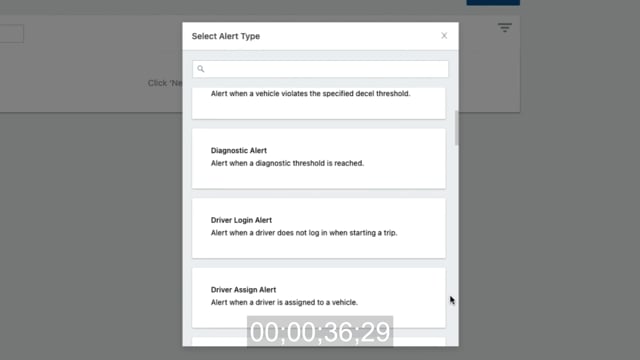
- Use the scroll bar or the search field to find the alert you would like to create, then hover your mouse over the alert and click Select.
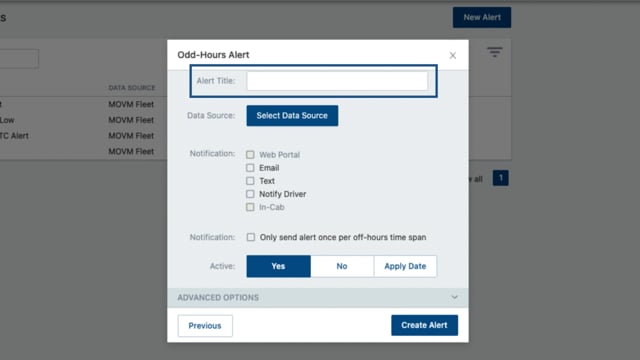
- Enter your alert title.
A Best Practice is to have your title be specific and concise to the data you are looking to obtain so that you can easily identify and find your title later on. This title will also appear on notifications.
- Click Select Data Source to select the vehicle, vehicle group, or hierarchy that you would like as your source of data.
The Hierarchy feature is available to Enterprise customers only. If you would like to learn more, please contact your Account Manager.
- From the Data Source window, click on the type of data source (vehicle, vehicle group, or hierarchy), and your options for your data source will appear. When you have found your data source, click Select.
The vehicle name, vehicle group, or hierarchy will be visible in the alert notification after the alert title.
- Click the checkbox next to your desired method of notification. If selecting Text or Email, enter email address(es) or SMS number(s) of recipients. Separate multiple addresses and numbers by commas.
If an option is greyed out and the box cannot be checked, then the method of notification is not available to you for the alert.
- Click the Yes, No, or Apply Date button to activate or deactivate the alert.
If you click Apply Date, enter the applicable time window for the alert to be active using the calendar field.
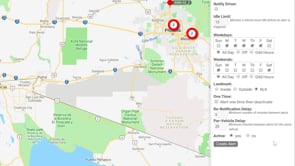
- Select your paramters from the following options:
Depending on the alert type you create, additional configurable parameters vary.
- Input: The input type (e.g., door, PTO, etc.) as defined by your account at the time of device installation and the input state on which to alert (e.g., open/closed, on/off, etc.).
- Input Status (Assets Input): The state on which to alert (Open or Closed).
- Is Moving (Assets Input):Indicate whether alert should trigger only when asset is moving or not.
- Idle Limit: Minutes a vehicle must idle before an alert is triggered.
- Active Weekdays: Check the boxes next to the days the alert is in effect. Use the drop-downs below weekday selection to set begin and end hours. An option to set different start and end times for some days, such as weekends, is available. The times applied to the alert conditions uses the timezone on the account profile. If you are setting up an alert for vehicles that generally reside in a different timezone than you, consider adjusting the start and end time values according to the vehicles against which this alert is applied.
- Landmark:The landmark in which (or outside of which) the alert is in effect. Options include Ignore (the alert will trigger whether inside or outside a landmark), Inside (the alert will only trigger if conditions exist inside the selected landmark or landmark group), or Outside (the alert will only trigger if conditions exist outside the selected landmark). If your account is configured for attributes, you can provide extra information whenever an applicable landmark alert is triggered–like a gate code or a note about a safety concern at the property (e.g., guard dog).
- One Time: Alert one time then deactivate.
- Running: Threshold in minutes since the last reported location.
- Parked: Threshold in days since the last reported location.
- Violation Limit (speed): Threshold in MPH over the posted limit (greater than or equal to). Posted speed violations are calculated using the [glossary slug="inst-speed"]Inst speed[/glossary] value.
- Violation Limit (accel/decel): Threshold in Gs. The DOT defines harsh (not dangerous) braking as .45 g incidents (your average NYC cab driver). Harsh acceleration is typically set at a lower g-force threshold (.35 g incidents).
- Violation Limit (HOS): Threshold in minutes until Hours of Service limit is reached.
- Alert Threshold by Interval Type: Threshold in miles, hours, or days before service is overdue.
- Speed Limit: Threshold in MPH in speed (not related to posted limit). Available options include [glossary slug="inst-speed"]Inst speed[/glossary] or Average.
- Stop Time: Threshold in minutes since the vehicle has been stopped.
- Stop Type: Type of stop for which the alert is in effect. Options include Any (idle and ignition off), Idle (only), or Ignition Off (only).
- Switch Type: Type of power event. Available options include Battery Voltage, External Power Lost, Panic Switch, Power Cycle, and Temperature. Power Lost indicates when a device may have been unplugged/unwired (relies on backup battery). Power Cycle indicates when all power is lost and regained. If the device has a backup battery, the alert will trigger only if all power (including backup battery) had been lost prior to regaining power.
- Diagnostic Type: Type of diagnostic (Temperature Sensor, Coolant Temperature, Engine Speed).
- Threshold (Diagnostic Type): Threshold for Diagnostic Type (see above).
- Active: Indicate whether the alert is active. Options include Yes, No, or Apply Date.
- Repeat Delay: The minimum number of minutes between notifications for this alert. This option allows you to limit the frequency with which you receive alerts—especially for alerts that apply to a large group of vehicles. For example, if the Repeat Delay is set to 5 minutes, you will receive notifications no more than every 5 minutes. Any alerts that have accumulated during that time will be sent to you at once.
- Per Vehicle Delay:The minimum number of minutes between alerts for the same vehicle. This option allows you to limit the frequency with which you receive alerts per vehicle. For example, if you have one vehicle in a group that is constantly going in and out of a landmark, you may only want to receive a notification every 20 minutes whenever alert conditions are met for that vehicle instead of each time the vehicle triggers the alert.
- Ignition Status:Indicate whether alert triggers only under certain ignition status. Available options include On (alert only triggers when ignition status is read as ON), Off (alert only triggers when ignition status is read as OFF), or Both (alert triggers regardless of ignition status).
- Notification: Check the box if you would like to receive notification of the alert only once (if triggered) during off-hours time windows.
- Time Limit: Threshold in minutes after the vehicle starts without driver logging in.
- Lamp On (DTC): Use checkbox to indicate if the alert should only trigger if the Check Engine light is on.
- HOS Account: Select your HOS account (if applicable) under which drivers are submitting DVIRs for this alert.
- DVIR Status: Alert triggers only when DVIRs deem the vehicle Not Safe or are not completed.
- Idle Limit: Threshold in minutes a vehicle must be idling before the alert is triggered.
- True Idle: Check the box to exclude PTO time from idle time for the alert threshold.
- Landmark/Group: Choose the landmark or landmark group that will trigger the alert.
- Alert When (Landmark): Choose the alert to trigger when a vehicle enters, leaves, or either enters or leaves the selected landmark or landmark group.
- Sustained Speeding Only (Posted Speed): Indicate if the alert should only trigger when the vehicle's speeding is sustained and choose the time the speed must be sustained over to trigger the alert.
- Adjust additional alert settings as needed, and click Create Alert.
The new alert will be listed in the Manage Alerts grid, which includes the details of the alert.
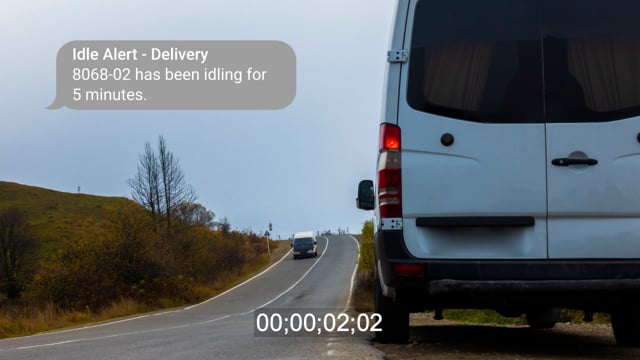
The next time any vehicle(s) in the Delivery group trigger this alert according to the odd hours set (using the account's timezone), the specified recipient will receive the following notifications (email and SMS):
If a message was sent to the driver, the the time the alert violation occurred will be converted to the driver's timezone (if set in driver's profile).
Allow 'alerts@[provider].com' to ensure you receive email alerts. Reply 'STOP' to stop receiving future SMS messages.
More reference materials:
[post_title] => Creating an Alert
[post_excerpt] =>
[post_status] => publish
[comment_status] => closed
[ping_status] => closed
[post_password] =>
[post_name] => creating-an-alert
[to_ping] =>
[pinged] =>
[post_modified] => 2023-01-09 14:27:43
[post_modified_gmt] => 2023-01-09 21:27:43
[post_content_filtered] =>
[post_parent] => 21339
[guid] => https://help.gpsinsight.com/?post_type=documentation&p=21365
[menu_order] => 1
[post_type] => documentation
[post_mime_type] =>
[comment_count] => 0
[filter] => raw
)
[2] => WP_Post Object
(
[ID] => 21369
[post_author] => 12
[post_date] => 2020-11-04 10:14:00
[post_date_gmt] => 2020-11-04 17:14:00
[post_content] => You can edit alert details, inactivate alerts, or delete alerts. Adjusting alert configurations can help you if you are getting too many alerts, not receiving alerts, etc. In addition, you can filter your alerts to help you find an alert easier.
Filtering the Alert List
If your alert list is long, you can use filter options to isolate a subset of alerts.
How to filter the alert list:
-
- From the Alerts page, click on the Filter button (
) in the right-hand corner.
- Choose from the following filter options:
- Alert Type: Show only alerts that are of a certain type.
- Data Source: Show alerts that are monitoring a specific vehicle, vehicle group, or hierarchy.
- Notification Recipient (SMS or Email): Show only alerts that are specific to the recipient.
- Alert Status : Show only alerts that are active, inactive, or both.
- Exit out of the pop-up window by clicking the Close button (X).
The alert list shows only the alerts that match your filter criteria.
Editing Alerts
After you edit an alert, the alert will trigger the next time the conditions are met.
How to edit an alert:
-
- From the Alerts page, find the alert you would like to edit by using the Search field and entering the title of your alert or by tabbing through the pages of your created alerts after filtering the .
- Hover your mouse over the alert, click the ellipses button then click Edit.
A pop-up window of the alert displays.
-
- Make your edits in the alert window.
- Click Save.
The alert is updated with your edits.
Inactivating Alerts
If an alert is not needed temporarily, you can inactivate it. Inactivating an alert keeps the settings and prevents you from having to recreate the alert if you ever have the need for it again.
How to inactivate an alert:
- From the Alerts page, locate the alert you would like to put in inactive status and hover your mouse over the alert.
- Click the ellipses button on the right (
).
- Click Edit.
- Click the No button next to "Active:".
- Click Save.
Delete an Alert
If an alert is no longer needed and will not be needed for the future, you can delete. Deleting an alert permanently removes the settings.
If there is a possibility that you may need an alert in the future, we recommend changing the status of the alert to Inactive (see Inactivating an Alert above).
How to delete an alert:
-
- From the Alerts page, locate the alert you would like to put in inactive status and hover your mouse over the alert.
- Hover over the alert you want to edit, and click the ellipses button on the right (
).
- Click Delete from the dropdown menu.
A pop-up window appears asking: "Are you sure you want to delete this alert?"
-
-
- Click Delete.
[post_title] => Editing or Deleting an Alert
[post_excerpt] =>
[post_status] => publish
[comment_status] => closed
[ping_status] => closed
[post_password] =>
[post_name] => editing-or-deleting-an-alert
[to_ping] =>
[pinged] =>
[post_modified] => 2023-01-03 09:32:09
[post_modified_gmt] => 2023-01-03 16:32:09
[post_content_filtered] =>
[post_parent] => 21339
[guid] => https://help.gpsinsight.com/?post_type=documentation&p=21369
[menu_order] => 2
[post_type] => documentation
[post_mime_type] =>
[comment_count] => 0
[filter] => raw
)
)
[post_count] => 3
[current_post] => -1
[before_loop] => 1
[in_the_loop] =>
[post] => WP_Post Object
(
[ID] => 21339
[post_author] => 12
[post_date] => 2020-11-03 14:48:32
[post_date_gmt] => 2020-11-03 21:48:32
[post_content] => You can create and manage alerts from the Alerts page of the Portal. In addition, you can view alert details (e.g., data source, selected options, active or inactive status, etc.) at a glance, filter displayed alerts, download a .csv file, and search for a previously created alert by title.
If you are a Basic, Standard, Enterprise, or Advanced Administration user looking for information on using Alerts from the Legacy (Classic) Portal, please see Classic Portal – About Alerts.
Filtering the Alerts Page
You can filter the alerts page by Alert Type, Data Source (Assets, Vehicles, Vehicle Groups, Vehicle Hierarchies), and/or Alert Status (Active, Conditionally Active, Inactive). You may also use the Search field to search for a specific alert.
To clear filters, use the close button (x) next to the All Filters drop-down. You may also undo a filtering action by clicking the Undo button.
Alert Types
There are 25+ configurable alert types available. Please view the following list of alert types and corresponding descriptions and use cases in the table below.
Reports applicable only to Enterprise customers have been indicated below accordingly.
[et colwidth="25%|75%" class="table-zebra"]
Alert Type,Description
"Accel (Enterprise only),Alert when a vehicle violates the specified accel threshold (in [glossary slug="g-force"]g-force[/glossary] or Gs). The default threshold is set at .50 Gs. This alert requires device to be installed with bracket/frame hardware and high-bond tape to avoid inaccurate readings (due to whip effect).~~~~Example: Truck 150 just accelerated at .70 gs\, which could indicate aggressive driving. Alert the fleet manager to schedule driver coaching."
"Asset Inputs (Enterprise only),Alert when an asset's input changes status.~~~~Example: Company XYZ equips its generators with lights. Alert the fleet manager\, whenever the asset's light is activated."
"Braking (Decel) (Enterprise only),Alert when a vehicle violates the specified decel threshold in ([glossary slug="g-force"]g-force[/glossary] or Gs). The default threshold is set at .50 Gs. This alert requires device to be installed with bracket/frame hardware and high-bond tape to avoid inaccurate readings (due to whip effect).~~~~Example: Truck 150 just decelerated at .70 gs\, which could indicate aggressive driving. Alert the fleet manager to schedule driver coaching."
"Diagnostic,Alert when a specific threshold is passed (either greater or lower). Specify a Diagnostic Type: Temperature\, Coolant Temperature\, Engine Speed\, Low Internal Battery (TT-600s/BeMini - 20% default)\, Low Battery (All-in-One - 11.9V default)\, or Low Fuel Level (percentage). The system does not check for alert conditions when the ignition is turned off. Temperatures reported are those provided by the sensor at the time of the update.~~~~Example: Company XYZ transports cargo that must be stored in temperatures below 80 degrees. Alert the Fleet Manager and optionally the driver if the trailer temperature reaches a temperature above the threshold."
[whitelabel tier="gpsi"]Diagnostic - Low Battery (EVs only)[/whitelabel],[whitelabel tier="gpsi"]Alert when a specific threshold is passed (either greater or lower) for Low Battery. This alert is available for EV Fleet Plan customers with EVs equipped with GO9 devices.[/whitelabel]
"Driver Login (Enterprise only),Alert when a driver does not log in when starting a trip.~~~~Example: Truck 150 is on the move\, but the driver did not log in to the vehicle's Driver ID keyfob reader. Either the driver forgot or the vehicle could be subject to unauthorized use (possible theft). Alert the fleet manager after 2 minutes\, and optionally send the driver a login reminder message."
"Driver Assign (Enterprise only),Alert when a driver has successfully been assigned to a vehicle via Driver ID key fob or another method. (Buzzer or light in-cab notification of successful login requires additional equipment and installation.)~~~~Example: The driver of Truck 150 just logged into the vehicle using the keyfob reader. Using SMS\, a Buzzer\, or Light (if installed)\, alert the fleet manager and/or driver that his login was successful."
"DTC,Alert on Diagnostic Trouble Codes for supported devices*.~~~~Example: The axle for 54 MIKE is below normal operational range according to J1365005BA. Alert the fleet manager to schedule immediate maintenance\, and optionally notify the driver to go to the maintenance lot after his last delivery today."
"DVIR (Enterprise only),Alert when a Driver Vehicle Inspection Report is received with defects. (Requires HOS enabled on your account.)~~~~Example: Bill just noted that his driver-side mirror was missing (high priority) on his DVIR and submitted the report. Alert Bill's immediate supervisor indicating that a DVIR was submitted by Bill\, the defects included\, and the time/date of the defect."
"DVIR Status (Enterprise only),Alert when a vehicle is moving without a DVIR completed or marked unsafe. (Requires HOS enabled on your account.)~~~~Example: Steven has started driving the company vehicle without completing a DVIR. Alert Steven's immediate supervisor that a DVIR has not been submitted on a vehicle that is currently being operated and notify the driver that a DVIR must be submitted."
"Heartbeat,Alert when a heartbeat is received (usually once a day).~~~~Example: Company XYZ tracks its assets (yellow iron) but does not have motion-based reporting. The heartbeat for an excavator that had been sitting on a trailer just occurred outside of their yard (via landmark)\, which alerted the fleet manager that the equipment had been stolen."
"Hours of Service (Enterprise only),Alert before daily hours of service limit is reached. (Only available to accounts with Hours of Service.)~~~~Example: Joe Marks is within 30 minutes of reaching his daily hours of service limit. Alert the fleet manager and the driver to avoid a violation."
"HOS Driver Assign (Enterprise only),Alert when vehicle moves without HOS driver assigned. Device ID and Driver Reference ID must match exactly. (Only available to accounts with Hours of Service.)~~~~Example: A vehicle is moving without a driver signing into the tablet. Alert the vehicle’s fleet manager."
"Idle Time,Alert when a vehicle idles more than the specified limit.~~~~Example: Company XYZ's policy for consecutive idle time is no more than 15 minutes. 51 LINDA has just exceeded the threshold. Alert the fleet manager\, and optionally send the driver a reminder to turn off the vehicle."
"Ignition,Alert when a vehicle turns on or off.~~~~Example: Company XYZ is following vehicle ABC's activity. Alert the fleet manager when vehicle ABC ignition status changes."
"Inputs,Alert when an input changes status. (Inputs are configured at the time of installation.)~~~~Example: Company XYZ equips its vehicles with sirens/lights to be used in the event of an emergency. For oversight purposes\, alert the fleet manager\, whenever the siren/light is activated."
"Jamming,Note: GPS jamming detection has been discontinued for new accounts and existing accounts without active jamming alerts as of 08/2026.~~~~Alert when an active jamming (GPS or Radio) device is detected (Supported Calamp devices only: GPSI-5000\, PNP Series\, AT-3000).~~~~> GPS Jamming: GPS jamming events are reported when the device identifies a jammer blocking its communication with GPS satellites; these alerts will lack a corresponding location\, so it's recommended users refer to the Portal to verify where the device last reported~~~~> Radio Jamming: Radio jamming events are reported when the device identifies a jammer blocking its radio/cellular communications with the local network; these alerts will often be delayed\, where the device is only able to communicate the event AFTER reconnecting to the network~~~~~Example: Company XYZ's vehicle is driving through an area with a high crime rate. For fleet asset safety\, alert the fleet manager if GPS or radio jamming is detected to be on high alert in case of theft."
"Landmark,Alert when a vehicle\, vehicle group\, or asset enters or exits a landmark.~~~~Example: Company XYZ's fleet policy prohibits drivers from making stops to their personal home addresses (uploaded as landmarks) during their shifts. 52 JEFF just entered one of those landmarks during regular business hours. Alert the fleet manager that the vehicle may be subject to unauthorized use\, and optionally send the driver a reminder to return to work."
"Location,Alert of vehicle's location (individual vehicles only\, no groups/hierarchies) at preset timed interval (every 2\, 4\, 8\, 12\, or 24 hours).~~~~Example: Provisions123 is sending a critical delivery/shipment from Montana to Maine in Vehicle1. The Operations Manager is looking for a daily report as to where the delivery/shipment is in its travels so that he can update the recipient and will set up a Locations Alert selecting to receive Vehicle1's location every 24 hours."
"Odd-Hours,Alert on movement within an odd-hours violation window.~~~~Example: Drivers at Company XYZ are not allowed to use company vehicles on weekends or between the hours of 9:00 PM and 4:00 AM. It's Saturday\, and 54 MIKE just reported movement outside the perimeters of the company parking lot. Alert the fleet manager that the vehicle may be subject to unauthorized use\, and optionally remind the driver to return the vehicle."
"Out-of-Range,Alert on vehicles that have not reported for a time.~~~~Example: 53 STACY has been running for 60 minutes without reporting data. 50 BRAD has been parked for 2 days without reporting data. The vehicles could have been subject to tampering or are in locations that are obstructing signal. Alert the fleet manager\, and optionally remind the driver to check for physical obstructions within the cab itself."
"Posted Speed Alert,Alert on vehicles violating posted speed limits. Posted speeds are based on available speed limit information. This data does not include temporary speed reductions such as construction or school zones. Posted speed violations are calculated using the [tooltip type="link" link="#" target="_self" tooltip="The last speed value sampled during a device's report interval. For example\, if a device's report interval is 2 minutes\, the Instantaneous speed is the last data point obtained of the 480 data points collected during the update period (4 times per second x 2 minutes)." style="top" ]Inst speed[/tooltip] value.~~~~Example: Company XYZ's policy for speeding violation limit is 10 miles over posted speed. 51 LINDA has just exceeded the threshold (89 MPH in a posted 75 MPH zone). Alert the fleet manager\, and optionally remind the driver to slow down**."
"Service Reminders,Alert when a scheduled service is approaching or overdue. Users can target alerts to a specific service type instead of all services on a vehicle.~~~~Example: 53 STACY has a service schedule defined for oil changes every 3\,000 miles. The truck's odometer just reached a threshold of 500 miles before service is due. Alert the fleet manager\, and optionally remind the driver to schedule maintenance."
"Speeding,Alert when a vehicle violates a specified speed limit.~~~~Example: Company XYZ's policy for speed is 75 MPH (regardless of zone). 54 MIKE just reported speed of 80 MPH. Alert the fleet manager\, and optionally remind the driver to slow down*."
"Stop/Idle,Alert on a stop or idle longer than a specific duration.~~~~Company XYZ's delivery stops are targeted to take between 15-20 minutes. 51 LINDA recently made a stop\, and the ignition has now been off for 60 minutes. Alert the fleet manager\, and optionally remind the driver to get back on schedule."
"Switch,Alert on device switches. Available switch types include Battery Voltage\, External Power Lost\, Panic Switch\, Power Cycle\, and Temperature. Low Battery Voltage occurs when a vehicle's battery is below 11.9 volts for 30 minutes or more. External Power Lost indicates when a device may have been unplugged/unwired (relies on backup battery). Power Cycle indicates when all power is lost and regained. If the device has a backup battery\, the alert will trigger only if all power (including backup battery) had been lost prior to regaining power.~~~~Note: Temperature threshold must be programmed by Support (for supported devices only). Battery Voltage is available for supported devices and is available to Fleet Essentials and Pro customers (if you would like to learn more\, please contact your Account Manager).~~~~Example 1: Truck 150 just reported the panic switch has been turned on. Alert the fleet manager\, and optionally send the driver a message to indicate that the alert has been received or will be acted upon according to company protocol (e.g.\, potential safety issue). Example 2: 52 JEFF just reported a loss of external power\, which indicates the device is now relying on battery power. Alert the fleet manager that a device has been disconnected\, and optionally send the driver a message to indicate that the alert has been received or will be acted upon according to company protocol."
"Towing (Enterprise only),Alert when vehicle moves and ignition is off. This alert is currently supported on GPSI-5000\, ELD-2000D\, and AT-3000 devices (PNP support anticipated Q3 2020).~~~~Example: Company XYZ has several mowers in various locations throughout the city. The Fleet Manager wants to be notified when any of these assets are moving without ignition (i.e.\, towing stolen\, etc.)."[/et]
*Diagnostic data is an additional paid feature for vehicles equipped with PNP devices. Available diagnostic data varies by vehicle make/model. Data may include engine speed, fuel level, fuel level remaining, fuel rate, odometer, seatbelt, and more.
**If you plan to notify drivers when alerts are triggered (e.g., whenever a speeding violation occurs), consider asking drivers to assign messages from 477-477 (GPSGPS) to a unique ring/SMS tone. When drivers hear this tone, they can know immediately that they've triggered a violation without having to look at their mobile devices.
While Alerts are highly accurate, they are optimized for real-time situations as subscribed. Due to occasional cellular network or processing delays, very occasionally alerts will miss an event and should not be considered a reliable substitute for regularly scheduled reports on the same situation of interest. For this reason, we suggest customers also utilize scheduled reports whenever a potentially missed alert would cause difficulty for any reason.
[post_title] => About the Alerts Page
[post_excerpt] =>
[post_status] => publish
[comment_status] => closed
[ping_status] => closed
[post_password] =>
[post_name] => about-the-alerts-page
[to_ping] =>
[pinged] =>
[post_modified] => 2026-09-03 06:51:16
[post_modified_gmt] => 2026-09-03 13:51:16
[post_content_filtered] =>
[post_parent] => 0
[guid] => https://help.gpsinsight.com/?post_type=documentation&p=21339
[menu_order] => 1
[post_type] => documentation
[post_mime_type] =>
[comment_count] => 0
[filter] => raw
)
[comment_count] => 0
[current_comment] => -1
[found_posts] => 3
[max_num_pages] => 1
[max_num_comment_pages] => 0
[is_single] =>
[is_preview] =>
[is_page] =>
[is_archive] => 1
[is_date] =>
[is_year] =>
[is_month] =>
[is_day] =>
[is_time] =>
[is_author] =>
[is_category] =>
[is_tag] =>
[is_tax] => 1
[is_search] =>
[is_feed] =>
[is_comment_feed] =>
[is_trackback] =>
[is_home] =>
[is_privacy_policy] =>
[is_404] =>
[is_embed] =>
[is_paged] =>
[is_admin] =>
[is_attachment] =>
[is_singular] =>
[is_robots] =>
[is_favicon] =>
[is_sitemap] =>
[is_posts_page] =>
[is_post_type_archive] => 1
[query_vars_hash:WP_Query:private] => 1aecd799e654f46971cc632705ae0974
[query_vars_changed:WP_Query:private] => 1
[thumbnails_cached] =>
[allow_query_attachment_by_filename:protected] =>
[stopwords:WP_Query:private] =>
[compat_fields:WP_Query:private] => Array
(
[0] => query_vars_hash
[1] => query_vars_changed
)
[compat_methods:WP_Query:private] => Array
(
[0] => init_query_flags
[1] => parse_tax_query
)
[query_cache_key:WP_Query:private] => wp_query:fd27e943e19d6d1eae6b01e0d8c69acb
)
[children] => Array
(
)
[term] => WP_Term Object
(
[term_id] => 14
[name] => Alerts
[slug] => alerts
[term_group] => 0
[term_taxonomy_id] => 14
[taxonomy] => feature
[description] => Alerts provide real-time notification for driver and vehicle activity. You can set up notification to be sent to one or more email addresses or SMS numbers each time an alert is triggered.
[parent] => 0
[count] => 17
[filter] => raw
[term_order] => 11
[cat_ID] => 14
[category_count] => 17
[category_description] => Alerts provide real-time notification for driver and vehicle activity. You can set up notification to be sent to one or more email addresses or SMS numbers each time an alert is triggered.
[cat_name] => Alerts
[category_nicename] => alerts
[category_parent] => 0
)
[post_count] => 3
)
)
[video] => Array
(
[14] => Array
(
[posts] => WP_Query Object
(
[query] => Array
(
[orderby] => title
[order] => ASC
[post_type] => video
[posts_per_page] => 999
[tax_query] => Array
(
[0] => Array
(
[taxonomy] => feature
[field] => term_id
[terms] => 14
[include_children] => 1
)
[1] => Array
(
[taxonomy] => solution
[field] => term_id
[terms] => 12
)
[relation] => AND
[2] => Array
(
[taxonomy] => product
[field] => term_id
[terms] => 585
)
)
[meta_query] => Array
(
[0] => Array
(
[key] => _exclude_whitelabel_default
[compare] => NOT EXISTS
)
)
)
[query_vars] => Array
(
[orderby] => title
[order] => ASC
[post_type] => video
[posts_per_page] => 999
[tax_query] => Array
(
[0] => Array
(
[taxonomy] => feature
[field] => term_id
[terms] => 14
[include_children] => 1
)
[1] => Array
(
[taxonomy] => solution
[field] => term_id
[terms] => 12
)
[relation] => AND
[2] => Array
(
[taxonomy] => product
[field] => term_id
[terms] => 585
)
)
[meta_query] => Array
(
[0] => Array
(
[key] => _exclude_whitelabel_default
[compare] => NOT EXISTS
)
)
[error] =>
[m] =>
[p] => 0
[post_parent] =>
[subpost] =>
[subpost_id] =>
[attachment] =>
[attachment_id] => 0
[name] =>
[pagename] =>
[page_id] => 0
[second] =>
[minute] =>
[hour] =>
[day] => 0
[monthnum] => 0
[year] => 0
[w] => 0
[category_name] =>
[tag] =>
[cat] =>
[tag_id] =>
[author] =>
[author_name] =>
[feed] =>
[tb] =>
[paged] => 0
[meta_key] =>
[meta_value] =>
[preview] =>
[s] =>
[sentence] =>
[title] =>
[fields] => all
[menu_order] =>
[embed] =>
[category__in] => Array
(
)
[category__not_in] => Array
(
)
[category__and] => Array
(
)
[post__in] => Array
(
)
[post__not_in] => Array
(
[0] => 14750
[1] => 23436
[2] => 27424
[3] => 27817
[4] => 30225
[5] => 31065
[6] => 31175
[7] => 32017
[8] => 32296
[9] => 32565
[10] => 32605
[11] => 32636
[12] => 33723
[13] => 33737
[14] => 33761
[15] => 34344
[16] => 34459
[17] => 34553
[18] => 34586
[19] => 34590
)
[post_name__in] => Array
(
)
[tag__in] => Array
(
)
[tag__not_in] => Array
(
)
[tag__and] => Array
(
)
[tag_slug__in] => Array
(
)
[tag_slug__and] => Array
(
)
[post_parent__in] => Array
(
)
[post_parent__not_in] => Array
(
)
[author__in] => Array
(
)
[author__not_in] => Array
(
)
[search_columns] => Array
(
)
[ignore_sticky_posts] =>
[suppress_filters] =>
[cache_results] => 1
[update_post_term_cache] => 1
[update_menu_item_cache] =>
[lazy_load_term_meta] => 1
[update_post_meta_cache] => 1
[nopaging] =>
[comments_per_page] => 50
[no_found_rows] =>
[taxonomy] => feature
[term_id] => 14
)
[tax_query] => WP_Tax_Query Object
(
[queries] => Array
(
[0] => Array
(
[taxonomy] => feature
[terms] => Array
(
[0] => 14
)
[field] => term_id
[operator] => IN
[include_children] => 1
)
[1] => Array
(
[taxonomy] => solution
[terms] => Array
(
[0] => 12
)
[field] => term_id
[operator] => IN
[include_children] => 1
)
[relation] => AND
[2] => Array
(
[taxonomy] => product
[terms] => Array
(
[0] => 585
)
[field] => term_id
[operator] => IN
[include_children] => 1
)
)
[relation] => AND
[table_aliases:protected] => Array
(
[0] => wp_term_relationships
[1] => tt1
[2] => tt2
)
[queried_terms] => Array
(
[feature] => Array
(
[terms] => Array
(
[0] => 14
)
[field] => term_id
)
[solution] => Array
(
[terms] => Array
(
[0] => 12
)
[field] => term_id
)
[product] => Array
(
[terms] => Array
(
[0] => 585
)
[field] => term_id
)
)
[primary_table] => wp_posts
[primary_id_column] => ID
)
[meta_query] => WP_Meta_Query Object
(
[queries] => Array
(
[0] => Array
(
[key] => _exclude_whitelabel_default
[compare] => NOT EXISTS
)
[relation] => OR
)
[relation] => AND
[meta_table] => wp_postmeta
[meta_id_column] => post_id
[primary_table] => wp_posts
[primary_id_column] => ID
[table_aliases:protected] => Array
(
[0] => wp_postmeta
)
[clauses:protected] => Array
(
[wp_postmeta] => Array
(
[key] => _exclude_whitelabel_default
[compare] => NOT EXISTS
[compare_key] => =
[alias] => wp_postmeta
[cast] => CHAR
)
)
[has_or_relation:protected] =>
)
[date_query] =>
[request] => SELECT SQL_CALC_FOUND_ROWS wp_posts.*
FROM wp_posts LEFT JOIN wp_term_relationships ON (wp_posts.ID = wp_term_relationships.object_id) LEFT JOIN wp_term_relationships AS tt1 ON (wp_posts.ID = tt1.object_id) LEFT JOIN wp_term_relationships AS tt2 ON (wp_posts.ID = tt2.object_id) LEFT JOIN wp_postmeta ON ( wp_posts.ID = wp_postmeta.post_id AND wp_postmeta.meta_key = '_exclude_whitelabel_default' )
WHERE 1=1 AND wp_posts.ID NOT IN (14750,23436,27424,27817,30225,31065,31175,32017,32296,32565,32605,32636,33723,33737,33761,34344,34459,34553,34586,34590) AND (
wp_term_relationships.term_taxonomy_id IN (14)
AND
tt1.term_taxonomy_id IN (12)
AND
tt2.term_taxonomy_id IN (585)
) AND (
wp_postmeta.post_id IS NULL
) AND ((wp_posts.post_type = 'video' AND (wp_posts.post_status = 'publish' OR wp_posts.post_status = 'graded' OR wp_posts.post_status = 'not_graded')))
GROUP BY wp_posts.ID
ORDER BY wp_posts.post_title ASC
LIMIT 0, 999
[posts] => Array
(
[0] => WP_Post Object
(
[ID] => 23586
[post_author] => 12
[post_date] => 2021-07-29 07:56:59
[post_date_gmt] => 2021-07-29 14:56:59
[post_content] => In this video, Cainan provides an overview of the Alerts page.
[post_title] => Alerts Overview
[post_excerpt] =>
[post_status] => publish
[comment_status] => closed
[ping_status] => closed
[post_password] =>
[post_name] => alerts-overview
[to_ping] =>
[pinged] =>
[post_modified] => 2021-08-05 14:29:51
[post_modified_gmt] => 2021-08-05 21:29:51
[post_content_filtered] =>
[post_parent] => 0
[guid] => https://help.gpsinsight.com/?post_type=video&p=23586
[menu_order] => 0
[post_type] => video
[post_mime_type] =>
[comment_count] => 0
[filter] => raw
)
[1] => WP_Post Object
(
[ID] => 24659
[post_author] => 12
[post_date] => 2022-03-22 08:54:08
[post_date_gmt] => 2022-03-22 15:54:08
[post_content] => This alert notifies you whenever a vehicle idles for more than a specified time.
[post_title] => Idle Time Alert
[post_excerpt] =>
[post_status] => publish
[comment_status] => closed
[ping_status] => closed
[post_password] =>
[post_name] => idle-time-alert
[to_ping] =>
[pinged] =>
[post_modified] => 2022-03-22 08:54:08
[post_modified_gmt] => 2022-03-22 15:54:08
[post_content_filtered] =>
[post_parent] => 0
[guid] => https://help.gpsinsight.com/?post_type=video&p=24659
[menu_order] => 0
[post_type] => video
[post_mime_type] =>
[comment_count] => 0
[filter] => raw
)
[2] => WP_Post Object
(
[ID] => 30529
[post_author] => 12
[post_date] => 2024-02-20 09:39:15
[post_date_gmt] => 2024-02-20 16:39:15
[post_content] => With this video, you'll learn how to manage alerts from the Alerts page in the Portal.
[post_title] => Managing Alerts
[post_excerpt] =>
[post_status] => publish
[comment_status] => closed
[ping_status] => closed
[post_password] =>
[post_name] => managing-alerts
[to_ping] =>
[pinged] =>
[post_modified] => 2024-02-20 09:39:15
[post_modified_gmt] => 2024-02-20 16:39:15
[post_content_filtered] =>
[post_parent] => 0
[guid] => https://help.gpsinsight.com/?post_type=video&p=30529
[menu_order] => 0
[post_type] => video
[post_mime_type] =>
[comment_count] => 0
[filter] => raw
)
[3] => WP_Post Object
(
[ID] => 24661
[post_author] => 12
[post_date] => 2022-03-22 09:25:23
[post_date_gmt] => 2022-03-22 16:25:23
[post_content] => This alert notifies you whenever a vehicle is moving outside of a specified timeframe.
[post_title] => Odd Hours Alert
[post_excerpt] =>
[post_status] => publish
[comment_status] => closed
[ping_status] => closed
[post_password] =>
[post_name] => odd-hours-alert
[to_ping] =>
[pinged] =>
[post_modified] => 2022-03-22 09:25:23
[post_modified_gmt] => 2022-03-22 16:25:23
[post_content_filtered] =>
[post_parent] => 0
[guid] => https://help.gpsinsight.com/?post_type=video&p=24661
[menu_order] => 0
[post_type] => video
[post_mime_type] =>
[comment_count] => 0
[filter] => raw
)
[4] => WP_Post Object
(
[ID] => 30345
[post_author] => 12
[post_date] => 2024-01-10 10:36:13
[post_date_gmt] => 2024-01-10 17:36:13
[post_content] => With this video, you'll learn how to set up alerts in the Alerts Page in the Portal.
[post_title] => Setting Up Alerts
[post_excerpt] =>
[post_status] => publish
[comment_status] => closed
[ping_status] => closed
[post_password] =>
[post_name] => setting-up-alerts
[to_ping] =>
[pinged] =>
[post_modified] => 2024-02-20 09:35:13
[post_modified_gmt] => 2024-02-20 16:35:13
[post_content_filtered] =>
[post_parent] => 0
[guid] => https://help.gpsinsight.com/?post_type=video&p=30345
[menu_order] => 0
[post_type] => video
[post_mime_type] =>
[comment_count] => 0
[filter] => raw
)
)
[post_count] => 5
[current_post] => -1
[before_loop] => 1
[in_the_loop] =>
[post] => WP_Post Object
(
[ID] => 23586
[post_author] => 12
[post_date] => 2021-07-29 07:56:59
[post_date_gmt] => 2021-07-29 14:56:59
[post_content] => In this video, Cainan provides an overview of the Alerts page.
[post_title] => Alerts Overview
[post_excerpt] =>
[post_status] => publish
[comment_status] => closed
[ping_status] => closed
[post_password] =>
[post_name] => alerts-overview
[to_ping] =>
[pinged] =>
[post_modified] => 2021-08-05 14:29:51
[post_modified_gmt] => 2021-08-05 21:29:51
[post_content_filtered] =>
[post_parent] => 0
[guid] => https://help.gpsinsight.com/?post_type=video&p=23586
[menu_order] => 0
[post_type] => video
[post_mime_type] =>
[comment_count] => 0
[filter] => raw
)
[comment_count] => 0
[current_comment] => -1
[found_posts] => 5
[max_num_pages] => 1
[max_num_comment_pages] => 0
[is_single] =>
[is_preview] =>
[is_page] =>
[is_archive] => 1
[is_date] =>
[is_year] =>
[is_month] =>
[is_day] =>
[is_time] =>
[is_author] =>
[is_category] =>
[is_tag] =>
[is_tax] => 1
[is_search] =>
[is_feed] =>
[is_comment_feed] =>
[is_trackback] =>
[is_home] =>
[is_privacy_policy] =>
[is_404] =>
[is_embed] =>
[is_paged] =>
[is_admin] =>
[is_attachment] =>
[is_singular] =>
[is_robots] =>
[is_favicon] =>
[is_sitemap] =>
[is_posts_page] =>
[is_post_type_archive] => 1
[query_vars_hash:WP_Query:private] => e09404a03a28993800abebd2471d4b9e
[query_vars_changed:WP_Query:private] => 1
[thumbnails_cached] =>
[allow_query_attachment_by_filename:protected] =>
[stopwords:WP_Query:private] =>
[compat_fields:WP_Query:private] => Array
(
[0] => query_vars_hash
[1] => query_vars_changed
)
[compat_methods:WP_Query:private] => Array
(
[0] => init_query_flags
[1] => parse_tax_query
)
[query_cache_key:WP_Query:private] => wp_query:b8d7c84b60a7be110ce4887a7b8a8348
)
[children] => Array
(
)
[term] => WP_Term Object
(
[term_id] => 14
[name] => Alerts
[slug] => alerts
[term_group] => 0
[term_taxonomy_id] => 14
[taxonomy] => feature
[description] => Alerts provide real-time notification for driver and vehicle activity. You can set up notification to be sent to one or more email addresses or SMS numbers each time an alert is triggered.
[parent] => 0
[count] => 17
[filter] => raw
[term_order] => 11
[cat_ID] => 14
[category_count] => 17
[category_description] => Alerts provide real-time notification for driver and vehicle activity. You can set up notification to be sent to one or more email addresses or SMS numbers each time an alert is triggered.
[cat_name] => Alerts
[category_nicename] => alerts
[category_parent] => 0
)
[post_count] => 5
)
)
[bestpractice] => Array
(
)
[deepdive] => Array
(
)
)
)
[Advanced Admin] => Array
(
[Enterprise] => Array
(
[documentation] => Array
(
[14] => Array
(
[posts] => WP_Query Object
(
[query] => Array
(
[orderby] => title
[order] => ASC
[post_type] => documentation
[posts_per_page] => 999
[tax_query] => Array
(
[0] => Array
(
[taxonomy] => feature
[field] => term_id
[terms] => 14
[include_children] => 1
)
[1] => Array
(
[taxonomy] => solution
[field] => term_id
[terms] => 12
)
[relation] => AND
[2] => Array
(
[taxonomy] => product
[field] => term_id
[terms] => 511
)
)
[meta_query] => Array
(
[0] => Array
(
[key] => _exclude_whitelabel_default
[compare] => NOT EXISTS
)
)
)
[query_vars] => Array
(
[orderby] => title
[order] => ASC
[post_type] => documentation
[posts_per_page] => 999
[tax_query] => Array
(
[0] => Array
(
[taxonomy] => feature
[field] => term_id
[terms] => 14
[include_children] => 1
)
[1] => Array
(
[taxonomy] => solution
[field] => term_id
[terms] => 12
)
[relation] => AND
[2] => Array
(
[taxonomy] => product
[field] => term_id
[terms] => 511
)
)
[meta_query] => Array
(
[0] => Array
(
[key] => _exclude_whitelabel_default
[compare] => NOT EXISTS
)
)
[error] =>
[m] =>
[p] => 0
[post_parent] =>
[subpost] =>
[subpost_id] =>
[attachment] =>
[attachment_id] => 0
[name] =>
[pagename] =>
[page_id] => 0
[second] =>
[minute] =>
[hour] =>
[day] => 0
[monthnum] => 0
[year] => 0
[w] => 0
[category_name] =>
[tag] =>
[cat] =>
[tag_id] =>
[author] =>
[author_name] =>
[feed] =>
[tb] =>
[paged] => 0
[meta_key] =>
[meta_value] =>
[preview] =>
[s] =>
[sentence] =>
[title] =>
[fields] => all
[menu_order] =>
[embed] =>
[category__in] => Array
(
)
[category__not_in] => Array
(
)
[category__and] => Array
(
)
[post__in] => Array
(
)
[post__not_in] => Array
(
[0] => 14750
[1] => 23436
[2] => 27424
[3] => 27817
[4] => 30225
[5] => 31065
[6] => 31175
[7] => 32017
[8] => 32296
[9] => 32565
[10] => 32605
[11] => 32636
[12] => 33723
[13] => 33737
[14] => 33761
[15] => 34344
[16] => 34459
[17] => 34553
[18] => 34586
[19] => 34590
)
[post_name__in] => Array
(
)
[tag__in] => Array
(
)
[tag__not_in] => Array
(
)
[tag__and] => Array
(
)
[tag_slug__in] => Array
(
)
[tag_slug__and] => Array
(
)
[post_parent__in] => Array
(
)
[post_parent__not_in] => Array
(
)
[author__in] => Array
(
)
[author__not_in] => Array
(
)
[search_columns] => Array
(
)
[ignore_sticky_posts] =>
[suppress_filters] =>
[cache_results] => 1
[update_post_term_cache] => 1
[update_menu_item_cache] =>
[lazy_load_term_meta] => 1
[update_post_meta_cache] => 1
[nopaging] =>
[comments_per_page] => 50
[no_found_rows] =>
[taxonomy] => feature
[term_id] => 14
)
[tax_query] => WP_Tax_Query Object
(
[queries] => Array
(
[0] => Array
(
[taxonomy] => feature
[terms] => Array
(
[0] => 14
)
[field] => term_id
[operator] => IN
[include_children] => 1
)
[1] => Array
(
[taxonomy] => solution
[terms] => Array
(
[0] => 12
)
[field] => term_id
[operator] => IN
[include_children] => 1
)
[relation] => AND
[2] => Array
(
[taxonomy] => product
[terms] => Array
(
[0] => 511
)
[field] => term_id
[operator] => IN
[include_children] => 1
)
)
[relation] => AND
[table_aliases:protected] => Array
(
[0] => wp_term_relationships
[1] => tt1
[2] => tt2
)
[queried_terms] => Array
(
[feature] => Array
(
[terms] => Array
(
[0] => 14
)
[field] => term_id
)
[solution] => Array
(
[terms] => Array
(
[0] => 12
)
[field] => term_id
)
[product] => Array
(
[terms] => Array
(
[0] => 511
)
[field] => term_id
)
)
[primary_table] => wp_posts
[primary_id_column] => ID
)
[meta_query] => WP_Meta_Query Object
(
[queries] => Array
(
[0] => Array
(
[key] => _exclude_whitelabel_default
[compare] => NOT EXISTS
)
[relation] => OR
)
[relation] => AND
[meta_table] => wp_postmeta
[meta_id_column] => post_id
[primary_table] => wp_posts
[primary_id_column] => ID
[table_aliases:protected] => Array
(
[0] => wp_postmeta
)
[clauses:protected] => Array
(
[wp_postmeta] => Array
(
[key] => _exclude_whitelabel_default
[compare] => NOT EXISTS
[compare_key] => =
[alias] => wp_postmeta
[cast] => CHAR
)
)
[has_or_relation:protected] =>
)
[date_query] =>
[request] => SELECT SQL_CALC_FOUND_ROWS wp_posts.*
FROM wp_posts LEFT JOIN wp_term_relationships ON (wp_posts.ID = wp_term_relationships.object_id) LEFT JOIN wp_term_relationships AS tt1 ON (wp_posts.ID = tt1.object_id) LEFT JOIN wp_term_relationships AS tt2 ON (wp_posts.ID = tt2.object_id) LEFT JOIN wp_postmeta ON ( wp_posts.ID = wp_postmeta.post_id AND wp_postmeta.meta_key = '_exclude_whitelabel_default' )
WHERE 1=1 AND wp_posts.ID NOT IN (14750,23436,27424,27817,30225,31065,31175,32017,32296,32565,32605,32636,33723,33737,33761,34344,34459,34553,34586,34590) AND (
wp_term_relationships.term_taxonomy_id IN (14)
AND
tt1.term_taxonomy_id IN (12)
AND
tt2.term_taxonomy_id IN (511)
) AND (
wp_postmeta.post_id IS NULL
) AND ((wp_posts.post_type = 'documentation' AND (wp_posts.post_status = 'publish' OR wp_posts.post_status = 'graded' OR wp_posts.post_status = 'not_graded')))
GROUP BY wp_posts.ID
ORDER BY wp_posts.post_title ASC
LIMIT 0, 999
[posts] => Array
(
[0] => WP_Post Object
(
[ID] => 943
[post_author] => 12
[post_date] => 2016-01-26 16:57:34
[post_date_gmt] => 2016-01-26 16:57:34
[post_content] => [solution term="basic,standard"]Alerts provide real-time notification for driver and vehicle activity. You can set up an alert to be sent to one or more email addresses or SMS numbers. You can create an unlimited number of alerts for each alert type.
To add an alert:
- From the menu, click Alerts, and then click the alert type you want to configure. (Or try searching for the alert using the Search bar.)
- Choose from the following options:
The following properties are available for all alerts:
- Vehicle: The vehicle[/solution][solution term="standard"]/group[/solution][solution term="basic,standard"] that applies to the alert. The vehicle name [/solution][solution term="standard"]and/or vehicle group (if applicable)[solution term="basic,standard"] will be visible in the email and/or SMS message after the Alert Subject.
- Alert Subject: The subject as it will appear in the email and/or SMS message.
- Addresses: The email address(es) and/or SMS number(s) where this alert will be sent. Separate multiple addresses and numbers by commas. The time stamp for when an alert notification occurs is formatted according to the user's timezone (who set up the alert).
- Notify Driver: Select this box to optionally send a custom message to the vehicle's driver. (You can assign contact information for the vehicle by choosing Edit from the vehicle card.)
Depending on the alert type you create, additional properties vary:
- In-Cab Notify: The in-cab notification method that should activate when the alert is triggered. (Must be installed in vehicle.)
- Input: The input type (e.g., door, PTO, etc.) as defined by your account at the time of device installation and the input state on which to alert (e.g., open/closed, on/off, etc.).
- Idle Limit: Minutes a vehicle must idle before an alert is triggered.
- Weekdays: The days the alert is in effect. Time options include All Day (24 hours), Off (reverts the selected days to indicate when the alert is NOT in effect), or Odd Hours (set time threshold for start and end). The times applied to the alert conditions uses the timezone on the account profile. If you are setting up an alert for vehicles that generally reside in a different timezone than you, consider adjusting the start and end time values according to the vehicles against which this alert is applied.
- Weekends: The days the alert is in effect on weekends. Time options include All Day (24 hours), Off (reverts the selected days to indicate when the alert is NOT in effect), or Odd Hours (set time threshold for start and end). The times applied to the alert conditions uses the timezone on the account profile. If you are setting up an alert for vehicles that generally reside in a different timezone than you, consider adjusting the start and end time values according to the vehicles against which this alert is applied.
- Landmark: The landmark in which (or outside of which) the alert is in effect. Options include Inside (the alert will only trigger if conditions exist inside the selected landmark or landmark group), Outside (the alert will only trigger if conditions exist outside the selected landmark), or N/A (the alert will trigger regardless of vehicle location).
- Running: Threshold in minutes since the last reported location.
- Parked: Threshold in days since the last reported location.
- Violation Limit: Threshold in MPH over the posted limit (greater than or equal to). Posted speed violations are calculated using the [glossary slug="inst-speed"]Inst speed[/glossary] value.
- Alert Threshold: Threshold in miles, hours, or days before service is overdue.
- Speed Limit: Threshold in MPH in speed (not related to posted limit). By default, conditions are based on [glossary slug="inst-speed"]Inst speed[/glossary] sample. This is valuable when you need to deduce that a violation occurred at a fixed time and location (e.g., speeding inside the boundaries of a relatively small landmark).
- Stop Time: Threshold in minutes since the vehicle has been stopped.
- Stop Type: Type of stop for which the alert is in effect. Options include Any (idle and ignition off), Idle (only), or Stop (ignition off only).
- Switch Type: Type of power loss event (Power Lost or Power Cycle). Power Lost indicates when a device may have been unplugged/unwired (relies on backup battery). Power Cycle indicates when all power is lost and regained. If the device has a backup battery, the alert will trigger only if all power (including backup battery) had been lost prior to regaining power.
The following properties are available for all alerts:
- Re-Notification Delay: The minimum number of minutes between notifications for this alert. This option allows you to limit the frequency with which you receive alerts—especially for alerts that apply to a large group of vehicles. For example, if the Re-Notification Delay is set to 5 minutes, you will receive notifications no more than every 5 minutes. Any alerts that have accumulated during that time will be sent to you at once.
- Per-Vehicle Delay: The minimum number of minutes between alerts for the same vehicle. This option allows you to limit the frequency with which you receive alerts per vehicle. For example, if you have one vehicle in a group that is constantly going in and out of a landmark, you may only want to receive a notification every 20 minutes whenever alert conditions are met for that vehicle instead of each time the vehicle triggers the alert.
- Active: Temporarily turn on/off the alert.
- Adjust additional alert settings as needed, and click Create Alert.
The new alert will be listed under the My Alerts tab. The Alert Card indicates the details of the alert, including the number of times the alert has been triggered. When the alert is triggered, the vehicle or vehicle group is included, along with the details of the alert (e.g., date, [glossary slug="timezone"]timezone[/glossary], location, etc.).
Allow 'alerts@[provider].com' to ensure you receive email alerts. Reply 'STOP' to stop receiving future SMS messages.
[/solution][solution term="pro"]Alerts provide real-time notification for driver and vehicle activity. You can set up alerts to be sent to one or more email addresses or SMS numbers. You can create an unlimited number of alerts for each alert type.
Example
Drivers at Company XYZ are not allowed to use delivery vehicles on weekends or between the hours of 9:00 PM and 4:00 AM. XYZ's owner (Bob) wants to his Delivery Manager (Tom Jones) to be notified immediately via email and SMS whenever a violation occurs. XYZ's owner also wants to notify the driver.
To create a new alert:
- From the portal, hover over the Account menu, click Manage Alerts, and click Open.
The Alerts Manager page opens in a new browser tab.
- From the Alerts List grid, click New Alert (green plus sign) next to the alert type you want to create. In the Company XYZ example, we choose the Odd-Hours alert.
- Choose from the following options:
The following properties are available for all alerts:
- Vehicle: The vehicle/group that applies to the alert. The vehicle name and/or vehicle group (if applicable) will be visible in the email and/or SMS message after the Alert Subject. (In the Company XYZ example, we chose the Delivery group.)
- Alert Subject: The subject as it will appear in the email and/or SMS message.
- Addresses: The email address(es) and/or SMS number(s) where this alert will be sent. Separate multiple addresses and numbers by commas. The time stamp for when an alert notification occurs is formatted according to the user's timezone (who set up the alert).
- Notify Driver: Select this box to optionally send a custom message to the vehicle's driver. You can assign contact information for the driver or the vehicle. If a driver is assigned, the system uses the driver's contact info, alert preferences (Email and/or SMS), and timezone (format of the driver's alert time stamp only; driver's timezone is not considered in the alert thresholds). If no driver is assigned or no contact information is available for the assigned driver, the system uses the vehicle's contact info and alert preferences. If you want to notify both the driver and vehicle contact (if different), you must choose to notify the driver and then enter the vehicle contact number separately in the Address box.
(In the Company XYZ example, we added, "Why are you driving?")
- Repeat Delay: The minimum number of minutes between notifications for this alert. This option allows you to limit the frequency with which you receive alerts—especially for alerts that apply to a large group of vehicles. For example, if the Repeat Delay is set to 5 minutes, you will receive notifications no more than every 5 minutes. Any alerts that have accumulated during that time will be sent to you at once.
- Per-Vehicle Delay: The minimum number of minutes between alerts for the same vehicle. This option allows you to limit the frequency with which you receive alerts per vehicle. For example, if you have one vehicle in a group that is constantly going in and out of a landmark, you may only want to receive a notification every 20 minutes whenever alert conditions are met for that vehicle instead of each time the vehicle triggers the alert.
- Active: Temporarily turn on/off the alert.
Depending on the alert type you create, additional properties vary:
- In-Cab Notify: The in-cab notification method that should activate when the alert is triggered. (Must be installed in vehicle.)
- Input: The input type (e.g., door, PTO, etc.) as defined by your account at the time of device installation and the input state on which to alert (e.g., open/closed, on/off, etc.).
- Idle Limit: Minutes a vehicle must idle before an alert is triggered.
- Push to Manager App: Send push notification to the Manager App. Only available for Ignition Alert.
- Weekdays: The days the alert is in effect. Time options include All Day (24 hours), Off (reverts the selected days to indicate when the alert is NOT in effect), or Odd Hours (set time threshold for start and end). The times applied to the alert conditions uses the timezone on the account profile. If you are setting up an alert for vehicles that generally reside in a different timezone than you, consider adjusting the start and end time values according to the vehicles against which this alert is applied. (In the Company XYZ example, we set the After option to 21:00 (i.e., 9:00 PM) and the Before option to 4:00.)
- Weekends: The days the alert is in effect on weekends. Time options include All Day (24 hours), Off (reverts the selected days to indicate when the alert is NOT in effect), or Odd Hours (set time threshold for start and end). The times applied to the alert conditions uses the timezone on the account profile. If you are setting up an alert for vehicles that generally reside in a different timezone than you, consider adjusting the start and end time values according to the vehicles against which this alert is applied.
- Landmark: The landmark in which (or outside of which) the alert is in effect. Options include Inside (the alert will only trigger if conditions exist inside the selected landmark or landmark group), Outside (the alert will only trigger if conditions exist outside the selected landmark), or N/A (the alert will trigger regardless of vehicle location). if your account is configured for attributes, you can provide extra information whenever an applicable landmark alert is triggered–like a gate code or a note about a safety concern at the property (e.g., guard dog).
- One Time: Alert one time then deactivate.
- Running: Threshold in minutes since the last reported location.
- Parked: Threshold in days since the last reported location.
- Violation Limit (speed): Threshold in MPH over the posted limit (greater than or equal to). Posted speed violations are calculated using the [glossary slug="inst-speed"]Inst speed[/glossary] value.
- Violation Limit (accel/decel): Threshold in Gs. The DOT defines harsh (not dangerous) braking as .45 g incidents (your average NYC cab driver). Harsh acceleration is typically set at a lower g-force threshold (.35 g incidents).
- Alert Threshold: Threshold in miles, hours, or days before service is overdue.
- Speed Limit: Threshold in MPH in speed (not related to posted limit). By default, conditions are based on [glossary slug="inst-speed"]Inst speed[/glossary] sample. This is valuable when you need to deduce that a violation occurred at a fixed time and location (e.g., speeding inside the boundaries of a relatively small landmark).
- Stop Time: Threshold in minutes since the vehicle has been stopped.
- Stop Type: Type of stop for which the alert is in effect. Options include Any (idle and ignition off), Idle (only), or Stop (ignition off only).
- Switch Type: Type of power loss event (Power Lost or Power Cycle). Power Lost indicates when a device may have been unplugged/unwired (relies on backup battery). Power Cycle indicates when all power is lost and regained. If the device has a backup battery, the alert will trigger only if all power (including backup battery) had been lost prior to regaining power.
- Diagnostic Type: Type of diagnostic (Temperature Sensor, Coolant Temperature, Engine Speed).
- Threshold: Threshold for Diagnostic Type (see above).
- Adjust additional alert settings as needed, and click Create Alert.

The new alert will be listed in the Active Alerts grid, which includes the details of the alert and the number of times the alert has been triggered.

The next time any vehicle(s) in the Delivery group trigger this alert according to the odd hours Bob set (using Bob's timezone), Tom Jones will receive the following notifications (email and SMS):

If a message was sent to the driver, the the time the alert violation occurred (according to Bob's timezone) will be converted to the driver's timezone (if set in driver's profile).

Allow 'alerts@[provider].com' to ensure you receive email alerts. Reply 'STOP' to stop receiving future SMS messages.
More reference materials:
[/solution][solution term="enterprise"]Alerts provide real-time notification for driver and vehicle activity. You can set up alerts to be sent to one or more email addresses or SMS numbers. You can create an unlimited number of alerts for each alert type.
Example
Drivers at Company XYZ are not allowed to use delivery vehicles on weekends or between the hours of 9:00 PM and 4:00 AM. XYZ's owner (Bob) wants to his Delivery Manager (Tom Jones) to be notified immediately via email and SMS whenever a violation occurs. XYZ's owner also wants to notify the driver.
To create a new alert:
- From the Homepage, click the Alerts card or the Manage Alerts tab.
The Manage Alerts page opens.
- Click New Alert in the top right-hand corner, and select the Alert you want to create. In the Company XYZ example, we choose the Odd-Hours alert.
- Choose from the following options:
The following properties are available for all alerts:
- Vehicle: The vehicle/group that applies to the alert. The vehicle name and/or vehicle group (if applicable) will be visible in the email and/or SMS message after the Alert Subject. (In the Company XYZ example, we chose the Delivery group.)
- Alert Subject: The subject as it will appear in the email and/or SMS message.
- Addresses: The email address(es) and/or SMS number(s) where this alert will be sent. Separate multiple addresses and numbers by commas. The time stamp for when an alert notification occurs is formatted according to the user's timezone (who set up the alert). If you select a hierarchy node in the Vehicle option, the Addresses defaults to use an address attribute hierarchy (if available). You can override the hierarchy list from the drop-down.
- Notify Driver: Select this box to optionally send a custom message to the vehicle's driver. You can assign contact information for the driver or the vehicle. If a driver is assigned, the system uses the driver's contact info, alert preferences (Email and/or SMS), and timezone (format of the driver's alert time stamp only; driver's timezone is not considered in the alert thresholds). If no driver is assigned or no contact information is available for the assigned driver, the system uses the vehicle's contact info and alert preferences. If you want to notify both the driver and vehicle contact (if different), you must choose to notify the driver and then enter the vehicle contact number separately in the Address box.
(In the Company XYZ example, we added, "Why are you driving?")
- Repeat Delay: The minimum number of minutes between notifications for this alert. This option allows you to limit the frequency with which you receive alerts—especially for alerts that apply to a large group of vehicles. For example, if the Repeat Delay is set to 5 minutes, you will receive notifications no more than every 5 minutes. Any alerts that have accumulated during that time will be sent to you at once.
- Per-Vehicle Delay: The minimum number of minutes between alerts for the same vehicle. This option allows you to limit the frequency with which you receive alerts per vehicle. For example, if you have one vehicle in a group that is constantly going in and out of a landmark, you may only want to receive a notification every 20 minutes whenever alert conditions are met for that vehicle instead of each time the vehicle triggers the alert.
- Active: Temporarily turn on/off the alert.
Depending on the alert type you create, additional properties vary:
- In-Cab Notify: The in-cab notification method that should activate when the alert is triggered. (Must be installed in vehicle.)
- Input: The input type (e.g., door, PTO, etc.) as defined by your account at the time of device installation and the input state on which to alert (e.g., open/closed, on/off, etc.).
- Idle Limit: Minutes a vehicle must idle before an alert is triggered.
- Push to Manager App: Send push notification to the Manager App. Only available for Ignition Alert.
- Weekdays: The days the alert is in effect. Time options include All Day (24 hours), Off (reverts the selected days to indicate when the alert is NOT in effect), or Odd Hours (set time threshold for start and end). The times applied to the alert conditions uses the timezone on the account profile. If you are setting up an alert for vehicles that generally reside in a different timezone than you, consider adjusting the start and end time values according to the vehicles against which this alert is applied. (In the Company XYZ example, we set the After option to 21:00 (i.e., 9:00 PM) and the Before option to 4:00.)
- Weekends: The days the alert is in effect on weekends. Time options include All Day (24 hours), Off (reverts the selected days to indicate when the alert is NOT in effect), or Odd Hours (set time threshold for start and end). The times applied to the alert conditions uses the timezone on the account profile. If you are setting up an alert for vehicles that generally reside in a different timezone than you, consider adjusting the start and end time values according to the vehicles against which this alert is applied.
- Landmark: The landmark in which (or outside of which) the alert is in effect. Options include Inside (the alert will only trigger if conditions exist inside the selected landmark or landmark group), Outside (the alert will only trigger if conditions exist outside the selected landmark), or N/A (the alert will trigger regardless of vehicle location). if your account is configured for attributes, you can provide extra information whenever an applicable landmark alert is triggered–like a gate code or a note about a safety concern at the property (e.g., guard dog).
- One Time: Alert one time then deactivate.
- Running: Threshold in minutes since the last reported location.
- Parked: Threshold in days since the last reported location.
- Violation Limit (speed): Threshold in MPH over the posted limit (greater than or equal to). Posted speed violations are calculated using the [glossary slug="inst-speed"]Inst speed[/glossary] value.
- Violation Limit (accel/decel): Threshold in Gs. The DOT defines harsh (not dangerous) braking as .45 g incidents (your average NYC cab driver). Harsh acceleration is typically set at a lower g-force threshold (.35 g incidents).
- Alert Threshold: Threshold in miles, hours, or days before service is overdue.
- Speed Limit: Threshold in MPH in speed (not related to posted limit). By default, conditions are based on [glossary slug="inst-speed"]Inst speed[/glossary] sample. This is valuable when you need to deduce that a violation occurred at a fixed time and location (e.g., speeding inside the boundaries of a relatively small landmark).
- Stop Time: Threshold in minutes since the vehicle has been stopped.
- Stop Type: Type of stop for which the alert is in effect. Options include Any (idle and ignition off), Idle (only), or Stop (ignition off only).
- Switch Type: Type of power loss event (Power Lost or Power Cycle). Power Lost indicates when a device may have been unplugged/unwired (relies on backup battery). Power Cycle indicates when all power is lost and regained. If the device has a backup battery, the alert will trigger only if all power (including backup battery) had been lost prior to regaining power.
- Diagnostic Type: Type of diagnostic (Temperature Sensor, Coolant Temperature, Engine Speed).
- Threshold: Threshold for Diagnostic Type (see above).
- Adjust additional alert settings as needed, and click Create Alert.
[row]
[column lg="6" md="12" sm="12" xs="12" ]
[/column]
[column lg="6" md="12" sm="12" xs="12" ]
[/column]
[/row]
The new alert will be listed in the Manage Alerts grid, which includes the details of the alert.

The next time any vehicle(s) in the Delivery group trigger this alert according to the odd hours Bob set (using Bob's timezone), Tom Jones will receive the following notifications (email and SMS):

If a message was sent to the driver, the the time the alert violation occurred (according to Bob's timezone) will be converted to the driver's timezone (if set in driver's profile).

Allow 'alerts@[provider].com' to ensure you receive email alerts. Reply 'STOP' to stop receiving future SMS messages.
More reference materials:
[/solution]
[post_title] => Adding an Alert
[post_excerpt] => Alerts provide real-time notification for driver and vehicle activity.
[post_status] => publish
[comment_status] => closed
[ping_status] => closed
[post_password] =>
[post_name] => adding-an-alert
[to_ping] =>
[pinged] =>
[post_modified] => 2020-10-15 13:44:34
[post_modified_gmt] => 2020-10-15 20:44:34
[post_content_filtered] =>
[post_parent] => 942
[guid] => http://gpsihelp.wpengine.com/?post_type=documentation&p=943
[menu_order] => 1
[post_type] => documentation
[post_mime_type] =>
[comment_count] => 0
[filter] => raw
)
[1] => WP_Post Object
(
[ID] => 942
[post_author] => 12
[post_date] => 2016-01-26 16:56:57
[post_date_gmt] => 2016-01-26 16:56:57
[post_content] => Check the table below to learn about different alert types. If you're not getting alerts, or you're getting too many alerts, check out Editing an Alert.
[solution term="basic"]Click the Alerts menu item to open the Alerts tab. All alert types that are available are listed on this tab. If you want to see alerts that you've already configured, click the My Alerts tab.
[et class="table-zebra" colwidth="25%|75%"]
Alert Type Alert,Description
Accel Alert,Alert when a vehicle violates the specified accel threshold (in [glossary slug="g-force"]g-force[/glossary] or Gs). The default threshold is set at .50 Gs. This alert requires device to be installed with bracket/frame hardware and high-bond tape to avoid inaccurate readings (due to whip effect).~~~~Example: Truck 150 just accelerated at .70 gs\, which could indicate aggressive driving. Alert the fleet manager to schedule driver coaching.
Decel Alert,Alert when a vehicle violates the specified decel threshold in ([glossary slug="g-force"]g-force[/glossary] or Gs). The default threshold is set at .50 Gs. This alert requires device to be installed with bracket/frame hardware and high-bond tape to avoid inaccurate readings (due to whip effect).~~~~Example: Truck 150 just decelerated at .70 gs\, which could indicate aggressive driving. Alert the fleet manager to schedule driver coaching.
Heartbeat Alert,Alert when a heartbeat is received (usually once a day).~~~~Example: Company XYZ tracks its assets (yellow iron) but does not have motion-based reporting. The heartbeat for an excavator that had been sitting on a trailer just occurred outside of their yard (via landmark)\, which alerted the fleet manager that the equipment had been stolen.
Idle Time Alert,Alert when a vehicle idles more than the specified limit.~~~~Example: Company XYZ's policy for consecutive idle time is no more than 15 minutes. 51 LINDA has just exceeded the threshold. Alert the fleet manager\, and optionally send the driver a reminder to turn off the vehicle.
Ignition Alert,Alert when a vehicle turns on or off.~~~~Example: Company XYZ is following vehicle ABC's activity. Alert the fleet manager when vehicle ABC ignition status changes.
Landmark Alert,Alert when a vehicle enters or exits a landmark.~~~~Example: Company XYZ's fleet policy prohibits drivers from making stops to their personal home addresses (uploaded as landmarks) during their shifts. 52 JEFF just entered one of those landmarks during regular business hours. Alert the fleet manager that the vehicle may be subject to unauthorized use\, and optionally send the driver a reminder to return to work.~~~~Alerts are only generated for Landmarks with an area smaller than 10\,000 square feet. Landmarks exceeding this size will be excluded from alert generation. Please review your Landmark sizes to ensure critical locations are within the alerting threshold.
Odd-Hours Alert,Alert on movement within an odd-hours violation window.~~~~Example: Drivers at Company XYZ are not allowed to use company vehicles on weekends or between the hours of 9:00 PM and 4:00 AM. It's Saturday\, and 54 MIKE just reported movement outside the perimeters of the company parking lot. Alert the fleet manager that the vehicle may be subject to unauthorized use\, and optionally remind the driver to return the vehicle.
Out-of-Range Alert,Alert on vehicles that have not reported for a time.~~~~Example: 53 STACY has been running for 60 minutes without reporting data. 50 BRAD has been parked for 2 days without reporting data. The vehicles could have been subject to tampering or are in locations that are obstructing signal. Alert the fleet manager\, and optionally remind the driver to check for physical obstructions within the cab itself.
Posted Speed Alert,Alert on vehicles violating posted speed limits. Posted speeds are based on available speed limit information. This data does not include temporary speed reductions such as construction or school zones. Posted speed violations are calculated using the [tooltip type="link" link="#" target="_self" tooltip="The last speed value sampled during a device's report interval. For example\, if a device's report interval is 2 minutes\, the Instantaneous speed is the last data point obtained of the 480 data points collected during the update period (4 times per second x 2 minutes)." style="top" ]Inst speed[/tooltip] value.~~~~Example: Company XYZ's policy for speeding violation limit is 10 miles over posted speed. 51 LINDA has just exceeded the threshold (89 MPH in a posted 75 MPH zone). Alert the fleet manager\, and optionally remind the driver to slow down**.
Service Reminders Alert,Alert when scheduled service is close or overdue.~~Example: 53 STACY has a service schedule defined for oil changes every 3\,000 miles. The truck's odometer just reached a threshold of 500 miles before service is due. Alert the fleet manager\, and optionally remind the driver to schedule maintenance.
Speeding Alert,Alert when a vehicle violates a specified speed limit.~~~~Example: Company XYZ's policy for speed is 75 MPH (regardless of zone). 54 MIKE just reported a speed of 80 MPH. Alert the fleet manager\, and optionally remind the driver to slow down*.
Stop/Idle Alert,Alert on a stop or idle longer than a specific duration.~~~~Company XYZ's delivery stops are targeted to take between 15-20 minutes. 51 LINDA recently made a stop\, and the ignition has now been off for 60 minutes. Alert the fleet manager\, and optionally remind the driver to get back on schedule.
Towing Alert,Alert when vehicle moves and ignition is off. This alert is currently supported on GPSI-5000\, ELD-2000D\, and AT-3000 devices (PNP support anticipated Q3 2020).~~~~Example: Company XYZ has several mowers in various locations throughout the city. The Fleet Manager wants to be notified when any of these assets are moving without ignition (i.e.\, towing stolen\, etc.).
[/et]
**If you plan to notify drivers when alerts are triggered (e.g., whenever a speeding violation occurs), consider asking drivers to assign messages from 477-477 (GPSGPS) to a unique ring/SMS tone. When drivers hear this tone, they can know immediately that they've triggered a violation without having to look at their mobile devices.
While Alerts are highly accurate, they are optimized for real-time situations as subscribed. Due to occasional cellular network or processing delays, very occasionally alerts will miss an event and should not be considered a reliable substitute for regularly scheduled reports on the same situation of interest. For this reason, we suggest customers also utilize scheduled reports whenever a potentially missed alert would cause difficulty for any reason.
Idle Time and Service Reminder alerts require GPS Insight Hardware.
[/solution][solution term="standard"][solution term="standard"]Click the Alerts menu item to open the Alerts tab. All alert types that are available are listed on this tab. If you want to see alerts that you've already configured, click the My Alerts tab.
[et class="table-zebra" colwidth="25%|75%"]
Alert Type,Description
Accel Alert,Alert when a vehicle violates the specified accel threshold (in [glossary slug="g-force"]g-force[/glossary] or Gs). The default threshold is set at .50 Gs. This alert requires device to be installed with bracket/frame hardware and high-bond tape to avoid inaccurate readings (due to whip effect).~~~~Example: Truck 150 just accelerated at .70 gs\, which could indicate aggressive driving. Alert the fleet manager to schedule driver coaching.
Asset Inputs Alert,Alert when an asset's input changes status.~~~~Example: Company XYZ equips its generators with lights. Alert the fleet manager\, whenever the asset's light is activated.
Decel Alert,Alert when a vehicle violates the specified decel threshold in ([glossary slug="g-force"]g-force[/glossary] or Gs). The default threshold is set at .50 Gs. This alert requires device to be installed with bracket/frame hardware and high-bond tape to avoid inaccurate readings (due to whip effect).~~~~Example: Truck 150 just decelerated at .70 gs\, which could indicate aggressive driving. Alert the fleet manager to schedule driver coaching.
Diagnostic Alert,Alert when a specific threshold is passed (either greater or lower). Specify a Diagnostic Type: Temperature\, Coolant Temperature\, Engine Speed or Battery Voltage. The system does not check for alert conditions when the ignition is turned off. Temperatures reported are those provided by the sensor at the time of the update.~~~~Example: Company XYZ transports cargo that must be stored in temperatures below 80 degrees. Alert the Fleet Manager and optionally the driver if the trailer temperature reaches a temperature above the threshold.~~~~Battery Voltage is available for supported devices and is available to Fleet Essentials and Pro customers (if you would like to learn more\, please contact your Account Manager).
DTC Alert,Alert on Diagnostic Trouble Codes for supported devices*.~~~~Example: The axle for 54 MIKE is below normal operational range according to J1365005BA. Alert the fleet manager to schedule immediate maintenance\, and optionally notify the driver to go to the maintenance lot after his last delivery today.
DVIR Alert,Alert when a Driver Vehicle Inspection Report is received with defects. (Requires HOS enabled on your account.)~~~~Example: Bill just noted that his driver-side mirror was missing (high priority) on his DVIR and submitted the report. Alert Bill's immediate supervisor indicating that a DVIR was submitted by Bill\, the defects included\, and the time/date of the defect.
DVIR Status Alert,Alert when a vehicle is moving without a DVIR completed or marked unsafe. (Requires HOS enabled on your account.)~~~~Example: Steven has started driving the company vehicle without completing a DVIR. Alert Steven's immediate supervisor that a DVIR has not been submitted on a vehicle that is currently being operated and notify the driver that a DVIR must be submitted.
Heartbeat Alert,Alert when a heartbeat is received (usually once a day).~~~~Example: Company XYZ tracks its assets (yellow iron) but does not have motion-based reporting. The heartbeat for an excavator that had been sitting on a trailer just occurred outside of their yard (via landmark)\, which alerted the fleet manager that the equipment had been stolen.
Hours of Service Alert,Alert before daily hours of service limit is reached. (Only available to accounts with Hours of Service.)~~~~Example: Joe Marks is within 30 minutes of reaching his daily hours of service limit. Alert the fleet manager and the driver to avoid a violation.
HOS Driver Assign Alert,Alert when vehicle moves without HOS driver assigned. Device ID and Driver Reference ID must match exactly. (Only available to accounts with Hours of Service.)~~<~~em>Example: A vehicle is moving without a driver signing into the tablet. Alert the vehicle’s fleet manager.
Idle Time Alert,Alert when a vehicle idles more than the specified limit.~~~~Example: Company XYZ's policy for consecutive idle time is no more than 15 minutes. 51 LINDA has just exceeded the threshold. Alert the fleet manager\, and optionally send the driver a reminder to turn off the vehicle.
Ignition Alert,Alert when a vehicle turns on or off.~~~~Example: Company XYZ is following vehicle ABC's activity. Alert the fleet manager when vehicle ABC ignition status changes.
Inputs Alert,Alert when an input changes status. (Inputs are configured at the time of installation.)~~~~Example: Company XYZ equips its vehicles with sirens/lights to be used in the event of an emergency. For oversight purposes\, alert the fleet manager\, whenever the siren/light is activated.
Landmark Alert,Alert when a vehicle enters or exits a landmark.~~~~Example: Company XYZ's fleet policy prohibits drivers from making stops to their personal home addresses (uploaded as landmarks) during their shifts. 52 JEFF just entered one of those landmarks during regular business hours. Alert the fleet manager that the vehicle may be subject to unauthorized use\, and optionally send the driver a reminder to return to work.~~~~Alerts are only generated for Landmarks with an area smaller than 10\,000 square feet. Landmarks exceeding this size will be excluded from alert generation. Please review your Landmark sizes to ensure critical locations are within the alerting threshold.
Odd-Hours Alert,Alert on movement within an odd-hours violation window.~~~~Example: Drivers at Company XYZ are not allowed to use company vehicles on weekends or between the hours of 9:00 PM and 4:00 AM. It's Saturday\, and 54 MIKE just reported movement outside the perimeters of the company parking lot. Alert the fleet manager that the vehicle may be subject to unauthorized use\, and optionally remind the driver to return the vehicle.
Out-of-Range Alert,Alert on vehicles that have not reported for a time.~~~~Example: 53 STACY has been running for 60 minutes without reporting data. 50 BRAD has been parked for 2 days without reporting data. The vehicles could have been subject to tampering or are in locations that are obstructing signal. Alert the fleet manager\, and optionally remind the driver to check for physical obstructions within the cab itself.
Posted Speed Alert,Alert on vehicles violating posted speed limits. Posted speeds are based on available speed limit information. This data does not include temporary speed reductions such as construction or school zones. Posted speed violations are calculated using the [tooltip type="link" link="#" target="_self" tooltip="The last speed value sampled during a device's report interval. For example\, if a device's report interval is 2 minutes\, the Instantaneous speed is the last data point obtained of the 480 data points collected during the update period (4 times per second x 2 minutes)." style="top" ]Inst speed[/tooltip] value.~~~~Example: Company XYZ's policy for speeding violation limit is 10 miles over posted speed. 51 LINDA has just exceeded the threshold (89 MPH in a posted 75 MPH zone). Alert the fleet manager\, and optionally remind the driver to slow down**.
Service Reminders Alert,Alert when scheduled service is close or overdue.~~~~Example: 53 STACY has a service schedule defined for oil changes every 3\,000 miles. The truck's odometer just reached a threshold of 500 miles before service is due. Alert the fleet manager\, and optionally remind the driver to schedule maintenance.
Speeding Alert,Alert when a vehicle violates a specified speed limit.~~~~Example: Company XYZ's policy for speed is 75 MPH (regardless of zone). 54 MIKE just reported a speed of 80 MPH. Alert the fleet manager\, and optionally remind the driver to slow down*.
Stop/Idle Alert,Alert on a stop or idle longer than a specific duration.~~~~Company XYZ's delivery stops are targeted to take between 15-20 minutes. 51 LINDA recently made a stop\, and the ignition has now been off for 60 minutes. Alert the fleet manager\, and optionally remind the driver to get back on schedule.
Tampering Alert,Alert on a power loss event (Power Lost or Power Cycle). Power Lost indicates when a device may have been unplugged/unwired (relies on backup battery). Power Cycle indicates when all power is lost and regained. If the device has a backup battery\, the alert will trigger only if all power (including backup battery) had been lost prior to regaining power.~~~~Example: 52 JEFF just reported a loss of external power\, which indicates the device is now relying on battery power. Alert the fleet manager that a device has been disconnected\, and optionally send the driver a message to indicate that the alert has been received or will be acted upon according to company protocol.
Towing Alert,Alert when vehicle moves and ignition is off. This alert is currently supported on GPSI-5000\, ELD-2000D\, and AT-3000 devices (PNP support anticipated Q3 2020).~~~~Example: Company XYZ has several mowers in various locations throughout the city. The Fleet Manager wants to be notified when any of these assets are moving without ignition (i.e.\, towing stolen\, etc.).[/et]
*Diagnostic data is an additional paid feature for vehicles equipped with supported devices. Available diagnostic data varies by vehicle make/model. Data may include engine speed, fuel level, fuel level remaining, fuel rate, odometer, seatbelt, and more.
**If you plan to notify drivers when alerts are triggered (e.g., whenever a speeding violation occurs), consider asking drivers to assign messages from 477-477 (GPSGPS) to a unique ring/SMS tone. When drivers hear this tone, they can know immediately that they've triggered a violation without having to look at their mobile devices.
While Alerts are highly accurate, they are optimized for real-time situations as subscribed. Due to occasional cellular network or processing delays, very occasionally alerts will miss an event and should not be considered a reliable substitute for regularly scheduled reports on the same situation of interest. For this reason, we suggest customers also utilize scheduled reports whenever a potentially missed alert would cause difficulty for any reason.
[/solution][solution term="enterprise"]Alerts provide real-time notification for driver and vehicle activity. You can set up alerts to be sent to one or more email addresses or SMS numbers, and you can optionally notify the driver with a custom message each time an alert is triggered.
[et class="table-zebra" colwidth="25%|75%"]
Alert Type,Description
Accel Alert,Alert when a vehicle violates the specified accel threshold (in [glossary slug="g-force"]g-force[/glossary] or Gs). The default threshold is set at .50 Gs. This alert requires device to be installed with bracket/frame hardware and high-bond tape to avoid inaccurate readings (due to whip effect).~~~~Example: Truck 150 just accelerated at .70 gs\, which could indicate aggressive driving. Alert the fleet manager to schedule driver coaching.
Asset Inputs Alert,Alert when an asset's input changes status.~~~~Example: Company XYZ equips its generators with lights. Alert the fleet manager\, whenever the asset's light is activated.
Braking (Decel) Alert,Alert when a vehicle violates the specified decel threshold in ([glossary slug="g-force"]g-force[/glossary] or Gs). The default threshold is set at .50 Gs. This alert requires device to be installed with bracket/frame hardware and high-bond tape to avoid inaccurate readings (due to whip effect).~~~~Example: Truck 150 just decelerated at .70 gs\, which could indicate aggressive driving. Alert the fleet manager to schedule driver coaching.
Diagnostic Alert,Alert when a specific threshold is passed (either greater or lower). Specify a Diagnostic Type: Temperature\, Coolant Temperature\, Engine Speed or Battery Voltage. The system does not check for alert conditions when the ignition is turned off. Temperatures reported are those provided by the sensor at the time of the update.~~~~Example: Company XYZ transports cargo that must be stored in temperatures below 80 degrees. Alert the Fleet Manager and optionally the driver if the trailer temperature reaches a temperature above the threshold.~~~~Battery Voltage options are device-specific. These options will only show if you have the following devices: ST-1100 and TT-2200
Driver Assign Alert,Alert when a driver has successfully been assigned to a vehicle via Driver ID key fob or other method. (Buzzer or light in-cab notification of successful login requires additional equipment and installation.)~~~~Example: The driver of Truck 150 just logged into the vehicle using the keyfob reader. Using SMS\, a Buzzer\, or Light (if installed)\, alert the fleet manager and/or driver that his login was successful.
Driver Login Alert,Alert when a driver does not log in when starting a trip. (Requires Driver ID.)~~~~Example: Truck 150 is on the move\, but the driver did not log in to the vehicle's keyfob reader. Either the driver forgot or the vehicle could be subject to unauthorized use (possible theft). Alert the fleet manager after 2 minutes\, and optionally send the driver a login reminder message.
DTC Alert,Alert on Diagnostic Trouble Codes for supported devices*.~~~~Example: The axle for 54 MIKE is below normal operational range according to J1365005BA. Alert the fleet manager to schedule immediate maintenance\, and optionally notify the driver to go to the maintenance lot after his last delivery today.
DVIR Alert,Alert when a Driver Vehicle Inspection Report is received with defects. (Requires HOS enabled on your account.)~~~~Example: Bill just noted that his driver-side mirror was missing (high priority) on his DVIR and submitted the report. Alert Bill's immediate supervisor indicating that a DVIR was submitted by Bill\, the defects included\, and the time/date of the defect.
DVIR Status Alert,Alert when a vehicle is moving without a DVIR completed or marked unsafe. (Requires HOS enabled on your account.)~~~~Example: Steven has started driving the company vehicle without completing a DVIR. Alert Steven's immediate supervisor that a DVIR has not been submitted on a vehicle that is currently being operated and notify the driver that a DVIR must be submitted.
Heartbeat Alert,Alert when a heartbeat is received (usually once a day).~~~~Example: Company XYZ tracks its assets (yellow iron) but does not have motion-based reporting. The heartbeat for an excavator that had been sitting on a trailer just occurred outside of their yard (via landmark)\, which alerted the fleet manager that the equipment had been stolen.
Hours of Service Alert,Alert before daily hours of service limit is reached. (Only available to accounts with Hours of Service.)~~~~Example: Joe Marks is within 30 minutes of reaching his daily hours of service limit. Alert the fleet manager and the driver to avoid a violation.
HOS Driver Assign Alert,Alert when vehicle moves without HOS driver assigned. Device ID and Driver Reference ID must match exactly. (Only available to accounts with Hours of Service.)~~~~Example: A vehicle is moving without a driver signing into the tablet. Alert the vehicle’s fleet manager.
Idle Time Alert,Alert when a vehicle idles more than the specified limit.~~~~Example: Company XYZ's policy for consecutive idle time is no more than 15 minutes. 51 LINDA has just exceeded the threshold. Alert the fleet manager\, and optionally send the driver a reminder to turn off the vehicle.
Ignition Alert,Alert when a vehicle turns on or off.~~~~Example: Company XYZ is following vehicle ABC's activity. Alert the fleet manager when vehicle ABC ignition status changes.
Inputs Alert,Alert when an input changes status. (Inputs are configured at the time of installation.)~~~~Example: Company XYZ equips its vehicles with sirens/lights to be used in the event of an emergency. For oversight purposes\, alert the fleet manager\, whenever the siren/light is activated.
Landmark Alert,Alert when a vehicle enters or exits a landmark.~~~~Example: Company XYZ's fleet policy prohibits drivers from making stops to their personal home addresses (uploaded as landmarks) during their shifts. 52 JEFF just entered one of those landmarks during regular business hours. Alert the fleet manager that the vehicle may be subject to unauthorized use\, and optionally send the driver a reminder to return to work.~~~~Alerts are only generated for Landmarks with an area smaller than 10\,000 square feet. Landmarks exceeding this size will be excluded from alert generation. Please review your Landmark sizes to ensure critical locations are within the alerting threshold.
Odd-Hours Alert,Alert on movement within an odd-hours violation window.~~~~Example: Drivers at Company XYZ are not allowed to use company vehicles on weekends or between the hours of 9:00 PM and 4:00 AM. It's Saturday\, and 54 MIKE just reported movement outside the perimeters of the company parking lot. Alert the fleet manager that the vehicle may be subject to unauthorized use\, and optionally remind the driver to return the vehicle.
Out-of-Range Alert,Alert on vehicles that have not reported for a time.~~~~Example: 53 STACY has been running for 60 minutes without reporting data. 50 BRAD has been parked for 2 days without reporting data. The vehicles could have been subject to tampering or are in locations that are obstructing signal. Alert the fleet manager\, and optionally remind the driver to check for physical obstructions within the cab itself.
Posted Speed Alert,Alert on vehicles violating posted speed limits. Posted speeds are based on available speed limit information. This data does not include temporary speed reductions such as construction or school zones. Posted speed violations are calculated using the [tooltip type="link" link="#" target="_self" tooltip="The last speed value sampled during a device's report interval. For example\, if a device's report interval is 2 minutes\, the Instantaneous speed is the last data point obtained of the 480 data points collected during the update period (4 times per second x 2 minutes)." style="top" ]Inst speed[/tooltip] value.~~~~Example: Company XYZ's policy for speeding violation limit is 10 miles over posted speed. 51 LINDA has just exceeded the threshold (89 MPH in a posted 75 MPH zone). Alert the fleet manager\, and optionally remind the driver to slow down**.
Service Reminders Alert,Alert when scheduled service is close or overdue.~~~~Example: 53 STACY has a service schedule defined for oil changes every 3\,000 miles. The truck's odometer just reached a threshold of 500 miles before service is due. Alert the fleet manager\, and optionally remind the driver to schedule maintenance.
Speeding Alert,Alert when a vehicle violates a specified speed limit.~~~~Example: Company XYZ's policy for speed is 75 MPH (regardless of zone). 54 MIKE just reported a speed of 80 MPH. Alert the fleet manager\, and optionally remind the driver to slow down*.
Stop/Idle Alert,Alert on a stop or idle longer than a specific duration.~~~~Company XYZ's delivery stops are targeted to take between 15-20 minutes. 51 LINDA recently made a stop\, and the ignition has now been off for 60 minutes. Alert the fleet manager\, and optionally remind the driver to get back on schedule.
Switch Alert,Alert on device switches. Available switch types include: Battery Voltage\, External Power Lost\, Panic Switch\, Power Cycle\, and Temperature. Low Battery Voltage occurs when a vehicle's battery is below 11.9 volts for 30 minutes or more. External Power Lost indicates when a device may have been unplugged/unwired (relies on backup battery). Power Cycle indicates when all power is lost and regained. If the device has a backup battery\, the alert will trigger only if all power (including backup battery) had been lost prior to regaining power. Temperature threshold must be programmed by Support (for supported devices only).~~~~Example 1: Truck 150 just reported the panic switch has been turned on. Alert the fleet manager\, and optionally send the driver a message to indicate that the alert has been received or will be acted upon according to company protocol (e.g.\, potential safety issue). Example 2: 52 JEFF just reported a loss of external power\, which indicates the device is now relying on battery power. Alert the fleet manager that a device has been disconnected\, and optionally send the driver a message to indicate that the alert has been received or will be acted upon according to company protocol.
Towing Alert,Alert when vehicle moves and ignition is off. This alert is currently supported on GPSI-5000\, ELD-2000D\, and AT-3000 devices (PNP support anticipated Q3 2020).~~~~Example: Company XYZ has several mowers in various locations throughout the city. The Fleet Manager wants to be notified when any of these assets are moving without ignition (i.e.\, towing stolen\, etc.).[/et]
*Diagnostic data is an additional paid feature for vehicles equipped with PNP devices. Available diagnostic data varies by vehicle make/model. Data may include engine speed, fuel level, fuel level remaining, fuel rate, odometer, seatbelt, and more.
**If you plan to notify drivers when alerts are triggered (e.g., whenever a speeding violation occurs), consider asking drivers to assign messages from 477-477 (GPSGPS) to a unique ring/SMS tone. When drivers hear this tone, they can know immediately that they've triggered a violation without having to look at their mobile devices.
While Alerts are highly accurate, they are optimized for real-time situations as subscribed. Due to occasional cellular network or processing delays, very occasionally alerts will miss an event and should not be considered a reliable substitute for regularly scheduled reports on the same situation of interest. For this reason, we suggest customers also utilize scheduled reports whenever a potentially missed alert would cause difficulty for any reason.
[/solution][solution term="pro"]Alerts provide real-time notification for driver and vehicle activity. You can set up alerts to be sent to one or more email addresses or SMS numbers, and you can optionally notify the driver with a custom message each time an alert is triggered.
Alert Types
[et class="table-zebra" colwidth="25%|75%"]
Alert Type,Description
Accel Alert,Alert when a vehicle violates the specified accel threshold (in [glossary slug="g-force"]g-force[/glossary] or Gs). The default threshold is set at .50 Gs. This alert requires device to be installed with bracket/frame hardware and high-bond tape to avoid inaccurate readings (due to whip effect).~~~~Example: Truck 150 just accelerated at .70 gs\, which could indicate aggressive driving. Alert the fleet manager to schedule driver coaching.
Asset Inputs Alert,Alert when an asset's input changes status.~~~~Example: Company XYZ equips its generators with lights. Alert the fleet manager\, whenever the asset's light is activated.
Decel Alert,Alert when a vehicle violates the specified decel threshold in ([glossary slug="g-force"]g-force[/glossary] or Gs). The default threshold is set at .50 Gs. This alert requires device to be installed with bracket/frame hardware and high-bond tape to avoid inaccurate readings (due to whip effect).~~~~Example: Truck 150 just decelerated at .70 gs\, which could indicate aggressive driving. Alert the fleet manager to schedule driver coaching.
Diagnostic Alert,Alert when a specific threshold is passed (either greater or lower). Specify a Diagnostic Type: Temperature\, Coolant Temperature\, Engine Speed or Battery Voltage. The system does not check for alert conditions when the ignition is turned off. Temperatures reported are those provided by the sensor at the time of the update.~~~~Example: Company XYZ transports cargo that must be stored in temperatures below 80 degrees. Alert the Fleet Manager and optionally the driver if the trailer temperature reaches a temperature above the threshold.~~~~Battery Voltage options are device-specific. These options will only show if you have the following devices: ST-1100 and TT-2200
Driver Assign Alert,Alert when a driver has successfully been assigned to a vehicle via Driver ID key fob or other method. (Buzzer or light in-cab notification of successful login requires additional equipment and installation.)~~~~Example: The driver of Truck 150 just logged into the vehicle using the keyfob reader. Using SMS\, a Buzzer\, or Light (if installed)\, alert the fleet manager and/or driver that his login was successful.
Driver Login Alert,Alert when a driver does not log in when starting a trip. (Requires Driver ID.)~~~~Example: Truck 150 is on the move\, but the driver did not log in to the vehicle's keyfob reader. Either the driver forgot or the vehicle could be subject to unauthorized use (possible theft). Alert the fleet manager after 2 minutes\, and optionally send the driver a login reminder message.
DTC Alert,Alert on Diagnostic Trouble Codes for supported devices*.~~~~Example: The axle for 54 MIKE is below normal operational range according to J1365005BA. Alert the fleet manager to schedule immediate maintenance\, and optionally notify the driver to go to the maintenance lot after his last delivery today.
DVIR Alert,Alert when a Driver Vehicle Inspection Report is received with defects. (Requires HOS enabled on your account.)~~~~Example: Bill just noted that his driver-side mirror was missing (high priority) on his DVIR and submitted the report. Alert Bill's immediate supervisor indicating that a DVIR was submitted by Bill\, the defects included\, and the time/date of the defect.
DVIR Status Alert,Alert when a vehicle is moving without a DVIR completed or marked unsafe. (Requires HOS enabled on your account.)~~~~Example: Steven has started driving the company vehicle without completing a DVIR. Alert Steven's immediate supervisor that a DVIR has not been submitted on a vehicle that is currently being operated and notify the driver that a DVIR must be submitted.
Heartbeat Alert,Alert when a heartbeat is received (usually once a day).~~~~Example: Company XYZ tracks its assets (yellow iron) but does not have motion-based reporting. The heartbeat for an excavator that had been sitting on a trailer just occurred outside of their yard (via landmark)\, which alerted the fleet manager that the equipment had been stolen.
Hours of Service Alert,Alert before daily hours of service limit is reached. (Only available to accounts with Hours of Service.)~~~~Example: Joe Marks is within 30 minutes of reaching his daily hours of service limit. Alert the fleet manager and the driver to avoid a violation.
HOS Driver Assign Alert,Alert when vehicle moves without HOS driver assigned. Device ID and Driver Reference ID must match exactly. (Only available to accounts with Hours of Service.)~~~~Example: A vehicle is moving without a driver signing into the tablet. Alert the vehicle’s fleet manager.
Idle Time Alert,Alert when a vehicle idles more than the specified limit.~~~~Example: Company XYZ's policy for consecutive idle time is no more than 15 minutes. 51 LINDA has just exceeded the threshold. Alert the fleet manager\, and optionally send the driver a reminder to turn off the vehicle.
Ignition Alert,Alert when a vehicle turns on or off.~~~~Example: Company XYZ is following vehicle ABC's activity. Alert the fleet manager when vehicle ABC ignition status changes.
Inputs Alert,Alert when an input changes status. (Inputs are configured at the time of installation.)~~~~Example: Company XYZ equips its vehicles with sirens/lights to be used in the event of an emergency. For oversight purposes\, alert the fleet manager\, whenever the siren/light is activated.
Landmark Alert,Alert when a vehicle enters or exits a landmark.~~~~Example: Company XYZ's fleet policy prohibits drivers from making stops to their personal home addresses (uploaded as landmarks) during their shifts. 52 JEFF just entered one of those landmarks during regular business hours. Alert the fleet manager that the vehicle may be subject to unauthorized use\, and optionally send the driver a reminder to return to work.~~~~Alerts are only generated for Landmarks with an area smaller than 10\,000 square feet. Landmarks exceeding this size will be excluded from alert generation. Please review your Landmark sizes to ensure critical locations are within the alerting threshold.
Odd-Hours Alert,Alert on movement within an odd-hours violation window.~~~~Example: Drivers at Company XYZ are not allowed to use company vehicles on weekends or between the hours of 9:00 PM and 4:00 AM. It's Saturday\, and 54 MIKE just reported movement outside the perimeters of the company parking lot. Alert the fleet manager that the vehicle may be subject to unauthorized use\, and optionally remind the driver to return the vehicle.
Out-of-Range Alert,Alert on vehicles that have not reported for a time.~~~~Example: 53 STACY has been running for 60 minutes without reporting data. 50 BRAD has been parked for 2 days without reporting data. The vehicles could have been subject to tampering or are in locations that are obstructing signal. Alert the fleet manager\, and optionally remind the driver to check for physical obstructions within the cab itself.
Posted Speed Alert,Alert on vehicles violating posted speed limits. Posted speeds are based on available speed limit information. This data does not include temporary speed reductions such as construction or school zones. Posted speed violations are calculated using the [tooltip type="link" link="#" target="_self" tooltip="The last speed value sampled during a device's report interval. For example\, if a device's report interval is 2 minutes\, the Instantaneous speed is the last data point obtained of the 480 data points collected during the update period (4 times per second x 2 minutes)." style="top" ]Inst speed[/tooltip] value.~~~~Example: Company XYZ's policy for speeding violation limit is 10 miles over posted speed. 51 LINDA has just exceeded the threshold (89 MPH in a posted 75 MPH zone). Alert the fleet manager\, and optionally remind the driver to slow down**.
Service Reminders Alert,Alert when scheduled service is close or overdue.~~~~Example: 53 STACY has a service schedule defined for oil changes every 3\,000 miles. The truck's odometer just reached a threshold of 500 miles before service is due. Alert the fleet manager\, and optionally remind the driver to schedule maintenance.
Speeding Alert,Alert when a vehicle violates a specified speed limit.~~~~Example: Company XYZ's policy for speed is 75 MPH (regardless of zone). 54 MIKE just reported a speed of 80 MPH. Alert the fleet manager\, and optionally remind the driver to slow down*.
Stop/Idle Alert,Alert on a stop or idle longer than a specific duration.~~~~Company XYZ's delivery stops are targeted to take between 15-20 minutes. 51 LINDA recently made a stop\, and the ignition has now been off for 60 minutes. Alert the fleet manager\, and optionally remind the driver to get back on schedule.
Switch Alert,Alert on device switches. Available switch types include: Battery Voltage\, External Power Lost\, Panic Switch\, Power Cycle\, and Temperature. Low Battery Voltage occurs when a vehicle's battery is below 11.9 volts for 30 minutes or more. External Power Lost indicates when a device may have been unplugged/unwired (relies on backup battery). Power Cycle indicates when all power is lost and regained. If the device has a backup battery\, the alert will trigger only if all power (including backup battery) had been lost prior to regaining power. Temperature threshold must be programmed by Support (for supported devices only).~~~~Example 1: Truck 150 just reported the panic switch has been turned on. Alert the fleet manager\, and optionally send the driver a message to indicate that the alert has been received or will be acted upon according to company protocol (e.g.\, potential safety issue). Example 2: 52 JEFF just reported a loss of external power\, which indicates the device is now relying on battery power. Alert the fleet manager that a device has been disconnected\, and optionally send the driver a message to indicate that the alert has been received or will be acted upon according to company protocol.
Towing Alert,Alert when vehicle moves and ignition is off. This alert is currently supported on GPSI-5000\, ELD-2000D\, and AT-3000 devices (PNP support anticipated Q3 2020).~~~~Example: Company XYZ has several mowers in various locations throughout the city. The Fleet Manager wants to be notified when any of these assets are moving without ignition (i.e.\, towing stolen\, etc.).[/et]
*Diagnostic data is an additional paid feature for vehicles equipped with PNP devices. Available diagnostic data varies by vehicle make/model. Data may include engine speed, fuel level, fuel level remaining, fuel rate, odometer, seatbelt, and more.
**If you plan to notify drivers when alerts are triggered (e.g., whenever a speeding violation occurs), consider asking drivers to assign messages from 477-477 (GPSGPS) to a unique ring/SMS tone. When drivers hear this tone, they can know immediately that they've triggered a violation without having to look at their mobile devices.
While Alerts are highly accurate, they are optimized for real-time situations as subscribed. Due to occasional cellular network or processing delays, very occasionally alerts will miss an event and should not be considered a reliable substitute for regularly scheduled reports on the same situation of interest. For this reason, we suggest customers also utilize scheduled reports whenever a potentially missed alert would cause difficulty for any reason.
[/solution]
[post_title] => Classic Portal - About Alerts
[post_excerpt] => Alerts provide real-time notification for driver and vehicle activity. You can set up alerts to be sent to one or more email addresses or SMS numbers, and you can optionally notify the driver with a custom message each time an alert is triggered.
[post_status] => publish
[comment_status] => closed
[ping_status] => closed
[post_password] =>
[post_name] => about-alerts
[to_ping] =>
[pinged] =>
[post_modified] => 2025-12-08 11:34:08
[post_modified_gmt] => 2025-12-08 18:34:08
[post_content_filtered] =>
[post_parent] => 0
[guid] => http://gpsihelp.wpengine.com/?post_type=documentation&p=942
[menu_order] => 7
[post_type] => documentation
[post_mime_type] =>
[comment_count] => 0
[filter] => raw
)
[2] => WP_Post Object
(
[ID] => 944
[post_author] => 12
[post_date] => 2016-01-26 16:57:56
[post_date_gmt] => 2016-01-26 16:57:56
[post_content] => [solution term="basic,standard,pro"]You can edit alert details, inactivate alerts, or delete alerts. Adjusting alert configurations can help you if you are getting too many alerts, not receiving alerts, etc.
Edit Alert Details
After you edit an alert, the alert will trigger the next time the conditions are met.
To edit an alert:
- From the menu, click Alerts.
- Click the My Alerts tab.
- Click the alert you want to edit, and click Edit.
- Edit the alert details as needed.
- When finished, click Update Alert.
Inactivate an Alert
If an alert is no longer needed, you can delete it or inactivate it. Inactivating an alert keeps the settings and prevents you from having to recreate the alert if you ever have the need for it again.
To inactivate an alert:
- From the menu, click Alerts.
- Click the My Alerts tab.
- Click the alert you want to inactivate, and click Edit.
- Set the Active option to no.
- Click Update Alert.
Delete an Alert
If an alert is no longer needed, you can delete it or inactivate it. Deleting an alert permanently removes the settings.
To delete an alert:
- From the menu, click Alerts.
- Click the My Alerts tab.
- Click the alert you want to delete, and click Delete.
- In the Delete Alert pop-up window, click OK.
[/solution][solution term="enterprise"]
Filter the Alert List
If your alert list is long, you can use filter options to isolate a subset of alerts.
To filter the alert list:
- From the Homepage, click the Alerts card or the Manage Alerts tab.
The Manage Alerts page opens.

- Click on the Filter button (
) in the right-hand corner.
- Choose from the following filter options:
- Alert Type: Show only alerts that are of a certain type.
- Data Source: Show alerts that are monitoring a specific vehicle or a particular vehicle group.
- Notification Recipient (SMS or Email): Show only alerts that are specific to the recipient.
- Alert Status : Show only alerts that are active, inactive, or both.
- Click Filter.
The alert list shows only the drivers that match your filter criteria.
Edit Alert Details
After you edit an alert, the alert will trigger the next time the conditions are met.
To edit an alert:
- From the Homepage, click the Alerts card or the Manage Alerts tab.
The Manage Alerts page opens, showing all active alerts.
- Hover over the alert you want to edit, and click the Preferences button on the right (
).
- Click Edit from the dropdown menu.
- Edit the alert details as needed.
- When finished, click Edit Alert.
Inactivate an Alert
If an alert is no longer needed, you can delete it or inactivate it. Inactivating an alert keeps the settings and prevents you from having to recreate the alert if you ever have the need for it again.
To inactivate an alert:
- From the Homepage, click the Alerts card or the Manage Alerts tab.
The Manage Alerts page opens, showing all active alerts.
- Hover over the alert you want to edit, and click the Preferences button on the right (
).
- Click Edit from the dropdown menu.
You can also inactivate an alert by clicking the Delete option.
- Set the Active option to No.
- Click Edit Alert.
Delete an Alert
If an alert is no longer needed, you can delete it or inactivate it. Deleting an alert permanently removes the settings.
To delete an alert:
- From the Homepage, click the Alerts card or the Manage Alerts tab.
The Manage Alerts page opens, showing all active alerts.
- Hover over the alert you want to edit, and click the Preferences button on the right (
).
- Click Delete from the dropdown menu.
[/solution]
[post_title] => Editing an Alert
[post_excerpt] => You can edit alert details, inactivate alerts, or delete alerts.
[post_status] => publish
[comment_status] => closed
[ping_status] => closed
[post_password] =>
[post_name] => editing-an-alert
[to_ping] =>
[pinged] =>
[post_modified] => 2019-12-17 16:02:56
[post_modified_gmt] => 2019-12-17 23:02:56
[post_content_filtered] =>
[post_parent] => 942
[guid] => http://gpsihelp.wpengine.com/?post_type=documentation&p=944
[menu_order] => 2
[post_type] => documentation
[post_mime_type] =>
[comment_count] => 0
[filter] => raw
)
[3] => WP_Post Object
(
[ID] => 21620
[post_author] => 12
[post_date] => 2020-12-07 11:35:42
[post_date_gmt] => 2020-12-07 18:35:42
[post_content] => The following information is in regard to alerts specific to ST-1100/ST-1200 and TT-2200 devices.
Navigating to ST-1100/ST-1200 and TT-2200 Alerts
- From Classic Portal, hover your mouse over Account to expand the drop-down menu and click on Manage Alerts then Open.
- Click on the + next to Diagnostic Alert.
The New Diagnostic Alert window appears.
- Click on the drop-down menu next to "Diagnostic Type:".
Options available for the TT-2200 and ST-1100/ST-1200 include the following:
- Internal Battery Percentage (TT-2200)
- Low Internal Battery (ST-1100/ST-1200)
- Internal Battery Critical Alert (ST-1100/ST-1200)
TT-2200 Alert Details
Diagnostic Alert: Internal Battery Percentage
The Internal Battery Percentage alert triggers when the internal battery monitoring of the device detects the presence of Low Battery data. When this alert is sent to selected recipients (via SMS or email), the device will have enough battery life to send approximately 50-100 update events before the battery fully drains requiring a battery replacement.
ST-1100/ST-1220 Alert Details
Diagnostic Alert: Low Internal Battery
The Low Internal Battery alert triggers when the battery registers 6.9V or lower. This alert should be treated as a preliminary warning to attend to the device and ensure it’s in direct view of the sun for recharging.
Diagnostic Alert: Internal Battery Critical
The Internal Battery Critical alert triggers when the battery registers 6.5V or lower. The alert notifies when the device battery status is considered "critical" and needs attention ASAP. If the battery is not attended to then the device battery could die, in which case a battery reset and charge would need to take place.
[post_title] => ST-1100/ST-1200 and TT-2200 Diagnostic Alerts
[post_excerpt] =>
[post_status] => publish
[comment_status] => closed
[ping_status] => closed
[post_password] =>
[post_name] => st-1100-st-1200-and-tt-2200-diagnostic-alerts
[to_ping] =>
[pinged] =>
[post_modified] => 2020-12-07 11:36:36
[post_modified_gmt] => 2020-12-07 18:36:36
[post_content_filtered] =>
[post_parent] => 942
[guid] => https://help.gpsinsight.com/?post_type=documentation&p=21620
[menu_order] => 3
[post_type] => documentation
[post_mime_type] =>
[comment_count] => 0
[filter] => raw
)
)
[post_count] => 4
[current_post] => -1
[before_loop] => 1
[in_the_loop] =>
[post] => WP_Post Object
(
[ID] => 943
[post_author] => 12
[post_date] => 2016-01-26 16:57:34
[post_date_gmt] => 2016-01-26 16:57:34
[post_content] => [solution term="basic,standard"]Alerts provide real-time notification for driver and vehicle activity. You can set up an alert to be sent to one or more email addresses or SMS numbers. You can create an unlimited number of alerts for each alert type.
To add an alert:
- From the menu, click Alerts, and then click the alert type you want to configure. (Or try searching for the alert using the Search bar.)
- Choose from the following options:
The following properties are available for all alerts:
- Vehicle: The vehicle[/solution][solution term="standard"]/group[/solution][solution term="basic,standard"] that applies to the alert. The vehicle name [/solution][solution term="standard"]and/or vehicle group (if applicable)[solution term="basic,standard"] will be visible in the email and/or SMS message after the Alert Subject.
- Alert Subject: The subject as it will appear in the email and/or SMS message.
- Addresses: The email address(es) and/or SMS number(s) where this alert will be sent. Separate multiple addresses and numbers by commas. The time stamp for when an alert notification occurs is formatted according to the user's timezone (who set up the alert).
- Notify Driver: Select this box to optionally send a custom message to the vehicle's driver. (You can assign contact information for the vehicle by choosing Edit from the vehicle card.)
Depending on the alert type you create, additional properties vary:
- In-Cab Notify: The in-cab notification method that should activate when the alert is triggered. (Must be installed in vehicle.)
- Input: The input type (e.g., door, PTO, etc.) as defined by your account at the time of device installation and the input state on which to alert (e.g., open/closed, on/off, etc.).
- Idle Limit: Minutes a vehicle must idle before an alert is triggered.
- Weekdays: The days the alert is in effect. Time options include All Day (24 hours), Off (reverts the selected days to indicate when the alert is NOT in effect), or Odd Hours (set time threshold for start and end). The times applied to the alert conditions uses the timezone on the account profile. If you are setting up an alert for vehicles that generally reside in a different timezone than you, consider adjusting the start and end time values according to the vehicles against which this alert is applied.
- Weekends: The days the alert is in effect on weekends. Time options include All Day (24 hours), Off (reverts the selected days to indicate when the alert is NOT in effect), or Odd Hours (set time threshold for start and end). The times applied to the alert conditions uses the timezone on the account profile. If you are setting up an alert for vehicles that generally reside in a different timezone than you, consider adjusting the start and end time values according to the vehicles against which this alert is applied.
- Landmark: The landmark in which (or outside of which) the alert is in effect. Options include Inside (the alert will only trigger if conditions exist inside the selected landmark or landmark group), Outside (the alert will only trigger if conditions exist outside the selected landmark), or N/A (the alert will trigger regardless of vehicle location).
- Running: Threshold in minutes since the last reported location.
- Parked: Threshold in days since the last reported location.
- Violation Limit: Threshold in MPH over the posted limit (greater than or equal to). Posted speed violations are calculated using the [glossary slug="inst-speed"]Inst speed[/glossary] value.
- Alert Threshold: Threshold in miles, hours, or days before service is overdue.
- Speed Limit: Threshold in MPH in speed (not related to posted limit). By default, conditions are based on [glossary slug="inst-speed"]Inst speed[/glossary] sample. This is valuable when you need to deduce that a violation occurred at a fixed time and location (e.g., speeding inside the boundaries of a relatively small landmark).
- Stop Time: Threshold in minutes since the vehicle has been stopped.
- Stop Type: Type of stop for which the alert is in effect. Options include Any (idle and ignition off), Idle (only), or Stop (ignition off only).
- Switch Type: Type of power loss event (Power Lost or Power Cycle). Power Lost indicates when a device may have been unplugged/unwired (relies on backup battery). Power Cycle indicates when all power is lost and regained. If the device has a backup battery, the alert will trigger only if all power (including backup battery) had been lost prior to regaining power.
The following properties are available for all alerts:
- Re-Notification Delay: The minimum number of minutes between notifications for this alert. This option allows you to limit the frequency with which you receive alerts—especially for alerts that apply to a large group of vehicles. For example, if the Re-Notification Delay is set to 5 minutes, you will receive notifications no more than every 5 minutes. Any alerts that have accumulated during that time will be sent to you at once.
- Per-Vehicle Delay: The minimum number of minutes between alerts for the same vehicle. This option allows you to limit the frequency with which you receive alerts per vehicle. For example, if you have one vehicle in a group that is constantly going in and out of a landmark, you may only want to receive a notification every 20 minutes whenever alert conditions are met for that vehicle instead of each time the vehicle triggers the alert.
- Active: Temporarily turn on/off the alert.
- Adjust additional alert settings as needed, and click Create Alert.
The new alert will be listed under the My Alerts tab. The Alert Card indicates the details of the alert, including the number of times the alert has been triggered. When the alert is triggered, the vehicle or vehicle group is included, along with the details of the alert (e.g., date, [glossary slug="timezone"]timezone[/glossary], location, etc.).
Allow 'alerts@[provider].com' to ensure you receive email alerts. Reply 'STOP' to stop receiving future SMS messages.
[/solution][solution term="pro"]Alerts provide real-time notification for driver and vehicle activity. You can set up alerts to be sent to one or more email addresses or SMS numbers. You can create an unlimited number of alerts for each alert type.
Example
Drivers at Company XYZ are not allowed to use delivery vehicles on weekends or between the hours of 9:00 PM and 4:00 AM. XYZ's owner (Bob) wants to his Delivery Manager (Tom Jones) to be notified immediately via email and SMS whenever a violation occurs. XYZ's owner also wants to notify the driver.
To create a new alert:
- From the portal, hover over the Account menu, click Manage Alerts, and click Open.
The Alerts Manager page opens in a new browser tab.
- From the Alerts List grid, click New Alert (green plus sign) next to the alert type you want to create. In the Company XYZ example, we choose the Odd-Hours alert.
- Choose from the following options:
The following properties are available for all alerts:
- Vehicle: The vehicle/group that applies to the alert. The vehicle name and/or vehicle group (if applicable) will be visible in the email and/or SMS message after the Alert Subject. (In the Company XYZ example, we chose the Delivery group.)
- Alert Subject: The subject as it will appear in the email and/or SMS message.
- Addresses: The email address(es) and/or SMS number(s) where this alert will be sent. Separate multiple addresses and numbers by commas. The time stamp for when an alert notification occurs is formatted according to the user's timezone (who set up the alert).
- Notify Driver: Select this box to optionally send a custom message to the vehicle's driver. You can assign contact information for the driver or the vehicle. If a driver is assigned, the system uses the driver's contact info, alert preferences (Email and/or SMS), and timezone (format of the driver's alert time stamp only; driver's timezone is not considered in the alert thresholds). If no driver is assigned or no contact information is available for the assigned driver, the system uses the vehicle's contact info and alert preferences. If you want to notify both the driver and vehicle contact (if different), you must choose to notify the driver and then enter the vehicle contact number separately in the Address box.
(In the Company XYZ example, we added, "Why are you driving?")
- Repeat Delay: The minimum number of minutes between notifications for this alert. This option allows you to limit the frequency with which you receive alerts—especially for alerts that apply to a large group of vehicles. For example, if the Repeat Delay is set to 5 minutes, you will receive notifications no more than every 5 minutes. Any alerts that have accumulated during that time will be sent to you at once.
- Per-Vehicle Delay: The minimum number of minutes between alerts for the same vehicle. This option allows you to limit the frequency with which you receive alerts per vehicle. For example, if you have one vehicle in a group that is constantly going in and out of a landmark, you may only want to receive a notification every 20 minutes whenever alert conditions are met for that vehicle instead of each time the vehicle triggers the alert.
- Active: Temporarily turn on/off the alert.
Depending on the alert type you create, additional properties vary:
- In-Cab Notify: The in-cab notification method that should activate when the alert is triggered. (Must be installed in vehicle.)
- Input: The input type (e.g., door, PTO, etc.) as defined by your account at the time of device installation and the input state on which to alert (e.g., open/closed, on/off, etc.).
- Idle Limit: Minutes a vehicle must idle before an alert is triggered.
- Push to Manager App: Send push notification to the Manager App. Only available for Ignition Alert.
- Weekdays: The days the alert is in effect. Time options include All Day (24 hours), Off (reverts the selected days to indicate when the alert is NOT in effect), or Odd Hours (set time threshold for start and end). The times applied to the alert conditions uses the timezone on the account profile. If you are setting up an alert for vehicles that generally reside in a different timezone than you, consider adjusting the start and end time values according to the vehicles against which this alert is applied. (In the Company XYZ example, we set the After option to 21:00 (i.e., 9:00 PM) and the Before option to 4:00.)
- Weekends: The days the alert is in effect on weekends. Time options include All Day (24 hours), Off (reverts the selected days to indicate when the alert is NOT in effect), or Odd Hours (set time threshold for start and end). The times applied to the alert conditions uses the timezone on the account profile. If you are setting up an alert for vehicles that generally reside in a different timezone than you, consider adjusting the start and end time values according to the vehicles against which this alert is applied.
- Landmark: The landmark in which (or outside of which) the alert is in effect. Options include Inside (the alert will only trigger if conditions exist inside the selected landmark or landmark group), Outside (the alert will only trigger if conditions exist outside the selected landmark), or N/A (the alert will trigger regardless of vehicle location). if your account is configured for attributes, you can provide extra information whenever an applicable landmark alert is triggered–like a gate code or a note about a safety concern at the property (e.g., guard dog).
- One Time: Alert one time then deactivate.
- Running: Threshold in minutes since the last reported location.
- Parked: Threshold in days since the last reported location.
- Violation Limit (speed): Threshold in MPH over the posted limit (greater than or equal to). Posted speed violations are calculated using the [glossary slug="inst-speed"]Inst speed[/glossary] value.
- Violation Limit (accel/decel): Threshold in Gs. The DOT defines harsh (not dangerous) braking as .45 g incidents (your average NYC cab driver). Harsh acceleration is typically set at a lower g-force threshold (.35 g incidents).
- Alert Threshold: Threshold in miles, hours, or days before service is overdue.
- Speed Limit: Threshold in MPH in speed (not related to posted limit). By default, conditions are based on [glossary slug="inst-speed"]Inst speed[/glossary] sample. This is valuable when you need to deduce that a violation occurred at a fixed time and location (e.g., speeding inside the boundaries of a relatively small landmark).
- Stop Time: Threshold in minutes since the vehicle has been stopped.
- Stop Type: Type of stop for which the alert is in effect. Options include Any (idle and ignition off), Idle (only), or Stop (ignition off only).
- Switch Type: Type of power loss event (Power Lost or Power Cycle). Power Lost indicates when a device may have been unplugged/unwired (relies on backup battery). Power Cycle indicates when all power is lost and regained. If the device has a backup battery, the alert will trigger only if all power (including backup battery) had been lost prior to regaining power.
- Diagnostic Type: Type of diagnostic (Temperature Sensor, Coolant Temperature, Engine Speed).
- Threshold: Threshold for Diagnostic Type (see above).
- Adjust additional alert settings as needed, and click Create Alert.

The new alert will be listed in the Active Alerts grid, which includes the details of the alert and the number of times the alert has been triggered.

The next time any vehicle(s) in the Delivery group trigger this alert according to the odd hours Bob set (using Bob's timezone), Tom Jones will receive the following notifications (email and SMS):

If a message was sent to the driver, the the time the alert violation occurred (according to Bob's timezone) will be converted to the driver's timezone (if set in driver's profile).

Allow 'alerts@[provider].com' to ensure you receive email alerts. Reply 'STOP' to stop receiving future SMS messages.
More reference materials:
[/solution][solution term="enterprise"]Alerts provide real-time notification for driver and vehicle activity. You can set up alerts to be sent to one or more email addresses or SMS numbers. You can create an unlimited number of alerts for each alert type.
Example
Drivers at Company XYZ are not allowed to use delivery vehicles on weekends or between the hours of 9:00 PM and 4:00 AM. XYZ's owner (Bob) wants to his Delivery Manager (Tom Jones) to be notified immediately via email and SMS whenever a violation occurs. XYZ's owner also wants to notify the driver.
To create a new alert:
- From the Homepage, click the Alerts card or the Manage Alerts tab.
The Manage Alerts page opens.
- Click New Alert in the top right-hand corner, and select the Alert you want to create. In the Company XYZ example, we choose the Odd-Hours alert.
- Choose from the following options:
The following properties are available for all alerts:
- Vehicle: The vehicle/group that applies to the alert. The vehicle name and/or vehicle group (if applicable) will be visible in the email and/or SMS message after the Alert Subject. (In the Company XYZ example, we chose the Delivery group.)
- Alert Subject: The subject as it will appear in the email and/or SMS message.
- Addresses: The email address(es) and/or SMS number(s) where this alert will be sent. Separate multiple addresses and numbers by commas. The time stamp for when an alert notification occurs is formatted according to the user's timezone (who set up the alert). If you select a hierarchy node in the Vehicle option, the Addresses defaults to use an address attribute hierarchy (if available). You can override the hierarchy list from the drop-down.
- Notify Driver: Select this box to optionally send a custom message to the vehicle's driver. You can assign contact information for the driver or the vehicle. If a driver is assigned, the system uses the driver's contact info, alert preferences (Email and/or SMS), and timezone (format of the driver's alert time stamp only; driver's timezone is not considered in the alert thresholds). If no driver is assigned or no contact information is available for the assigned driver, the system uses the vehicle's contact info and alert preferences. If you want to notify both the driver and vehicle contact (if different), you must choose to notify the driver and then enter the vehicle contact number separately in the Address box.
(In the Company XYZ example, we added, "Why are you driving?")
- Repeat Delay: The minimum number of minutes between notifications for this alert. This option allows you to limit the frequency with which you receive alerts—especially for alerts that apply to a large group of vehicles. For example, if the Repeat Delay is set to 5 minutes, you will receive notifications no more than every 5 minutes. Any alerts that have accumulated during that time will be sent to you at once.
- Per-Vehicle Delay: The minimum number of minutes between alerts for the same vehicle. This option allows you to limit the frequency with which you receive alerts per vehicle. For example, if you have one vehicle in a group that is constantly going in and out of a landmark, you may only want to receive a notification every 20 minutes whenever alert conditions are met for that vehicle instead of each time the vehicle triggers the alert.
- Active: Temporarily turn on/off the alert.
Depending on the alert type you create, additional properties vary:
- In-Cab Notify: The in-cab notification method that should activate when the alert is triggered. (Must be installed in vehicle.)
- Input: The input type (e.g., door, PTO, etc.) as defined by your account at the time of device installation and the input state on which to alert (e.g., open/closed, on/off, etc.).
- Idle Limit: Minutes a vehicle must idle before an alert is triggered.
- Push to Manager App: Send push notification to the Manager App. Only available for Ignition Alert.
- Weekdays: The days the alert is in effect. Time options include All Day (24 hours), Off (reverts the selected days to indicate when the alert is NOT in effect), or Odd Hours (set time threshold for start and end). The times applied to the alert conditions uses the timezone on the account profile. If you are setting up an alert for vehicles that generally reside in a different timezone than you, consider adjusting the start and end time values according to the vehicles against which this alert is applied. (In the Company XYZ example, we set the After option to 21:00 (i.e., 9:00 PM) and the Before option to 4:00.)
- Weekends: The days the alert is in effect on weekends. Time options include All Day (24 hours), Off (reverts the selected days to indicate when the alert is NOT in effect), or Odd Hours (set time threshold for start and end). The times applied to the alert conditions uses the timezone on the account profile. If you are setting up an alert for vehicles that generally reside in a different timezone than you, consider adjusting the start and end time values according to the vehicles against which this alert is applied.
- Landmark: The landmark in which (or outside of which) the alert is in effect. Options include Inside (the alert will only trigger if conditions exist inside the selected landmark or landmark group), Outside (the alert will only trigger if conditions exist outside the selected landmark), or N/A (the alert will trigger regardless of vehicle location). if your account is configured for attributes, you can provide extra information whenever an applicable landmark alert is triggered–like a gate code or a note about a safety concern at the property (e.g., guard dog).
- One Time: Alert one time then deactivate.
- Running: Threshold in minutes since the last reported location.
- Parked: Threshold in days since the last reported location.
- Violation Limit (speed): Threshold in MPH over the posted limit (greater than or equal to). Posted speed violations are calculated using the [glossary slug="inst-speed"]Inst speed[/glossary] value.
- Violation Limit (accel/decel): Threshold in Gs. The DOT defines harsh (not dangerous) braking as .45 g incidents (your average NYC cab driver). Harsh acceleration is typically set at a lower g-force threshold (.35 g incidents).
- Alert Threshold: Threshold in miles, hours, or days before service is overdue.
- Speed Limit: Threshold in MPH in speed (not related to posted limit). By default, conditions are based on [glossary slug="inst-speed"]Inst speed[/glossary] sample. This is valuable when you need to deduce that a violation occurred at a fixed time and location (e.g., speeding inside the boundaries of a relatively small landmark).
- Stop Time: Threshold in minutes since the vehicle has been stopped.
- Stop Type: Type of stop for which the alert is in effect. Options include Any (idle and ignition off), Idle (only), or Stop (ignition off only).
- Switch Type: Type of power loss event (Power Lost or Power Cycle). Power Lost indicates when a device may have been unplugged/unwired (relies on backup battery). Power Cycle indicates when all power is lost and regained. If the device has a backup battery, the alert will trigger only if all power (including backup battery) had been lost prior to regaining power.
- Diagnostic Type: Type of diagnostic (Temperature Sensor, Coolant Temperature, Engine Speed).
- Threshold: Threshold for Diagnostic Type (see above).
- Adjust additional alert settings as needed, and click Create Alert.
[row]
[column lg="6" md="12" sm="12" xs="12" ]
[/column]
[column lg="6" md="12" sm="12" xs="12" ]
[/column]
[/row]
The new alert will be listed in the Manage Alerts grid, which includes the details of the alert.

The next time any vehicle(s) in the Delivery group trigger this alert according to the odd hours Bob set (using Bob's timezone), Tom Jones will receive the following notifications (email and SMS):

If a message was sent to the driver, the the time the alert violation occurred (according to Bob's timezone) will be converted to the driver's timezone (if set in driver's profile).

Allow 'alerts@[provider].com' to ensure you receive email alerts. Reply 'STOP' to stop receiving future SMS messages.
More reference materials:
[/solution]
[post_title] => Adding an Alert
[post_excerpt] => Alerts provide real-time notification for driver and vehicle activity.
[post_status] => publish
[comment_status] => closed
[ping_status] => closed
[post_password] =>
[post_name] => adding-an-alert
[to_ping] =>
[pinged] =>
[post_modified] => 2020-10-15 13:44:34
[post_modified_gmt] => 2020-10-15 20:44:34
[post_content_filtered] =>
[post_parent] => 942
[guid] => http://gpsihelp.wpengine.com/?post_type=documentation&p=943
[menu_order] => 1
[post_type] => documentation
[post_mime_type] =>
[comment_count] => 0
[filter] => raw
)
[comment_count] => 0
[current_comment] => -1
[found_posts] => 4
[max_num_pages] => 1
[max_num_comment_pages] => 0
[is_single] =>
[is_preview] =>
[is_page] =>
[is_archive] => 1
[is_date] =>
[is_year] =>
[is_month] =>
[is_day] =>
[is_time] =>
[is_author] =>
[is_category] =>
[is_tag] =>
[is_tax] => 1
[is_search] =>
[is_feed] =>
[is_comment_feed] =>
[is_trackback] =>
[is_home] =>
[is_privacy_policy] =>
[is_404] =>
[is_embed] =>
[is_paged] =>
[is_admin] =>
[is_attachment] =>
[is_singular] =>
[is_robots] =>
[is_favicon] =>
[is_sitemap] =>
[is_posts_page] =>
[is_post_type_archive] => 1
[query_vars_hash:WP_Query:private] => 1b9eae67c0f99af2f0eef6b3ba75a527
[query_vars_changed:WP_Query:private] => 1
[thumbnails_cached] =>
[allow_query_attachment_by_filename:protected] =>
[stopwords:WP_Query:private] =>
[compat_fields:WP_Query:private] => Array
(
[0] => query_vars_hash
[1] => query_vars_changed
)
[compat_methods:WP_Query:private] => Array
(
[0] => init_query_flags
[1] => parse_tax_query
)
[query_cache_key:WP_Query:private] => wp_query:5f62ba56fe7ba5474380d6c0a0730297
)
[children] => Array
(
)
[term] => WP_Term Object
(
[term_id] => 14
[name] => Alerts
[slug] => alerts
[term_group] => 0
[term_taxonomy_id] => 14
[taxonomy] => feature
[description] => Alerts provide real-time notification for driver and vehicle activity. You can set up notification to be sent to one or more email addresses or SMS numbers each time an alert is triggered.
[parent] => 0
[count] => 17
[filter] => raw
[term_order] => 11
[cat_ID] => 14
[category_count] => 17
[category_description] => Alerts provide real-time notification for driver and vehicle activity. You can set up notification to be sent to one or more email addresses or SMS numbers each time an alert is triggered.
[cat_name] => Alerts
[category_nicename] => alerts
[category_parent] => 0
)
[post_count] => 4
)
)
[video] => Array
(
[14] => Array
(
[posts] => WP_Query Object
(
[query] => Array
(
[orderby] => title
[order] => ASC
[post_type] => video
[posts_per_page] => 999
[tax_query] => Array
(
[0] => Array
(
[taxonomy] => feature
[field] => term_id
[terms] => 14
[include_children] => 1
)
[1] => Array
(
[taxonomy] => solution
[field] => term_id
[terms] => 12
)
[relation] => AND
[2] => Array
(
[taxonomy] => product
[field] => term_id
[terms] => 511
)
)
[meta_query] => Array
(
[0] => Array
(
[key] => _exclude_whitelabel_default
[compare] => NOT EXISTS
)
)
)
[query_vars] => Array
(
[orderby] => title
[order] => ASC
[post_type] => video
[posts_per_page] => 999
[tax_query] => Array
(
[0] => Array
(
[taxonomy] => feature
[field] => term_id
[terms] => 14
[include_children] => 1
)
[1] => Array
(
[taxonomy] => solution
[field] => term_id
[terms] => 12
)
[relation] => AND
[2] => Array
(
[taxonomy] => product
[field] => term_id
[terms] => 511
)
)
[meta_query] => Array
(
[0] => Array
(
[key] => _exclude_whitelabel_default
[compare] => NOT EXISTS
)
)
[error] =>
[m] =>
[p] => 0
[post_parent] =>
[subpost] =>
[subpost_id] =>
[attachment] =>
[attachment_id] => 0
[name] =>
[pagename] =>
[page_id] => 0
[second] =>
[minute] =>
[hour] =>
[day] => 0
[monthnum] => 0
[year] => 0
[w] => 0
[category_name] =>
[tag] =>
[cat] =>
[tag_id] =>
[author] =>
[author_name] =>
[feed] =>
[tb] =>
[paged] => 0
[meta_key] =>
[meta_value] =>
[preview] =>
[s] =>
[sentence] =>
[title] =>
[fields] => all
[menu_order] =>
[embed] =>
[category__in] => Array
(
)
[category__not_in] => Array
(
)
[category__and] => Array
(
)
[post__in] => Array
(
)
[post__not_in] => Array
(
[0] => 14750
[1] => 23436
[2] => 27424
[3] => 27817
[4] => 30225
[5] => 31065
[6] => 31175
[7] => 32017
[8] => 32296
[9] => 32565
[10] => 32605
[11] => 32636
[12] => 33723
[13] => 33737
[14] => 33761
[15] => 34344
[16] => 34459
[17] => 34553
[18] => 34586
[19] => 34590
)
[post_name__in] => Array
(
)
[tag__in] => Array
(
)
[tag__not_in] => Array
(
)
[tag__and] => Array
(
)
[tag_slug__in] => Array
(
)
[tag_slug__and] => Array
(
)
[post_parent__in] => Array
(
)
[post_parent__not_in] => Array
(
)
[author__in] => Array
(
)
[author__not_in] => Array
(
)
[search_columns] => Array
(
)
[ignore_sticky_posts] =>
[suppress_filters] =>
[cache_results] => 1
[update_post_term_cache] => 1
[update_menu_item_cache] =>
[lazy_load_term_meta] => 1
[update_post_meta_cache] => 1
[nopaging] =>
[comments_per_page] => 50
[no_found_rows] =>
[taxonomy] => feature
[term_id] => 14
)
[tax_query] => WP_Tax_Query Object
(
[queries] => Array
(
[0] => Array
(
[taxonomy] => feature
[terms] => Array
(
[0] => 14
)
[field] => term_id
[operator] => IN
[include_children] => 1
)
[1] => Array
(
[taxonomy] => solution
[terms] => Array
(
[0] => 12
)
[field] => term_id
[operator] => IN
[include_children] => 1
)
[relation] => AND
[2] => Array
(
[taxonomy] => product
[terms] => Array
(
[0] => 511
)
[field] => term_id
[operator] => IN
[include_children] => 1
)
)
[relation] => AND
[table_aliases:protected] => Array
(
[0] => wp_term_relationships
[1] => tt1
[2] => tt2
)
[queried_terms] => Array
(
[feature] => Array
(
[terms] => Array
(
[0] => 14
)
[field] => term_id
)
[solution] => Array
(
[terms] => Array
(
[0] => 12
)
[field] => term_id
)
[product] => Array
(
[terms] => Array
(
[0] => 511
)
[field] => term_id
)
)
[primary_table] => wp_posts
[primary_id_column] => ID
)
[meta_query] => WP_Meta_Query Object
(
[queries] => Array
(
[0] => Array
(
[key] => _exclude_whitelabel_default
[compare] => NOT EXISTS
)
[relation] => OR
)
[relation] => AND
[meta_table] => wp_postmeta
[meta_id_column] => post_id
[primary_table] => wp_posts
[primary_id_column] => ID
[table_aliases:protected] => Array
(
[0] => wp_postmeta
)
[clauses:protected] => Array
(
[wp_postmeta] => Array
(
[key] => _exclude_whitelabel_default
[compare] => NOT EXISTS
[compare_key] => =
[alias] => wp_postmeta
[cast] => CHAR
)
)
[has_or_relation:protected] =>
)
[date_query] =>
[request] => SELECT SQL_CALC_FOUND_ROWS wp_posts.*
FROM wp_posts LEFT JOIN wp_term_relationships ON (wp_posts.ID = wp_term_relationships.object_id) LEFT JOIN wp_term_relationships AS tt1 ON (wp_posts.ID = tt1.object_id) LEFT JOIN wp_term_relationships AS tt2 ON (wp_posts.ID = tt2.object_id) LEFT JOIN wp_postmeta ON ( wp_posts.ID = wp_postmeta.post_id AND wp_postmeta.meta_key = '_exclude_whitelabel_default' )
WHERE 1=1 AND wp_posts.ID NOT IN (14750,23436,27424,27817,30225,31065,31175,32017,32296,32565,32605,32636,33723,33737,33761,34344,34459,34553,34586,34590) AND (
wp_term_relationships.term_taxonomy_id IN (14)
AND
tt1.term_taxonomy_id IN (12)
AND
tt2.term_taxonomy_id IN (511)
) AND (
wp_postmeta.post_id IS NULL
) AND ((wp_posts.post_type = 'video' AND (wp_posts.post_status = 'publish' OR wp_posts.post_status = 'graded' OR wp_posts.post_status = 'not_graded')))
GROUP BY wp_posts.ID
ORDER BY wp_posts.post_title ASC
LIMIT 0, 999
[posts] => Array
(
[0] => WP_Post Object
(
[ID] => 909
[post_author] => 12
[post_date] => 2016-01-19 20:14:20
[post_date_gmt] => 2016-01-19 20:14:20
[post_content] => Alerts provide real-time notification for driver and vehicle activity. You can set up alerts to be sent to one or more email addresses or SMS numbers. You can create an unlimited number of alerts for each alert type.
Although the portal interface has been updated since this video was recorded, the process has not changed.
[post_title] => Adding an Alert
[post_excerpt] => Alerts provide real-time notification for driver and vehicle activity.
[post_status] => publish
[comment_status] => closed
[ping_status] => closed
[post_password] =>
[post_name] => adding-an-alert
[to_ping] =>
[pinged] =>
[post_modified] => 2019-11-21 10:43:54
[post_modified_gmt] => 2019-11-21 17:43:54
[post_content_filtered] =>
[post_parent] => 0
[guid] => http://gpsihelp.wpengine.com/?post_type=video&p=909
[menu_order] => 0
[post_type] => video
[post_mime_type] =>
[comment_count] => 0
[filter] => raw
)
)
[post_count] => 1
[current_post] => -1
[before_loop] => 1
[in_the_loop] =>
[post] => WP_Post Object
(
[ID] => 909
[post_author] => 12
[post_date] => 2016-01-19 20:14:20
[post_date_gmt] => 2016-01-19 20:14:20
[post_content] => Alerts provide real-time notification for driver and vehicle activity. You can set up alerts to be sent to one or more email addresses or SMS numbers. You can create an unlimited number of alerts for each alert type.
Although the portal interface has been updated since this video was recorded, the process has not changed.
[post_title] => Adding an Alert
[post_excerpt] => Alerts provide real-time notification for driver and vehicle activity.
[post_status] => publish
[comment_status] => closed
[ping_status] => closed
[post_password] =>
[post_name] => adding-an-alert
[to_ping] =>
[pinged] =>
[post_modified] => 2019-11-21 10:43:54
[post_modified_gmt] => 2019-11-21 17:43:54
[post_content_filtered] =>
[post_parent] => 0
[guid] => http://gpsihelp.wpengine.com/?post_type=video&p=909
[menu_order] => 0
[post_type] => video
[post_mime_type] =>
[comment_count] => 0
[filter] => raw
)
[comment_count] => 0
[current_comment] => -1
[found_posts] => 1
[max_num_pages] => 1
[max_num_comment_pages] => 0
[is_single] =>
[is_preview] =>
[is_page] =>
[is_archive] => 1
[is_date] =>
[is_year] =>
[is_month] =>
[is_day] =>
[is_time] =>
[is_author] =>
[is_category] =>
[is_tag] =>
[is_tax] => 1
[is_search] =>
[is_feed] =>
[is_comment_feed] =>
[is_trackback] =>
[is_home] =>
[is_privacy_policy] =>
[is_404] =>
[is_embed] =>
[is_paged] =>
[is_admin] =>
[is_attachment] =>
[is_singular] =>
[is_robots] =>
[is_favicon] =>
[is_sitemap] =>
[is_posts_page] =>
[is_post_type_archive] => 1
[query_vars_hash:WP_Query:private] => 15a7f6b003388244a39af4de2f5e66bb
[query_vars_changed:WP_Query:private] => 1
[thumbnails_cached] =>
[allow_query_attachment_by_filename:protected] =>
[stopwords:WP_Query:private] =>
[compat_fields:WP_Query:private] => Array
(
[0] => query_vars_hash
[1] => query_vars_changed
)
[compat_methods:WP_Query:private] => Array
(
[0] => init_query_flags
[1] => parse_tax_query
)
[query_cache_key:WP_Query:private] => wp_query:70e6b03eae5024a4a30f9cf73e0135b6
)
[children] => Array
(
)
[term] => WP_Term Object
(
[term_id] => 14
[name] => Alerts
[slug] => alerts
[term_group] => 0
[term_taxonomy_id] => 14
[taxonomy] => feature
[description] => Alerts provide real-time notification for driver and vehicle activity. You can set up notification to be sent to one or more email addresses or SMS numbers each time an alert is triggered.
[parent] => 0
[count] => 17
[filter] => raw
[term_order] => 11
[cat_ID] => 14
[category_count] => 17
[category_description] => Alerts provide real-time notification for driver and vehicle activity. You can set up notification to be sent to one or more email addresses or SMS numbers each time an alert is triggered.
[cat_name] => Alerts
[category_nicename] => alerts
[category_parent] => 0
)
[post_count] => 1
)
)
[bestpractice] => Array
(
[14] => Array
(
[posts] => WP_Query Object
(
[query] => Array
(
[orderby] => title
[order] => ASC
[post_type] => bestpractice
[posts_per_page] => 999
[tax_query] => Array
(
[0] => Array
(
[taxonomy] => feature
[field] => term_id
[terms] => 14
[include_children] => 1
)
[1] => Array
(
[taxonomy] => solution
[field] => term_id
[terms] => 12
)
[relation] => AND
[2] => Array
(
[taxonomy] => product
[field] => term_id
[terms] => 511
)
)
[meta_query] => Array
(
[0] => Array
(
[key] => _exclude_whitelabel_default
[compare] => NOT EXISTS
)
)
)
[query_vars] => Array
(
[orderby] => title
[order] => ASC
[post_type] => bestpractice
[posts_per_page] => 999
[tax_query] => Array
(
[0] => Array
(
[taxonomy] => feature
[field] => term_id
[terms] => 14
[include_children] => 1
)
[1] => Array
(
[taxonomy] => solution
[field] => term_id
[terms] => 12
)
[relation] => AND
[2] => Array
(
[taxonomy] => product
[field] => term_id
[terms] => 511
)
)
[meta_query] => Array
(
[0] => Array
(
[key] => _exclude_whitelabel_default
[compare] => NOT EXISTS
)
)
[error] =>
[m] =>
[p] => 0
[post_parent] =>
[subpost] =>
[subpost_id] =>
[attachment] =>
[attachment_id] => 0
[name] =>
[pagename] =>
[page_id] => 0
[second] =>
[minute] =>
[hour] =>
[day] => 0
[monthnum] => 0
[year] => 0
[w] => 0
[category_name] =>
[tag] =>
[cat] =>
[tag_id] =>
[author] =>
[author_name] =>
[feed] =>
[tb] =>
[paged] => 0
[meta_key] =>
[meta_value] =>
[preview] =>
[s] =>
[sentence] =>
[title] =>
[fields] => all
[menu_order] =>
[embed] =>
[category__in] => Array
(
)
[category__not_in] => Array
(
)
[category__and] => Array
(
)
[post__in] => Array
(
)
[post__not_in] => Array
(
[0] => 14750
[1] => 23436
[2] => 27424
[3] => 27817
[4] => 30225
[5] => 31065
[6] => 31175
[7] => 32017
[8] => 32296
[9] => 32565
[10] => 32605
[11] => 32636
[12] => 33723
[13] => 33737
[14] => 33761
[15] => 34344
[16] => 34459
[17] => 34553
[18] => 34586
[19] => 34590
)
[post_name__in] => Array
(
)
[tag__in] => Array
(
)
[tag__not_in] => Array
(
)
[tag__and] => Array
(
)
[tag_slug__in] => Array
(
)
[tag_slug__and] => Array
(
)
[post_parent__in] => Array
(
)
[post_parent__not_in] => Array
(
)
[author__in] => Array
(
)
[author__not_in] => Array
(
)
[search_columns] => Array
(
)
[ignore_sticky_posts] =>
[suppress_filters] =>
[cache_results] => 1
[update_post_term_cache] => 1
[update_menu_item_cache] =>
[lazy_load_term_meta] => 1
[update_post_meta_cache] => 1
[nopaging] =>
[comments_per_page] => 50
[no_found_rows] =>
[taxonomy] => feature
[term_id] => 14
)
[tax_query] => WP_Tax_Query Object
(
[queries] => Array
(
[0] => Array
(
[taxonomy] => feature
[terms] => Array
(
[0] => 14
)
[field] => term_id
[operator] => IN
[include_children] => 1
)
[1] => Array
(
[taxonomy] => solution
[terms] => Array
(
[0] => 12
)
[field] => term_id
[operator] => IN
[include_children] => 1
)
[relation] => AND
[2] => Array
(
[taxonomy] => product
[terms] => Array
(
[0] => 511
)
[field] => term_id
[operator] => IN
[include_children] => 1
)
)
[relation] => AND
[table_aliases:protected] => Array
(
[0] => wp_term_relationships
[1] => tt1
[2] => tt2
)
[queried_terms] => Array
(
[feature] => Array
(
[terms] => Array
(
[0] => 14
)
[field] => term_id
)
[solution] => Array
(
[terms] => Array
(
[0] => 12
)
[field] => term_id
)
[product] => Array
(
[terms] => Array
(
[0] => 511
)
[field] => term_id
)
)
[primary_table] => wp_posts
[primary_id_column] => ID
)
[meta_query] => WP_Meta_Query Object
(
[queries] => Array
(
[0] => Array
(
[key] => _exclude_whitelabel_default
[compare] => NOT EXISTS
)
[relation] => OR
)
[relation] => AND
[meta_table] => wp_postmeta
[meta_id_column] => post_id
[primary_table] => wp_posts
[primary_id_column] => ID
[table_aliases:protected] => Array
(
[0] => wp_postmeta
)
[clauses:protected] => Array
(
[wp_postmeta] => Array
(
[key] => _exclude_whitelabel_default
[compare] => NOT EXISTS
[compare_key] => =
[alias] => wp_postmeta
[cast] => CHAR
)
)
[has_or_relation:protected] =>
)
[date_query] =>
[request] => SELECT SQL_CALC_FOUND_ROWS wp_posts.*
FROM wp_posts LEFT JOIN wp_term_relationships ON (wp_posts.ID = wp_term_relationships.object_id) LEFT JOIN wp_term_relationships AS tt1 ON (wp_posts.ID = tt1.object_id) LEFT JOIN wp_term_relationships AS tt2 ON (wp_posts.ID = tt2.object_id) LEFT JOIN wp_postmeta ON ( wp_posts.ID = wp_postmeta.post_id AND wp_postmeta.meta_key = '_exclude_whitelabel_default' )
WHERE 1=1 AND wp_posts.ID NOT IN (14750,23436,27424,27817,30225,31065,31175,32017,32296,32565,32605,32636,33723,33737,33761,34344,34459,34553,34586,34590) AND (
wp_term_relationships.term_taxonomy_id IN (14)
AND
tt1.term_taxonomy_id IN (12)
AND
tt2.term_taxonomy_id IN (511)
) AND (
wp_postmeta.post_id IS NULL
) AND ((wp_posts.post_type = 'bestpractice' AND (wp_posts.post_status = 'publish' OR wp_posts.post_status = 'graded' OR wp_posts.post_status = 'not_graded')))
GROUP BY wp_posts.ID
ORDER BY wp_posts.post_title ASC
LIMIT 0, 999
[posts] => Array
(
[0] => WP_Post Object
(
[ID] => 904
[post_author] => 12
[post_date] => 2016-01-15 21:46:49
[post_date_gmt] => 2016-01-15 21:46:49
[post_content] => [solution term="basic,standard,pro,enterprise"]Alerts are an incredibly powerful fleet management tool *IF* they are implemented properly. If you get too many, you're likely to ignore them. If you don't get enough, you're likely to miss important events. And of course, all of this is assuming that you've accurately identified the policies that these alerts are meant to help enforce in the first place. This article helps you strategize alerts so that they remain manageable and effective.
1. Examine Existing Policy
In order to determine which alerts to schedule and the settings to use, start by listing policies (e.g., late arrival and/or early departure times, unnecessary engine idle times over “x” minutes, use of vehicle or trailer after work hours, speeding over "xx" mph of posted limit or other threshold, other potential misuses of company time and/or property).
Once you've listed all of your policies, determine which ones require immediate notification. Not all policies translate into alerts--in fact, many violations can be consolidated and delivered with scheduled reports, which allow you to focus more on trends as opposed to individual violations. Alerts are typically used for the most outstanding or potentially dangerous violations (e.g., very high speeding) that should be addressed immediately (e.g., individual driver coaching).
2. Document the Alert Settings
Once you've identified which policies require an alert, create a matrix to capture more details, such as who needs to know when violations are taking place[/solution][solution term="standard,pro,enterprise"], on what specific vehicle groups,[/solution][solution term="basic,standard,pro,enterprise"] and at what frequency. The threshold is largely dictated by policy and will determine how aggressive your approach is (e.g., how often you will be alerted).
Sample Alert Matrix
[et class="table-zebra" colwidth="20%|30%|25%|25%"]
Alert,Recipient(s),Vehicle/Group/Hierarchy,Threshold(s)
Stop/Idle,Southwest Fleet Manager and Driver,Southwest, Idle stop > 8 min
Service Reminders, Driver only, All Vehicles, 500 miles\, 40 hours\, 7 days within service
More...,,,
[/et]
3. Prioritize and Roll Out in Phases
After you complete an alert configuration matrix, you'll be able to characterize your approach (moderate, medium, or aggressive).
-
Moderate - No alerts set or highly egregious
- Medium - Alerts set at high thresholds (e.g., 30+ min idle, 20+ miles posted speed)
- Aggressive - Alerts set at low thresholds (e.g., 5+ min idle, 10+ miles posted speed)
If your approach is already moderate, you may not need to consider a phased roll-out. However, if your approach is medium to aggressive, you may find tremendous benefits to rolling out alerts according to a phased schedule.
[et class="table-zebra" colwidth="20%|30%|50%"]
Phase,Plan,Example
Q1, Set alerts to monitor device health (Pro/En)., External Power Loss\Tampering (Standard)\, Battery Voltage (Pro/En)
Q2, Set alerts for egregious violations sent to managers only.,Posted Speed 20+ MPH\, Idle 30+\, Other
Q3, Set alerts for moderate violations sent to other recipients not directly related to fleet.,Landmark Alerts\, Maintenance\, Odd Hours\, Other)
Q4, Set alerts on egregious groups to be delivered to managers\, and notify drivers via email or SMS., -
[/et]
4. Evaluate Effectiveness
What's working? What's not? If you feel overburdened or annoyed by alerts, it's a sign that something needs adjustment:
- Adjust existing thresholds
- Coach repeat offenders and create special alert groups for those drivers.
- Identify additional areas that require alerts
- Identify alerts that can be inactivated and addressed with scheduled reports instead.
Make alerts work for you, not the other way around.
More reference materials:
[post_title] => Strategies for Using Alerts
[post_excerpt] => When used properly, Alerts are an incredibly powerful fleet management tool.
[post_status] => publish
[comment_status] => closed
[ping_status] => closed
[post_password] =>
[post_name] => strategies-for-using-alerts
[to_ping] =>
[pinged] =>
[post_modified] => 2019-06-07 11:04:06
[post_modified_gmt] => 2019-06-07 18:04:06
[post_content_filtered] =>
[post_parent] => 0
[guid] => http://gpsihelp.wpengine.com/?post_type=bestpractice&p=904
[menu_order] => 0
[post_type] => bestpractice
[post_mime_type] =>
[comment_count] => 0
[filter] => raw
)
)
[post_count] => 1
[current_post] => -1
[before_loop] => 1
[in_the_loop] =>
[post] => WP_Post Object
(
[ID] => 904
[post_author] => 12
[post_date] => 2016-01-15 21:46:49
[post_date_gmt] => 2016-01-15 21:46:49
[post_content] => [solution term="basic,standard,pro,enterprise"]Alerts are an incredibly powerful fleet management tool *IF* they are implemented properly. If you get too many, you're likely to ignore them. If you don't get enough, you're likely to miss important events. And of course, all of this is assuming that you've accurately identified the policies that these alerts are meant to help enforce in the first place. This article helps you strategize alerts so that they remain manageable and effective.
1. Examine Existing Policy
In order to determine which alerts to schedule and the settings to use, start by listing policies (e.g., late arrival and/or early departure times, unnecessary engine idle times over “x” minutes, use of vehicle or trailer after work hours, speeding over "xx" mph of posted limit or other threshold, other potential misuses of company time and/or property).
Once you've listed all of your policies, determine which ones require immediate notification. Not all policies translate into alerts--in fact, many violations can be consolidated and delivered with scheduled reports, which allow you to focus more on trends as opposed to individual violations. Alerts are typically used for the most outstanding or potentially dangerous violations (e.g., very high speeding) that should be addressed immediately (e.g., individual driver coaching).
2. Document the Alert Settings
Once you've identified which policies require an alert, create a matrix to capture more details, such as who needs to know when violations are taking place[/solution][solution term="standard,pro,enterprise"], on what specific vehicle groups,[/solution][solution term="basic,standard,pro,enterprise"] and at what frequency. The threshold is largely dictated by policy and will determine how aggressive your approach is (e.g., how often you will be alerted).
Sample Alert Matrix
[et class="table-zebra" colwidth="20%|30%|25%|25%"]
Alert,Recipient(s),Vehicle/Group/Hierarchy,Threshold(s)
Stop/Idle,Southwest Fleet Manager and Driver,Southwest, Idle stop > 8 min
Service Reminders, Driver only, All Vehicles, 500 miles\, 40 hours\, 7 days within service
More...,,,
[/et]
3. Prioritize and Roll Out in Phases
After you complete an alert configuration matrix, you'll be able to characterize your approach (moderate, medium, or aggressive).
-
Moderate - No alerts set or highly egregious
- Medium - Alerts set at high thresholds (e.g., 30+ min idle, 20+ miles posted speed)
- Aggressive - Alerts set at low thresholds (e.g., 5+ min idle, 10+ miles posted speed)
If your approach is already moderate, you may not need to consider a phased roll-out. However, if your approach is medium to aggressive, you may find tremendous benefits to rolling out alerts according to a phased schedule.
[et class="table-zebra" colwidth="20%|30%|50%"]
Phase,Plan,Example
Q1, Set alerts to monitor device health (Pro/En)., External Power Loss\Tampering (Standard)\, Battery Voltage (Pro/En)
Q2, Set alerts for egregious violations sent to managers only.,Posted Speed 20+ MPH\, Idle 30+\, Other
Q3, Set alerts for moderate violations sent to other recipients not directly related to fleet.,Landmark Alerts\, Maintenance\, Odd Hours\, Other)
Q4, Set alerts on egregious groups to be delivered to managers\, and notify drivers via email or SMS., -
[/et]
4. Evaluate Effectiveness
What's working? What's not? If you feel overburdened or annoyed by alerts, it's a sign that something needs adjustment:
- Adjust existing thresholds
- Coach repeat offenders and create special alert groups for those drivers.
- Identify additional areas that require alerts
- Identify alerts that can be inactivated and addressed with scheduled reports instead.
Make alerts work for you, not the other way around.
More reference materials:
[post_title] => Strategies for Using Alerts
[post_excerpt] => When used properly, Alerts are an incredibly powerful fleet management tool.
[post_status] => publish
[comment_status] => closed
[ping_status] => closed
[post_password] =>
[post_name] => strategies-for-using-alerts
[to_ping] =>
[pinged] =>
[post_modified] => 2019-06-07 11:04:06
[post_modified_gmt] => 2019-06-07 18:04:06
[post_content_filtered] =>
[post_parent] => 0
[guid] => http://gpsihelp.wpengine.com/?post_type=bestpractice&p=904
[menu_order] => 0
[post_type] => bestpractice
[post_mime_type] =>
[comment_count] => 0
[filter] => raw
)
[comment_count] => 0
[current_comment] => -1
[found_posts] => 1
[max_num_pages] => 1
[max_num_comment_pages] => 0
[is_single] =>
[is_preview] =>
[is_page] =>
[is_archive] => 1
[is_date] =>
[is_year] =>
[is_month] =>
[is_day] =>
[is_time] =>
[is_author] =>
[is_category] =>
[is_tag] =>
[is_tax] => 1
[is_search] =>
[is_feed] =>
[is_comment_feed] =>
[is_trackback] =>
[is_home] =>
[is_privacy_policy] =>
[is_404] =>
[is_embed] =>
[is_paged] =>
[is_admin] =>
[is_attachment] =>
[is_singular] =>
[is_robots] =>
[is_favicon] =>
[is_sitemap] =>
[is_posts_page] =>
[is_post_type_archive] => 1
[query_vars_hash:WP_Query:private] => 6b2f61342d95a96e1e852c68a57ed04f
[query_vars_changed:WP_Query:private] => 1
[thumbnails_cached] =>
[allow_query_attachment_by_filename:protected] =>
[stopwords:WP_Query:private] =>
[compat_fields:WP_Query:private] => Array
(
[0] => query_vars_hash
[1] => query_vars_changed
)
[compat_methods:WP_Query:private] => Array
(
[0] => init_query_flags
[1] => parse_tax_query
)
[query_cache_key:WP_Query:private] => wp_query:b0e553efd2a65dc50986c70cb04edb59
)
[children] => Array
(
)
[term] => WP_Term Object
(
[term_id] => 14
[name] => Alerts
[slug] => alerts
[term_group] => 0
[term_taxonomy_id] => 14
[taxonomy] => feature
[description] => Alerts provide real-time notification for driver and vehicle activity. You can set up notification to be sent to one or more email addresses or SMS numbers each time an alert is triggered.
[parent] => 0
[count] => 17
[filter] => raw
[term_order] => 11
[cat_ID] => 14
[category_count] => 17
[category_description] => Alerts provide real-time notification for driver and vehicle activity. You can set up notification to be sent to one or more email addresses or SMS numbers each time an alert is triggered.
[cat_name] => Alerts
[category_nicename] => alerts
[category_parent] => 0
)
[post_count] => 1
)
)
[deepdive] => Array
(
[14] => Array
(
[posts] => WP_Query Object
(
[query] => Array
(
[orderby] => title
[order] => ASC
[post_type] => deepdive
[posts_per_page] => 999
[tax_query] => Array
(
[0] => Array
(
[taxonomy] => feature
[field] => term_id
[terms] => 14
[include_children] => 1
)
[1] => Array
(
[taxonomy] => solution
[field] => term_id
[terms] => 12
)
[relation] => AND
[2] => Array
(
[taxonomy] => product
[field] => term_id
[terms] => 511
)
)
[meta_query] => Array
(
[0] => Array
(
[key] => _exclude_whitelabel_default
[compare] => NOT EXISTS
)
)
)
[query_vars] => Array
(
[orderby] => title
[order] => ASC
[post_type] => deepdive
[posts_per_page] => 999
[tax_query] => Array
(
[0] => Array
(
[taxonomy] => feature
[field] => term_id
[terms] => 14
[include_children] => 1
)
[1] => Array
(
[taxonomy] => solution
[field] => term_id
[terms] => 12
)
[relation] => AND
[2] => Array
(
[taxonomy] => product
[field] => term_id
[terms] => 511
)
)
[meta_query] => Array
(
[0] => Array
(
[key] => _exclude_whitelabel_default
[compare] => NOT EXISTS
)
)
[error] =>
[m] =>
[p] => 0
[post_parent] =>
[subpost] =>
[subpost_id] =>
[attachment] =>
[attachment_id] => 0
[name] =>
[pagename] =>
[page_id] => 0
[second] =>
[minute] =>
[hour] =>
[day] => 0
[monthnum] => 0
[year] => 0
[w] => 0
[category_name] =>
[tag] =>
[cat] =>
[tag_id] =>
[author] =>
[author_name] =>
[feed] =>
[tb] =>
[paged] => 0
[meta_key] =>
[meta_value] =>
[preview] =>
[s] =>
[sentence] =>
[title] =>
[fields] => all
[menu_order] =>
[embed] =>
[category__in] => Array
(
)
[category__not_in] => Array
(
)
[category__and] => Array
(
)
[post__in] => Array
(
)
[post__not_in] => Array
(
[0] => 14750
[1] => 23436
[2] => 27424
[3] => 27817
[4] => 30225
[5] => 31065
[6] => 31175
[7] => 32017
[8] => 32296
[9] => 32565
[10] => 32605
[11] => 32636
[12] => 33723
[13] => 33737
[14] => 33761
[15] => 34344
[16] => 34459
[17] => 34553
[18] => 34586
[19] => 34590
)
[post_name__in] => Array
(
)
[tag__in] => Array
(
)
[tag__not_in] => Array
(
)
[tag__and] => Array
(
)
[tag_slug__in] => Array
(
)
[tag_slug__and] => Array
(
)
[post_parent__in] => Array
(
)
[post_parent__not_in] => Array
(
)
[author__in] => Array
(
)
[author__not_in] => Array
(
)
[search_columns] => Array
(
)
[ignore_sticky_posts] =>
[suppress_filters] =>
[cache_results] => 1
[update_post_term_cache] => 1
[update_menu_item_cache] =>
[lazy_load_term_meta] => 1
[update_post_meta_cache] => 1
[nopaging] =>
[comments_per_page] => 50
[no_found_rows] =>
[taxonomy] => feature
[term_id] => 14
)
[tax_query] => WP_Tax_Query Object
(
[queries] => Array
(
[0] => Array
(
[taxonomy] => feature
[terms] => Array
(
[0] => 14
)
[field] => term_id
[operator] => IN
[include_children] => 1
)
[1] => Array
(
[taxonomy] => solution
[terms] => Array
(
[0] => 12
)
[field] => term_id
[operator] => IN
[include_children] => 1
)
[relation] => AND
[2] => Array
(
[taxonomy] => product
[terms] => Array
(
[0] => 511
)
[field] => term_id
[operator] => IN
[include_children] => 1
)
)
[relation] => AND
[table_aliases:protected] => Array
(
[0] => wp_term_relationships
[1] => tt1
[2] => tt2
)
[queried_terms] => Array
(
[feature] => Array
(
[terms] => Array
(
[0] => 14
)
[field] => term_id
)
[solution] => Array
(
[terms] => Array
(
[0] => 12
)
[field] => term_id
)
[product] => Array
(
[terms] => Array
(
[0] => 511
)
[field] => term_id
)
)
[primary_table] => wp_posts
[primary_id_column] => ID
)
[meta_query] => WP_Meta_Query Object
(
[queries] => Array
(
[0] => Array
(
[key] => _exclude_whitelabel_default
[compare] => NOT EXISTS
)
[relation] => OR
)
[relation] => AND
[meta_table] => wp_postmeta
[meta_id_column] => post_id
[primary_table] => wp_posts
[primary_id_column] => ID
[table_aliases:protected] => Array
(
[0] => wp_postmeta
)
[clauses:protected] => Array
(
[wp_postmeta] => Array
(
[key] => _exclude_whitelabel_default
[compare] => NOT EXISTS
[compare_key] => =
[alias] => wp_postmeta
[cast] => CHAR
)
)
[has_or_relation:protected] =>
)
[date_query] =>
[request] => SELECT SQL_CALC_FOUND_ROWS wp_posts.*
FROM wp_posts LEFT JOIN wp_term_relationships ON (wp_posts.ID = wp_term_relationships.object_id) LEFT JOIN wp_term_relationships AS tt1 ON (wp_posts.ID = tt1.object_id) LEFT JOIN wp_term_relationships AS tt2 ON (wp_posts.ID = tt2.object_id) LEFT JOIN wp_postmeta ON ( wp_posts.ID = wp_postmeta.post_id AND wp_postmeta.meta_key = '_exclude_whitelabel_default' )
WHERE 1=1 AND wp_posts.ID NOT IN (14750,23436,27424,27817,30225,31065,31175,32017,32296,32565,32605,32636,33723,33737,33761,34344,34459,34553,34586,34590) AND (
wp_term_relationships.term_taxonomy_id IN (14)
AND
tt1.term_taxonomy_id IN (12)
AND
tt2.term_taxonomy_id IN (511)
) AND (
wp_postmeta.post_id IS NULL
) AND ((wp_posts.post_type = 'deepdive' AND (wp_posts.post_status = 'publish' OR wp_posts.post_status = 'graded' OR wp_posts.post_status = 'not_graded')))
GROUP BY wp_posts.ID
ORDER BY wp_posts.post_title ASC
LIMIT 0, 999
[posts] => Array
(
[0] => WP_Post Object
(
[ID] => 903
[post_author] => 12
[post_date] => 2016-01-15 20:05:46
[post_date_gmt] => 2016-01-15 20:05:46
[post_content] => Question:
I want to send a notification to a drivers' phones whenever they invoke a dangerous speeding violation, but I'm worried that the alert will tempt drivers to look at their phones while driving--especially while traveling at a high speed. Can I designate a custom sound for a speeding alert?
Yes...and no. Most smart phones do allow you to associate a unique SMS tone with a contact; however, you wouldn't be able to designate custom tones per alert type because all alerts come from the same number (477-477). In other words, if you associated an audio clip that said, "Slow down!" to 477-477, that audio clip would also play for any non-speeding related violation, such as idling.
Limitations aside, it's a GREAT idea to encourage drivers to associate a custom tone to this number. When drivers hear that tone, they can easily and immediately distinguish it from messages sent from other sources--especially in instances where drivers cannot safely look at their phone screens. You may even want to copy the steps below and include them in your driver policy. (The steps are designed for all phone types.)
To associate a custom tone to 477-477:
- Open your Contacts list.
- Tap to add a new contact with the following settings:
- First Name: GPS Alert
- Number: 474-477
- Text Tone: Pick a custom tone.
- Save the new contact.
The next time a message from 477-477 is received, the custom tone will start.
[post_title] => How can I configure a custom tone for an alert?
[post_excerpt] => I want to send a notification to a drivers' phones whenever they invoke a dangerous speeding violation, but I'm worried that the alert will tempt drivers to look at their phones while driving--especially while traveling at a high speed. Can I designate a custom sound for a speeding alert?
[post_status] => publish
[comment_status] => closed
[ping_status] => closed
[post_password] =>
[post_name] => how-can-i-configure-a-custom-tone-for-an-alert
[to_ping] =>
[pinged] =>
[post_modified] => 2019-05-23 14:24:02
[post_modified_gmt] => 2019-05-23 21:24:02
[post_content_filtered] =>
[post_parent] => 0
[guid] => http://gpsihelp.wpengine.com/?post_type=deepdive&p=903
[menu_order] => 0
[post_type] => deepdive
[post_mime_type] =>
[comment_count] => 0
[filter] => raw
)
[1] => WP_Post Object
(
[ID] => 1382
[post_author] => 12
[post_date] => 2016-02-10 23:22:55
[post_date_gmt] => 2016-02-11 06:22:55
[post_content] => [solution term="basic,standard,pro,enterprise"]Question:
I want to [/solution][solution term="basic,standard"]set up an alert[/solution][solution term="pro,enterprise"]set up an alert[/solution][solution term="basic,standard,pro,enterprise"] to detect a possible crash indicated by a rapid deceleration event. What is a realistic g-force threshold for this event?
[glossary slug="g-force"]G-force,[/glossary] (as in gravitational) is not really a force; it is a felt weight based on acceleration or deceleration. Acceleration is the increase in rate of velocity/speed; deceleration is the decrease of rate of velocity/speed. The measurement involves location, speed, and time.
Here are some real-world examples:
- Decent rollercoasters reach between 3-6g.
- Top fuel dragsters reach an average of 4g.
- Formula One cars during extreme braking maneuvers reach 5g.
- A high performance sports car jamming 0-60 in 2.5 seconds, only reaches 1.5g.
- DOT defines harsh (not dangerous) braking as .45g (Think of your average NYC cab driver).
- >25g means probable death or serious injury.
In terms of crash detection, there are just too many variables to consider to be able to define an accurate and consistent threshold for a crash. For example, what did you hit, how fast were you going, what was the weight of the vehicle, how long did it take to stop? Whatever threshold you set, keep in mind that it doesn't guarantee that an accident has definitively occurred. The default for Accel/Decel alerts is .5g.[/solution][solution term="standard,pro,enterprise"] The default g-force thresholds for PNP devices configured for in-cab alerts are:
- Rapid acceleration (.30g)
- Harsh braking (.45g)
- Hard right and left turning events (.35g)
The PNP-3000 series device has been discontinued as of January 2026.
[/solution][solution term="basic,standard,pro,enterprise"]Aside from crashes, continued and/or prolonged g-forces do more damage than isolated, harsh incidents.[/solution][solution term="standard,pro,enterprise"] Consider relying on summarization or trend Gunner/Braker data as a more effective way to monitor harsh acceleration and deceleration behavior.[/solution]
[post_title] => How do I detect a crash?
[post_excerpt] => I want to set up an alert to detect a possible crash indicated by a rapid deceleration event. What is a realistic g-force threshold for this event?
[post_status] => publish
[comment_status] => closed
[ping_status] => closed
[post_password] =>
[post_name] => how-do-i-detect-a-crash
[to_ping] =>
[pinged] =>
[post_modified] => 2026-01-14 12:33:06
[post_modified_gmt] => 2026-01-14 19:33:06
[post_content_filtered] =>
[post_parent] => 0
[guid] => http://gpsihelp.wpengine.com/?post_type=deepdive&p=1382
[menu_order] => 0
[post_type] => deepdive
[post_mime_type] =>
[comment_count] => 0
[filter] => raw
)
)
[post_count] => 2
[current_post] => -1
[before_loop] => 1
[in_the_loop] =>
[post] => WP_Post Object
(
[ID] => 903
[post_author] => 12
[post_date] => 2016-01-15 20:05:46
[post_date_gmt] => 2016-01-15 20:05:46
[post_content] => Question:
I want to send a notification to a drivers' phones whenever they invoke a dangerous speeding violation, but I'm worried that the alert will tempt drivers to look at their phones while driving--especially while traveling at a high speed. Can I designate a custom sound for a speeding alert?
Yes...and no. Most smart phones do allow you to associate a unique SMS tone with a contact; however, you wouldn't be able to designate custom tones per alert type because all alerts come from the same number (477-477). In other words, if you associated an audio clip that said, "Slow down!" to 477-477, that audio clip would also play for any non-speeding related violation, such as idling.
Limitations aside, it's a GREAT idea to encourage drivers to associate a custom tone to this number. When drivers hear that tone, they can easily and immediately distinguish it from messages sent from other sources--especially in instances where drivers cannot safely look at their phone screens. You may even want to copy the steps below and include them in your driver policy. (The steps are designed for all phone types.)
To associate a custom tone to 477-477:
- Open your Contacts list.
- Tap to add a new contact with the following settings:
- First Name: GPS Alert
- Number: 474-477
- Text Tone: Pick a custom tone.
- Save the new contact.
The next time a message from 477-477 is received, the custom tone will start.
[post_title] => How can I configure a custom tone for an alert?
[post_excerpt] => I want to send a notification to a drivers' phones whenever they invoke a dangerous speeding violation, but I'm worried that the alert will tempt drivers to look at their phones while driving--especially while traveling at a high speed. Can I designate a custom sound for a speeding alert?
[post_status] => publish
[comment_status] => closed
[ping_status] => closed
[post_password] =>
[post_name] => how-can-i-configure-a-custom-tone-for-an-alert
[to_ping] =>
[pinged] =>
[post_modified] => 2019-05-23 14:24:02
[post_modified_gmt] => 2019-05-23 21:24:02
[post_content_filtered] =>
[post_parent] => 0
[guid] => http://gpsihelp.wpengine.com/?post_type=deepdive&p=903
[menu_order] => 0
[post_type] => deepdive
[post_mime_type] =>
[comment_count] => 0
[filter] => raw
)
[comment_count] => 0
[current_comment] => -1
[found_posts] => 2
[max_num_pages] => 1
[max_num_comment_pages] => 0
[is_single] =>
[is_preview] =>
[is_page] =>
[is_archive] => 1
[is_date] =>
[is_year] =>
[is_month] =>
[is_day] =>
[is_time] =>
[is_author] =>
[is_category] =>
[is_tag] =>
[is_tax] => 1
[is_search] =>
[is_feed] =>
[is_comment_feed] =>
[is_trackback] =>
[is_home] =>
[is_privacy_policy] =>
[is_404] =>
[is_embed] =>
[is_paged] =>
[is_admin] =>
[is_attachment] =>
[is_singular] =>
[is_robots] =>
[is_favicon] =>
[is_sitemap] =>
[is_posts_page] =>
[is_post_type_archive] => 1
[query_vars_hash:WP_Query:private] => 4ee823e4bbf4a60d7c8910057f00f385
[query_vars_changed:WP_Query:private] => 1
[thumbnails_cached] =>
[allow_query_attachment_by_filename:protected] =>
[stopwords:WP_Query:private] =>
[compat_fields:WP_Query:private] => Array
(
[0] => query_vars_hash
[1] => query_vars_changed
)
[compat_methods:WP_Query:private] => Array
(
[0] => init_query_flags
[1] => parse_tax_query
)
[query_cache_key:WP_Query:private] => wp_query:d1b19515059fc65c8f4e4e3b6ca066c9
)
[children] => Array
(
)
[term] => WP_Term Object
(
[term_id] => 14
[name] => Alerts
[slug] => alerts
[term_group] => 0
[term_taxonomy_id] => 14
[taxonomy] => feature
[description] => Alerts provide real-time notification for driver and vehicle activity. You can set up notification to be sent to one or more email addresses or SMS numbers each time an alert is triggered.
[parent] => 0
[count] => 17
[filter] => raw
[term_order] => 11
[cat_ID] => 14
[category_count] => 17
[category_description] => Alerts provide real-time notification for driver and vehicle activity. You can set up notification to be sent to one or more email addresses or SMS numbers each time an alert is triggered.
[cat_name] => Alerts
[category_nicename] => alerts
[category_parent] => 0
)
[post_count] => 2
)
)
)
)
[GPS Insight DVIR] => Array
(
[Enterprise] => Array
(
[documentation] => Array
(
)
[video] => Array
(
)
[bestpractice] => Array
(
)
[deepdive] => Array
(
)
)
)
[Safety Cameras] => Array
(
[Enterprise] => Array
(
[documentation] => Array
(
)
[video] => Array
(
)
[bestpractice] => Array
(
)
[deepdive] => Array
(
)
)
)
[Drive360] => Array
(
[Enterprise] => Array
(
[documentation] => Array
(
)
[video] => Array
(
)
[bestpractice] => Array
(
)
[deepdive] => Array
(
)
)
)
[Driveri] => Array
(
[Enterprise] => Array
(
[documentation] => Array
(
)
[video] => Array
(
)
[bestpractice] => Array
(
)
[deepdive] => Array
(
)
)
)
[GPS Insight Mobile] => Array
(
[Enterprise] => Array
(
[documentation] => Array
(
)
[video] => Array
(
)
[bestpractice] => Array
(
)
[deepdive] => Array
(
)
)
)
[Manager App] => Array
(
[Enterprise] => Array
(
[documentation] => Array
(
)
[video] => Array
(
)
[bestpractice] => Array
(
)
[deepdive] => Array
(
)
)
)
[Driver App] => Array
(
[Enterprise] => Array
(
[documentation] => Array
(
)
[video] => Array
(
)
[bestpractice] => Array
(
)
[deepdive] => Array
(
)
)
)
[GPSI Connect] => Array
(
[Enterprise] => Array
(
[documentation] => Array
(
)
[video] => Array
(
)
[bestpractice] => Array
(
)
[deepdive] => Array
(
)
)
)
[GPS Insight Hours of Service] => Array
(
[Enterprise] => Array
(
[documentation] => Array
(
)
[video] => Array
(
)
[bestpractice] => Array
(
)
[deepdive] => Array
(
)
)
)
[ELD Complete] => Array
(
[Enterprise] => Array
(
[documentation] => Array
(
)
[video] => Array
(
)
[bestpractice] => Array
(
)
[deepdive] => Array
(
)
)
)
[ELD Connect with Focus] => Array
(
[Enterprise] => Array
(
[documentation] => Array
(
)
[video] => Array
(
)
[bestpractice] => Array
(
)
[deepdive] => Array
(
)
)
)
[ELD Flex] => Array
(
[Enterprise] => Array
(
[documentation] => Array
(
)
[video] => Array
(
)
[bestpractice] => Array
(
)
[deepdive] => Array
(
)
)
)
[AOBRD] => Array
(
[Enterprise] => Array
(
[documentation] => Array
(
)
[video] => Array
(
)
[bestpractice] => Array
(
)
[deepdive] => Array
(
)
)
)
)