Array
(
[Fleet Tracking Portal] => Array
(
[Enterprise] => Array
(
[documentation] => Array
(
)
[video] => Array
(
)
[bestpractice] => Array
(
)
[deepdive] => Array
(
)
)
)
[Advanced Admin] => Array
(
[Enterprise] => Array
(
[documentation] => Array
(
[69] => Array
(
[posts] => WP_Query Object
(
[query] => Array
(
[orderby] => title
[order] => ASC
[post_type] => documentation
[posts_per_page] => 999
[tax_query] => Array
(
[0] => Array
(
[taxonomy] => feature
[field] => term_id
[terms] => 69
[include_children] => 1
)
[1] => Array
(
[taxonomy] => solution
[field] => term_id
[terms] => 12
)
[relation] => AND
[2] => Array
(
[taxonomy] => product
[field] => term_id
[terms] => 511
)
)
[meta_query] => Array
(
[0] => Array
(
[key] => _exclude_whitelabel_default
[compare] => NOT EXISTS
)
)
)
[query_vars] => Array
(
[orderby] => title
[order] => ASC
[post_type] => documentation
[posts_per_page] => 999
[tax_query] => Array
(
[0] => Array
(
[taxonomy] => feature
[field] => term_id
[terms] => 69
[include_children] => 1
)
[1] => Array
(
[taxonomy] => solution
[field] => term_id
[terms] => 12
)
[relation] => AND
[2] => Array
(
[taxonomy] => product
[field] => term_id
[terms] => 511
)
)
[meta_query] => Array
(
[0] => Array
(
[key] => _exclude_whitelabel_default
[compare] => NOT EXISTS
)
)
[error] =>
[m] =>
[p] => 0
[post_parent] =>
[subpost] =>
[subpost_id] =>
[attachment] =>
[attachment_id] => 0
[name] =>
[pagename] =>
[page_id] => 0
[second] =>
[minute] =>
[hour] =>
[day] => 0
[monthnum] => 0
[year] => 0
[w] => 0
[category_name] =>
[tag] =>
[cat] =>
[tag_id] =>
[author] =>
[author_name] =>
[feed] =>
[tb] =>
[paged] => 0
[meta_key] =>
[meta_value] =>
[preview] =>
[s] =>
[sentence] =>
[title] =>
[fields] => all
[menu_order] =>
[embed] =>
[category__in] => Array
(
)
[category__not_in] => Array
(
)
[category__and] => Array
(
)
[post__in] => Array
(
)
[post__not_in] => Array
(
[0] => 14750
[1] => 23436
[2] => 27424
[3] => 27817
[4] => 30225
[5] => 31065
[6] => 31175
[7] => 32017
[8] => 32296
[9] => 32565
[10] => 32605
[11] => 32636
[12] => 33723
[13] => 33737
[14] => 33761
[15] => 34344
[16] => 34459
[17] => 34553
[18] => 34586
[19] => 34590
)
[post_name__in] => Array
(
)
[tag__in] => Array
(
)
[tag__not_in] => Array
(
)
[tag__and] => Array
(
)
[tag_slug__in] => Array
(
)
[tag_slug__and] => Array
(
)
[post_parent__in] => Array
(
)
[post_parent__not_in] => Array
(
)
[author__in] => Array
(
)
[author__not_in] => Array
(
)
[search_columns] => Array
(
)
[ignore_sticky_posts] =>
[suppress_filters] =>
[cache_results] => 1
[update_post_term_cache] => 1
[update_menu_item_cache] =>
[lazy_load_term_meta] => 1
[update_post_meta_cache] => 1
[nopaging] =>
[comments_per_page] => 50
[no_found_rows] =>
[taxonomy] => feature
[term_id] => 69
)
[tax_query] => WP_Tax_Query Object
(
[queries] => Array
(
[0] => Array
(
[taxonomy] => feature
[terms] => Array
(
[0] => 69
)
[field] => term_id
[operator] => IN
[include_children] => 1
)
[1] => Array
(
[taxonomy] => solution
[terms] => Array
(
[0] => 12
)
[field] => term_id
[operator] => IN
[include_children] => 1
)
[relation] => AND
[2] => Array
(
[taxonomy] => product
[terms] => Array
(
[0] => 511
)
[field] => term_id
[operator] => IN
[include_children] => 1
)
)
[relation] => AND
[table_aliases:protected] => Array
(
[0] => wp_term_relationships
[1] => tt1
[2] => tt2
)
[queried_terms] => Array
(
[feature] => Array
(
[terms] => Array
(
[0] => 69
)
[field] => term_id
)
[solution] => Array
(
[terms] => Array
(
[0] => 12
)
[field] => term_id
)
[product] => Array
(
[terms] => Array
(
[0] => 511
)
[field] => term_id
)
)
[primary_table] => wp_posts
[primary_id_column] => ID
)
[meta_query] => WP_Meta_Query Object
(
[queries] => Array
(
[0] => Array
(
[key] => _exclude_whitelabel_default
[compare] => NOT EXISTS
)
[relation] => OR
)
[relation] => AND
[meta_table] => wp_postmeta
[meta_id_column] => post_id
[primary_table] => wp_posts
[primary_id_column] => ID
[table_aliases:protected] => Array
(
[0] => wp_postmeta
)
[clauses:protected] => Array
(
[wp_postmeta] => Array
(
[key] => _exclude_whitelabel_default
[compare] => NOT EXISTS
[compare_key] => =
[alias] => wp_postmeta
[cast] => CHAR
)
)
[has_or_relation:protected] =>
)
[date_query] =>
[request] => SELECT SQL_CALC_FOUND_ROWS wp_posts.*
FROM wp_posts LEFT JOIN wp_term_relationships ON (wp_posts.ID = wp_term_relationships.object_id) LEFT JOIN wp_term_relationships AS tt1 ON (wp_posts.ID = tt1.object_id) LEFT JOIN wp_term_relationships AS tt2 ON (wp_posts.ID = tt2.object_id) LEFT JOIN wp_postmeta ON ( wp_posts.ID = wp_postmeta.post_id AND wp_postmeta.meta_key = '_exclude_whitelabel_default' )
WHERE 1=1 AND wp_posts.ID NOT IN (14750,23436,27424,27817,30225,31065,31175,32017,32296,32565,32605,32636,33723,33737,33761,34344,34459,34553,34586,34590) AND (
wp_term_relationships.term_taxonomy_id IN (69)
AND
tt1.term_taxonomy_id IN (12)
AND
tt2.term_taxonomy_id IN (511)
) AND (
wp_postmeta.post_id IS NULL
) AND ((wp_posts.post_type = 'documentation' AND (wp_posts.post_status = 'publish' OR wp_posts.post_status = 'graded' OR wp_posts.post_status = 'not_graded')))
GROUP BY wp_posts.ID
ORDER BY wp_posts.post_title ASC
LIMIT 0, 999
[posts] => Array
(
[0] => WP_Post Object
(
[ID] => 973
[post_author] => 12
[post_date] => 2016-01-26 17:34:38
[post_date_gmt] => 2016-01-26 17:34:38
[post_content] => Metrics refers to individual Custom Metrics, Metric Scorecards, and Metrics Reports.
Use Metrics to gain a deeper understanding of your key performance indicators and to help improve fleet utilization. This information is relevant to reducing costs that impact the bottom line.
[row]
[column lg="6" md="12" sm="12" xs="12" ]
Executive Summary

[/column]
[column lg="6" md="12" sm="12" xs="12" ]
Scorecard Report
[/column]
[/row]
Scorecard KPIs
- See the number of events
- Add thresholds and weights to events
- See the resulting score for each metric
- Create a final score as a rollup of all metric scores
- Compare vehicle performance and rank drivers
Deep Dive: How do I create a safety scorecard?
Custom Metrics
Custom vehicle metrics allow you to determine what key performance indicators to count, measure, score, compare, and calculate. In other words, it's a powerful a tool set that is driven entirely by the items you care about most in your fleet--such as the total number of speeding events, the average speed of speed violations, the total hours idled, the total distance traveled, etc.
There are three varying permissions that you can give a user (or combination of) related to metrics. 1) In order to create/edit custom metrics and use scorecard configuration tools, a user must have the Custom Metrics item enabled in the User Permission List. 2) In order to run metrics reports (not create metrics), a user must have the Manage Metrics item enabled in the Menu Access List (Custom category). 3) In order to run a traditional metric report, a user must have the Metrics Scorecard item enabled in the Menu Access List (Report category).
System Metrics
The summarization data for some device-based events are automatically available to you as a system metric. System metrics are not customizable, but you can report on them using Metrics Reports and dashlets:
[et class="table-zebra" colwidth="30%|40%|30%"]
Device Type,Description,Metric(s)
Custom Device Inputs,Devices that have been configured to use custom inputs (e.g.\, snow plow up/down\, seatbelt on/off\, etc.),Two metrics per input:~~•Count of event~~•On duration of event
PNP-3000,Devices that have the optional buzzer feature for in-cab alerts.,•Hard Braking Count~~•Hard Left Count~~•Hard Right Count~~•Idling Count~~•Rapid Acceleration Count~~•Speeding Count [/et]
The PNP-3000 device has been discontinued as of January 2026.
Metrics Reporting
Use the
Metrics Reports tool to view summary, detail, and trend data about an
existing metric or
scorecard (collection of metric scores) using various charts and tables.

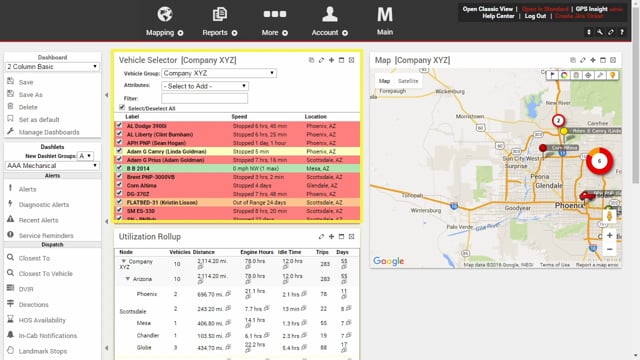
You can also view individual metrics from several places on the dashboard and the traditional reporting interface, such as the Vehicle Selector dashlet, Utilization Rollup dashlet, and the Fleet Hierarchy Rollup report.
The Metrics feature is currently available for US customers only.
[post_title] => About Metrics
[post_excerpt] => Use Metrics to gain a deeper understanding of your key performance indicators and to help improve fleet utilization.
[post_status] => publish
[comment_status] => closed
[ping_status] => closed
[post_password] =>
[post_name] => about-metrics
[to_ping] =>
[pinged] =>
[post_modified] => 2026-01-14 12:30:21
[post_modified_gmt] => 2026-01-14 19:30:21
[post_content_filtered] =>
[post_parent] => 0
[guid] => http://gpsihelp.wpengine.com/?post_type=documentation&p=973
[menu_order] => 9
[post_type] => documentation
[post_mime_type] =>
[comment_count] => 0
[filter] => raw
)
[1] => WP_Post Object
(
[ID] => 1644
[post_author] => 12
[post_date] => 2016-03-09 16:09:45
[post_date_gmt] => 2016-03-09 16:09:45
[post_content] => The Manage Custom Metrics page allows you to add custom metrics and active scoring tools, backfill metric data, and make metrics available for reports and dashlets. Keep in mind, metrics are based on
DAILY summarization data for each vehicle.
You can only see vehicle data for the groups/hierarchies that you are allowed to see; however, you can see all metrics that other users have created.
Add a Metric and Scoring Tool (optional)
A metric provides a raw value for a defined measurement. A scoring tool allows you to produce a score based on that value.
Metric Types
You can create a vehicle custom metric for any of the following items:
[row]
[column lg="6" md="12" sm="12" xs="12" ]
- Vehicle Scorecard*
- Sum Scorecard**
- Hours Vehicle Stopped
- Hours Vehicle Idled
- Runtime Hours
- Distance Vehicle Traveled
- Count Vehicle Stops
- Count Vehicle Idle Stops
- Count Vehicle Landmark Visits
- Count Driver Assignments
[/column]
[column lg="6" md="12" sm="12" xs="12" ]
- Count Speeding Events
- Count Alerts Triggered
- Maximum Speed
- Average Delta for Posted Violations
- Average Speed for Speed Violations
- Count Acceleration Events
- Count Deceleration Events
- Count Drivers
- Average Idle Hours
[/column]
[/row]
*Vehicle Scorecard is a special type of metric (a metric made up of other metrics). It's best to use the Metrics Scorecard Configuration to experiment with weights and scores and generate the metric from there as opposed to this page. One reason you might use this Manage Custom Metrics tool to create a vehicle scorecard metric is if you wanted to add something other than Idling, Speeding, Acceleration, or Deceleration to the scorecard.
**A special type of metric (a metric made of other "Count" metrics). It is intended as an alternative scorecard for weighted averages. It applies only to the following metric types: Count Vehicle Stops, Count Vehicle Idle Stops, Count Vehicle Landmark Visits, Count Driver Assignments, Count Speeding Events, Count Alerts Triggered, Count Acceleration Events, Count Deceleration Events, and Count Drivers.
Scoring Tool Options
A scoring tool allows you to produce a score based on a metric. In other words, it
translates a raw metric value into a score. You are not required to choose a scoring tool for a metric if you don’t intend to use it for scoring purposes. You can create a scoring tool based on any of the following options:
- Calculation - Apply a ratio or calculation to the metric (e.g., speeding events per 100 miles or per run time hours).
- Bucket - Apply a bucket system to the metric. For example, if you're creating a metric for the number of stops in a day, you might create three groups (buckets) based on stop counts (over/under) that are assigned point values (e.g., ≥10 stops = 3 points, 5-9 stops = 2 points, 0-4 stops = 1 point). A bucket system is the least granular type of scoring tool because it doesn't automatically calculate values in between buckets; it simply lumps a group of values together and assigns them a single point value.
- Custom Scale - Apply points for a 0-100 scale. For example, if the metric is based on the number of speeding events, you might assign a point value of 100 to 0 speeding events and 60 points to 4 speeding events (failure threshold). When the metric runs, the scoring tool automatically calculates how many points each event is worth to obtain a score.
Scoring Tool Types
The scoring tools that you can apply to a metric will be one of four types:
- Time
- Distance
- Event
- Speed
Example
The corporate fleet manager at Company XYZ wants to keep tabs on the average number of idle time each region accumulates weekly (excluding when PTO was engaged). Additionally, he wants each of his regional managers to see total idle time per vehicle daily.
To add a metric:
- From the portal, hover over the More menu, click Manage Metrics, and click Manage Metrics.
The Manage Custom Metrics page opens in a new browser tab.
- Click the plus (
) next to the metric you want to create. In the Company XYZ example, we chose Hours Vehicle Idled.
A new grid to the right appears, which allows you to set the thresholds specific to the metric you chose.
- Set the metric properties. (See below.)
The following properties are available for all metrics:
- Label: The custom name of the metric. Be as specific as possible so that you can tell your metrics apart from each other.
Depending on the metric you create, additional properties vary:
- Landmark: The landmark in which (or outside of which) the metric applies. Options include Inside (metric will only count instances inside the selected landmark or landmark group), Outside (metric will only count instances outside the selected landmark), or N/A (the metric will count all instances regardless of vehicle location).
- Hours: Choose a time range according to your time zone (user preferences) for which the metric applies.
- Conditions: Choose an input condition that applies to the metric (e.g., Door open/closed, PTO on/off, Power internal/external, etc.).
- Stop Threshold: Apply a threshold in minutes for a vehicle to be stopped.
- Idle Threshold: Apply a threshold in minutes for a vehicle to be idle.
- Speed Threshold: Threshold in MPH (not related to posted limit). Based on [tooltip type="link" link="#" target="_self" tooltip="The average speed during a device's report interval." style="top" ]Avg speed[/tooltip].
- Over Posted Limit: Threshold in MPH over the posted limit. Posted speed violations are calculated using the [tooltip type="link" link="#" target="_self" tooltip="The last speed value sampled during a device's report interval. For example, if a device's report interval is 2 minutes, the Instantaneous speed is the last data point obtained of the 480 data points collected during the update period (4 times per second x 2 minues)." style="top" ]Inst speed[/tooltip] value.
- Alerts: The alert(s) that apply to this metric.
- Violation (speed events): Threshold in MPH over the posted limit. Posted speed violations are calculated using the [tooltip type="link" link="#" target="_self" tooltip="The last speed value sampled during a device's report interval. For example, if a device's report interval is 2 minutes, the Instantaneous speed is the last data point obtained of the 480 data points collected during the update period (4 times per second x 2 minues)." style="top" ]Inst speed[/tooltip] value.
- Violation (accel/decel events): Threshold in Gs. DOT defines harsh (not dangerous) braking as .45 g incidents (your average NYC cab driver).
The following properties are available for all metrics:
- Tools: See above for examples of each scoring tool type (Calculation, Bucket, Custom Scale). In the Company XYZ example, we don't need to use a score, but it might be useful to have one if we want to extend our scenario. Let's imagine we now have a daily goal of less than 2 idle minutes per vehicle. The higher the score, the further the deviation from the goal. We created six groups (buckets) based on number of minutes (over/under) that are assigned point values (e.g., ≥30 min = 4 points, 21-29 min = 3 points, 11-20 min = 2 points, 5-10 min = 1 point, <5 min = 0 points).

- Click Save.

The new metric for the hours (or count, average, or speed depending on the metric) will be listed in the Active Custom Metrics grid. Additionally, if you added a scoring tool to the metric, a second metric for the score will be available, and the scoring tool will be listed in the Active Scoring Tools grid.

Except for renaming a metric (click the metric name from the grid), you cannot edit metric details after the metric has been created. You can either add a scoring tool to an existing metric, or you can create a new metric from scratch. Preventing you from editing the metric details helps preserve historical data consistency (i.e., avoids comparing different data sets that measure different things).
Click the i icon in the Active Custom Metrics or Active Scoring Tools grids to see which metrics rely on the selected metric or the selected scoring tool (if any). This information is helpful if you want to clean up your list of unused metrics and/or scoring tools.
Backfill Metric Data
Metrics rely on
daily summarization data. When you create a new metric, data will automatically populate for every day going forward. You don't need to manually backfill. However, if you want to populate historical data for a metric, you can optionally backfill data to a particular day.

.
Backfilling data might apply if you want to use the metric on a report for a particular date range. If you apply a metric to a report, you may receive a notification to backfill the metric if you select a date range that extends prior to the metric's creation or earliest backfill.
Add Metrics to Reports and Dashlets
By default metrics (other than
Scorecard metrics) are not available to use on reports and dashlets. Once you make a metric available to reports and dashlets, you may be able to apply additional configuration, such as whether the report and/or dashlet should provide a Sum, Avg, Min, or Max value. The Utilization Rollup dashlet also allows you to show summarization data and gradient colors (optional) for a Daily, Weekly, or Monthly options.
To add a metric to a report and dashlet:
- Locate the metric from the Active Custom Metrics grid, and click the Make Available to Dashlets and Reports icon.

- Return to the dashboard, and refresh the window (F5).
- Adjust the dashlet or report settings. (Let's look at the dashlets and reports that the fleet manager in Company XYZ's scenario might be interested in.)
Utilization Rollup Dashlet
Click the Edit icon (
), and add the new metric as a column on the dashlet. Specify whether to display the metric using Sum, Average, Minimum, or Maximum. (We chose Average and set the Display to Weekly.)
The Display option in this dashlet's setting does not apply to Custom Metrics. (This dashlet also supports Trip Summary, Vehicle Attributes, and Landmark Attributes, which do support the Display options.) In this case, if we chose "Weekly" for our metric column, data will include up to seven days of data (if available) for the calculation we chose (i.e., Sum, Average, Minimum, or Maximum).
Utilization Rollup Dashlet | Safety Scorecard
A Safety Scorecard provides a numeric scoring (1 - 100 scale) in relation to chosen metrics. This Utilization Rollup Dashlet example includes the score for the Safety Scorecard in the last column.
Vehicle Selector Dashlet
Click the Edit icon (
), and add the new metric as an attribute on the dashlet. (In the Company XYZ example, Regional Managers can use this to keep tabs on their vehicles' daily idle hours.)
This dashlet shows daily values only (for the previous day).
Fleet Hierarchy Rollup
Add the new metric(s) as an attribute on the report. Specify whether to display the metric using Sum, Average, Minimum, or Maximum. (In the Company XYZ example, we chose Average for the Hours and Sum for the Score. The fleet manager might use this monthly score to isolate regions who need more coaching i.e., 4s or 5s.)
If you plan to use this data to compare trends over time, export the report to Excel. The next time you run the report for another date range, you can export the data again and compare it to the first export.
[post_title] => Adding a Custom Metric
[post_excerpt] => The Manage Custom Metrics page allows you to add custom metrics and active scoring tools, backfill metric data, and make metrics available for reports and dashlets.
[post_status] => publish
[comment_status] => closed
[ping_status] => closed
[post_password] =>
[post_name] => adding-a-custom-metric
[to_ping] =>
[pinged] =>
[post_modified] => 2019-06-05 13:56:16
[post_modified_gmt] => 2019-06-05 20:56:16
[post_content_filtered] =>
[post_parent] => 973
[guid] => http://gpsihelp.wpengine.com/?post_type=documentation&p=1644
[menu_order] => 1
[post_type] => documentation
[post_mime_type] =>
[comment_count] => 0
[filter] => raw
)
[2] => WP_Post Object
(
[ID] => 1646
[post_author] => 12
[post_date] => 2016-03-09 16:09:20
[post_date_gmt] => 2016-03-09 16:09:20
[post_content] => A metrics scorecard is a special type of metric in that it typically contains a collection of other metrics/scores. The configuration tool allows you to experiment with weights and thresholds for each metric that will contribute to the total score, allowing you to visualize how your point system affects your actual fleet data.
Not sure what to measure? Consider planning your scorecard goals before getting your feet wet.
You can only see vehicle data for the groups/hierarchies that you are allowed to see; however, you can see all scorecards that other users have created. Use caution when editing the properties of another user's scorecard without their knowledge.
Example
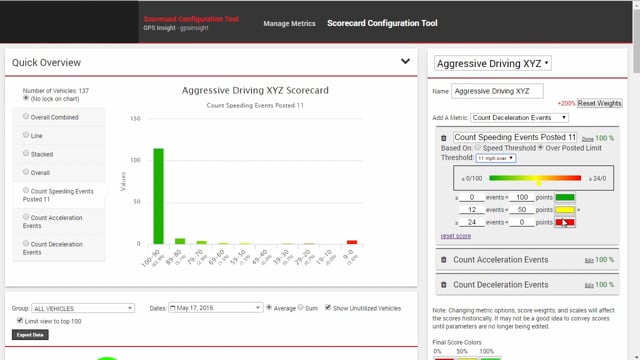
The corporate fleet manager at Company XYZ wants to implement a scoring system for aggressive driving, which includes posted speed events (11MPH over), acceleration events (.45g), and deceleration events (.45g). He wants to score his fleet on a monthly basis to isolate regions who need the most coaching.
Add a Metrics Scorecard
A metrics scorecard is not required in order to create a Vehicle Scorecard metric. It's a visualization tool that allows you to experiment how different weights and thresholds apply to actual data in your fleet so that you can set realistic baselines.
To add a metrics scorecard:
- From the portal, hover over the More menu, click Manage Metrics, and click Scorecard Configuration Tool.
The Scorecard Configuration Tool page opens in a new browser tab.
- From the New Scorecard window, enter a Name for the Scorecard. (We used "Aggressive Driving.")

- Add the metrics you want to include in the scorecard (i.e., Count Speeding Events, Count Acceleration Events, and Count Deceleration Events).
The available metrics to use here may not reflect all of the available metrics to use. If a metric is not listed, you'll need to manually create the Scorecard metric using the Metrics Manager.
- For each metric, click Edit to modify the properties. The first thing you should do is edit the name to be meaningful. Other edits you can make include clicking on the scale to add another range value. Click a color to modify the color ranges to suit your preferences. In this example, a high score is desirable (i.e., fewer speeding events above 11MPH posted).
The number of events you use for your thresholds apply to ONE vehicle per DAY. In this example, we're saying that one vehicle triggering 6+ speeding events per day is still worthy of 34 points. If it's easier to define thresholds for a longer time period, you can adjust the date range above the scorecard. If you do, you are still setting thresholds that apply to ONE vehicle, but it can be for one WEEK or one MONTH (or whatever range you choose). If you do change the date range, be sure to click reset score under each metric to auto-calculate a range based on current worst/best. Keep in mind, however, that you should base your lowest score on YOUR preferences for acceptability rather than what your worst driver happens to define.

- Click Done when finished modifying the preferences for each metric.
- Click the weight for each metric to adjust the percentage toward the total score. For example, you might want speeding to impact the score more heavily that accel/decel events.

All percentages in the scorecard should total 100%.
- Click Save Edits. (Do NOT click Save Scorecard yet.)
The data in the report updates based on the settings in the scorecard. To modify the data used in the report, adjust the vehicle Group, Date Range, Average/Sum option, and Show Unutilized Vehicles option.

Data must process for each day for each vehicle included in the date range each time you change settings in your scorecard. It's often best to experiment with weights and thresholds on a subset of vehicle (e.g., one hierarchy branch or group) rather than the entire fleet. If you change the date range, you should reset the thresholds (or manually adjust) that you applied in step 4 to reflect the days in the range.
In the Company XYZ example, the points assigned to the various thresholds in each metric provide an overall fleet score of 74 (sorted by lowest Final Score). From here, you can decide if you want to adjust thresholds or if you're satisfied with this baseline.

Additionally, you can use the Quick Overview at the top of the page to view the scorecard using various chart types: Overall Combined, Line, Stacked, Overall, and Count (for each event on scorecard).

Save Metric Score
When you're satisfied with the scorecard you created, you can save the metric scores that make up the scorecard. Once you click
Save Scorecard, you can edit the weights on the scorecard after clicking
Save Edits without affecting the metric score or creating any new custom metrics; however, if you modify the weights or any of the settings within each metric after clicking
Save Scorecard, a new metric score will be created each time.
You can only see vehicle data for the groups/hierarchies that you are allowed to see; however, when you save a scorecard, the portal generates metrics for all vehicles in the account (even if you can't see that data) for the date(s) specified. In other words, if the saving process is taking longer than you'd expect, keep in mind that the process may be running against a much larger data set than you can view. Similarly, if other users create scorecards, metrics for your vehicles will also automatically be back-filled for the date specified at the time of the save.
To save metric scores:
- From the Scorecard Configuration Tool, use the Scorecard drop-down to open the scorecard you finished editing.
- Click Save Scorecard.

The new metric score will be listed in the Active Custom Metrics grid on the Manage Custom Metrics page. By default, Vehicle Scorecard metrics are automatically available for reporting.

View the Scorecard in Reports
After you create a scorecard, you can view it in report format in two places: The Metrics Reports (dynamic report) or the Metrics Scorecard Report (traditional report). It's highly encouraged to use
Metrics Reports to view scorecard data so that you can better visualize trends and drill deeper into the data. It's considered an Executive Dashboard.
Metrics Scorecard Report (traditional)
The Metrics Scorecard report shows scores based on summarization data from the previous day. Metrics are calculated overnight for the day prior (12:00 AM - 11:59 PM).
To run a Metrics Scorecard report:
- From the dashboard, click the Reports menu, and click Metrics Scorecard.
- Choose the Group of vehicles to include in the report.
- Choose the Scorecard metric to apply to the report. (We chose "Vehicle Scorecard Aggressive Driving.")
- Click Run Report.
The report opens in a new browser tab.

If you plan to use this data to compare trends over time, export the report to Excel. The next time you run the report for another date range, you can export the data again and compare it to the first export.
driver scorecard
[post_title] => Configuring a Metrics Scorecard
[post_excerpt] => A metrics scorecard is a special type of metric in that it typically contains a collection of other metrics/scores.
[post_status] => publish
[comment_status] => closed
[ping_status] => closed
[post_password] =>
[post_name] => configuring-a-metrics-scorecard
[to_ping] =>
[pinged] =>
[post_modified] => 2020-01-31 15:44:56
[post_modified_gmt] => 2020-01-31 22:44:56
[post_content_filtered] =>
[post_parent] => 973
[guid] => http://gpsihelp.wpengine.com/?post_type=documentation&p=1646
[menu_order] => 3
[post_type] => documentation
[post_mime_type] =>
[comment_count] => 0
[filter] => raw
)
[3] => WP_Post Object
(
[ID] => 7645
[post_author] => 12
[post_date] => 2017-07-20 16:09:09
[post_date_gmt] => 2017-07-20 16:09:09
[post_content] => In order to view, create or edit Custom Metrics and Scorecard Reports, a user must have the following access privileges:
- Custom Metrics enabled in the User Permission List.
- User Permissions for Metrics enabled in Menu-Access for individual users.
User Permission List | Custom Metrics
- From the portal main menu, click Account and then click Manage Users.
- In the Additional Options menu, select Permissions for individual users (opens in a new browser Tab).
- Click the checkbox to enable Custom Metrics for a user.
To view the Utilization Rollup, a user must also have Hierarchy Admin enabled in the User Permissions List.
Manage Users | Menu-Access for individual users
- In the portal, click Account, then click Manage Users.
- In Additional Options menu, select Menu-Access for individual users (opens in a new browser Tab).
Menu-Access List | User Permissions | Category: Custom

- In the top menu bar, select Category: Custom and click the filter button.
- Scorecards involve up to 3 of the available User Permissions for Metrics:
- Manage Metrics = the user can create, edit and delete custom metrics.
- Scorecard Configuration = the user can configure scorecards.
- Metrics Report = the user can view and run custom metrics reports. End users need this checkbox enabled if they will be viewing reports ONLY.
Menu-Access List | User Permissions | Category: Dashlets
- In the top menu bar, select Category: Dashlets and click the filter button.
- Click the checkbox to enable Utilization Rollup for a user.
Metrics are shared by all users who have access to them. Please consider that users can edit/delete/view each other's metrics and any changes are global. In order to run a traditional Metric Report, a user must have the Metrics Scorecard option enabled in the Menu Access List , Category: Report.
[post_title] => User Permissions for Scorecards
[post_excerpt] => In order to view, create or edit Custom Metrics and Scorecard Reports, a user must have the following access privileges.
[post_status] => publish
[comment_status] => closed
[ping_status] => closed
[post_password] =>
[post_name] => user-permissions-for-scorecards
[to_ping] =>
[pinged] =>
[post_modified] => 2019-06-05 13:56:31
[post_modified_gmt] => 2019-06-05 20:56:31
[post_content_filtered] =>
[post_parent] => 973
[guid] => https://help.gpsinsight.com/?post_type=documentation&p=7645
[menu_order] => 4
[post_type] => documentation
[post_mime_type] =>
[comment_count] => 0
[filter] => raw
)
[4] => WP_Post Object
(
[ID] => 2088
[post_author] => 12
[post_date] => 2016-05-09 05:20:24
[post_date_gmt] => 2016-05-09 05:20:24
[post_content] => Metrics Reports is a special dashboard that is specific to custom metrics. It allows you to view summary, detail, and trend data about an existing
custom metric using various charts and tables.
Access a Metrics Report
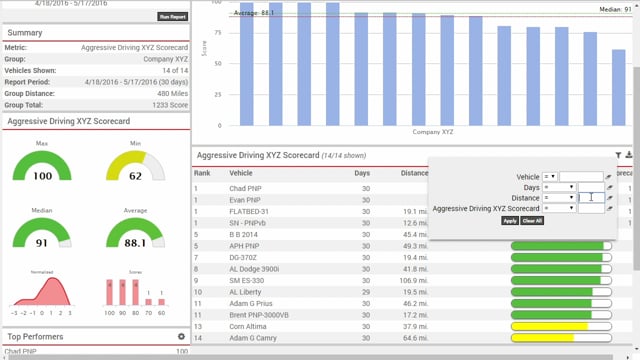
The default metrics report view allows you to view the following report items: Summary, Guages, Top Performers, Bottom Performers, Score Trend Chart, and Rank Detail.
To access a Metrics Report:
- From the portal, hover over the More menu, click Manage Metrics, and click Metrics Reports.
The Metrics Report page opens in a new browser tab.
- From the Report Options area, choose a vehicle Group, the Metric you want to run, and the Date(s) to include in the report.
- Click Run Report.

The report loads the following report items:
Summary
Displays the metric selected, the vehicle group selected, the number of vehicles included in the report, the report time period, and the group total. The group total reflects either the Average or Summary based on your selection in Report Options (
).
Gauges
Displays guages for Max, Min, Median, and Average. Also includes a standard deviation chart for Normalized data and a bar chart for Scores.
Top Performers
Displays the top 5 (default) performers. Click the Settings icon to change to the top 10, 15, 20
Bottom Performers
Displays the bottom 5 (default) performers. Click the Settings icon to change to the top 10, 15, 20
Score Trend Chart
Displays a bar chart showing scores for each vehicle in the selection. Average and Median lines overlay the chart for quick analysis of vehicles that fall above or below those thresholds. Click the Options icon to view print/export options for the chart. Clicking the red arrow in the chart below (Rank Detail) affects the sort order of this chart. You can also change default sort order using the Edit Settings (gear) icon from the Report Options area.
Rank Detail
Displays rank detail for reach vehicle in the selection. Click the Filter icon to limit the data set based on Vehicle, Date, Distance, Runtime or Score. Use the Hide/Show (
) icon to hide individual columns. Click the Export icon to export data to a CSV file (Hide/show selections apply to exported reports). Click the red arrow to sort in ascending/descending order.
Show Scorecard Components
Scorecard components allow you to view the metrics report from the perspective of a scorecard (if available). Instead of the Rank Detail, the scorecard is shown with columns for each metric that makes up the scorecard. You can drill into a specific metric from the scorecard to dynamically update the Gauges and Trend Chart.
To show scorecard components:
- From the Report Options, click the Edit Settings (gear) icon.

- Select the Show Scorecard Components check box, and click Run Report.
The Score Trend Chart and Rank Detail are replaced with Scorecard values.
- Click a metric from the scorecard to drill into details for that particular measurement.

Schedule a Metrics Report
Scheduling the metrics reports allows you to save your report settings for regular, automated delivery to one or more recipients via email. You can schedule the report from the
Scheduled Reports page or from the Metrics Reports page.
To schedule a Metrics Report:
- From the portal, hover over the More menu, click Manage Metrics, and click Metrics Reports.
The Metrics Report page opens in a new browser tab.
- From the Report Options area, choose a vehicle Group, the Metric you want to run, and the Date(s) to include in the report.
- Click Schedule.
The report loads the following metric report-specific items:
Refer to Scheduling a Report for description of the other available properties that apply to all scheduled reports.
[et class="table-zebra" colwidth="25%|75%]
Option,Description
Components,View the metrics report from the perspective of a scorecard (if available). Instead of the Rank Detail with a single score\, the scorecard is shown with columns for each metric that makes up the scorecard.
Rank,Rank the data in ascending order of score.
Date,Group the data by Day\, Week\, or Month.
Aggregate,Group data based on average or sum.
Attribute,Include existing vehicle attributes to include on the spreadsheet export.
[/et]
[post_title] => Using Metrics Reports
[post_excerpt] => Metrics Reports is a special dashboard that is specific to custom metrics.
[post_status] => publish
[comment_status] => closed
[ping_status] => closed
[post_password] =>
[post_name] => using-metrics-reports
[to_ping] =>
[pinged] =>
[post_modified] => 2019-06-05 13:57:06
[post_modified_gmt] => 2019-06-05 20:57:06
[post_content_filtered] =>
[post_parent] => 973
[guid] => http://help.gpsinsight.com/?post_type=documentation&p=2088
[menu_order] => 4
[post_type] => documentation
[post_mime_type] =>
[comment_count] => 0
[filter] => raw
)
)
[post_count] => 5
[current_post] => -1
[before_loop] => 1
[in_the_loop] =>
[post] => WP_Post Object
(
[ID] => 973
[post_author] => 12
[post_date] => 2016-01-26 17:34:38
[post_date_gmt] => 2016-01-26 17:34:38
[post_content] => Metrics refers to individual Custom Metrics, Metric Scorecards, and Metrics Reports.
Use Metrics to gain a deeper understanding of your key performance indicators and to help improve fleet utilization. This information is relevant to reducing costs that impact the bottom line.
[row]
[column lg="6" md="12" sm="12" xs="12" ]
Executive Summary

[/column]
[column lg="6" md="12" sm="12" xs="12" ]
Scorecard Report
[/column]
[/row]
Scorecard KPIs
- See the number of events
- Add thresholds and weights to events
- See the resulting score for each metric
- Create a final score as a rollup of all metric scores
- Compare vehicle performance and rank drivers
Deep Dive: How do I create a safety scorecard?
Custom Metrics
Custom vehicle metrics allow you to determine what key performance indicators to count, measure, score, compare, and calculate. In other words, it's a powerful a tool set that is driven entirely by the items you care about most in your fleet--such as the total number of speeding events, the average speed of speed violations, the total hours idled, the total distance traveled, etc.
There are three varying permissions that you can give a user (or combination of) related to metrics. 1) In order to create/edit custom metrics and use scorecard configuration tools, a user must have the Custom Metrics item enabled in the User Permission List. 2) In order to run metrics reports (not create metrics), a user must have the Manage Metrics item enabled in the Menu Access List (Custom category). 3) In order to run a traditional metric report, a user must have the Metrics Scorecard item enabled in the Menu Access List (Report category).
System Metrics
The summarization data for some device-based events are automatically available to you as a system metric. System metrics are not customizable, but you can report on them using Metrics Reports and dashlets:
[et class="table-zebra" colwidth="30%|40%|30%"]
Device Type,Description,Metric(s)
Custom Device Inputs,Devices that have been configured to use custom inputs (e.g.\, snow plow up/down\, seatbelt on/off\, etc.),Two metrics per input:~~•Count of event~~•On duration of event
PNP-3000,Devices that have the optional buzzer feature for in-cab alerts.,•Hard Braking Count~~•Hard Left Count~~•Hard Right Count~~•Idling Count~~•Rapid Acceleration Count~~•Speeding Count [/et]
The PNP-3000 device has been discontinued as of January 2026.
Metrics Reporting
Use the Metrics Reports tool to view summary, detail, and trend data about an existing metric or scorecard (collection of metric scores) using various charts and tables.
You can also view individual metrics from several places on the dashboard and the traditional reporting interface, such as the Vehicle Selector dashlet, Utilization Rollup dashlet, and the Fleet Hierarchy Rollup report.
The Metrics feature is currently available for US customers only.
[post_title] => About Metrics
[post_excerpt] => Use Metrics to gain a deeper understanding of your key performance indicators and to help improve fleet utilization.
[post_status] => publish
[comment_status] => closed
[ping_status] => closed
[post_password] =>
[post_name] => about-metrics
[to_ping] =>
[pinged] =>
[post_modified] => 2026-01-14 12:30:21
[post_modified_gmt] => 2026-01-14 19:30:21
[post_content_filtered] =>
[post_parent] => 0
[guid] => http://gpsihelp.wpengine.com/?post_type=documentation&p=973
[menu_order] => 9
[post_type] => documentation
[post_mime_type] =>
[comment_count] => 0
[filter] => raw
)
[comment_count] => 0
[current_comment] => -1
[found_posts] => 5
[max_num_pages] => 1
[max_num_comment_pages] => 0
[is_single] =>
[is_preview] =>
[is_page] =>
[is_archive] => 1
[is_date] =>
[is_year] =>
[is_month] =>
[is_day] =>
[is_time] =>
[is_author] =>
[is_category] =>
[is_tag] =>
[is_tax] => 1
[is_search] =>
[is_feed] =>
[is_comment_feed] =>
[is_trackback] =>
[is_home] =>
[is_privacy_policy] =>
[is_404] =>
[is_embed] =>
[is_paged] =>
[is_admin] =>
[is_attachment] =>
[is_singular] =>
[is_robots] =>
[is_favicon] =>
[is_sitemap] =>
[is_posts_page] =>
[is_post_type_archive] => 1
[query_vars_hash:WP_Query:private] => b419bbb19e1e0ba0b334a2b413f2b7bc
[query_vars_changed:WP_Query:private] => 1
[thumbnails_cached] =>
[allow_query_attachment_by_filename:protected] =>
[stopwords:WP_Query:private] =>
[compat_fields:WP_Query:private] => Array
(
[0] => query_vars_hash
[1] => query_vars_changed
)
[compat_methods:WP_Query:private] => Array
(
[0] => init_query_flags
[1] => parse_tax_query
)
[query_cache_key:WP_Query:private] => wp_query:482e6700c4e2ca72991b90dc08c18b29
)
[children] => Array
(
)
[term] => WP_Term Object
(
[term_id] => 69
[name] => Metrics
[slug] => metrics
[term_group] => 0
[term_taxonomy_id] => 69
[taxonomy] => feature
[description] => Metrics allow you to personalize your summary data for custom reporting like Scorecards and Executive Dashboard.
[parent] => 0
[count] => 10
[filter] => raw
[term_order] => 18
[cat_ID] => 69
[category_count] => 10
[category_description] => Metrics allow you to personalize your summary data for custom reporting like Scorecards and Executive Dashboard.
[cat_name] => Metrics
[category_nicename] => metrics
[category_parent] => 0
)
[post_count] => 5
)
)
[video] => Array
(
[69] => Array
(
[posts] => WP_Query Object
(
[query] => Array
(
[orderby] => title
[order] => ASC
[post_type] => video
[posts_per_page] => 999
[tax_query] => Array
(
[0] => Array
(
[taxonomy] => feature
[field] => term_id
[terms] => 69
[include_children] => 1
)
[1] => Array
(
[taxonomy] => solution
[field] => term_id
[terms] => 12
)
[relation] => AND
[2] => Array
(
[taxonomy] => product
[field] => term_id
[terms] => 511
)
)
[meta_query] => Array
(
[0] => Array
(
[key] => _exclude_whitelabel_default
[compare] => NOT EXISTS
)
)
)
[query_vars] => Array
(
[orderby] => title
[order] => ASC
[post_type] => video
[posts_per_page] => 999
[tax_query] => Array
(
[0] => Array
(
[taxonomy] => feature
[field] => term_id
[terms] => 69
[include_children] => 1
)
[1] => Array
(
[taxonomy] => solution
[field] => term_id
[terms] => 12
)
[relation] => AND
[2] => Array
(
[taxonomy] => product
[field] => term_id
[terms] => 511
)
)
[meta_query] => Array
(
[0] => Array
(
[key] => _exclude_whitelabel_default
[compare] => NOT EXISTS
)
)
[error] =>
[m] =>
[p] => 0
[post_parent] =>
[subpost] =>
[subpost_id] =>
[attachment] =>
[attachment_id] => 0
[name] =>
[pagename] =>
[page_id] => 0
[second] =>
[minute] =>
[hour] =>
[day] => 0
[monthnum] => 0
[year] => 0
[w] => 0
[category_name] =>
[tag] =>
[cat] =>
[tag_id] =>
[author] =>
[author_name] =>
[feed] =>
[tb] =>
[paged] => 0
[meta_key] =>
[meta_value] =>
[preview] =>
[s] =>
[sentence] =>
[title] =>
[fields] => all
[menu_order] =>
[embed] =>
[category__in] => Array
(
)
[category__not_in] => Array
(
)
[category__and] => Array
(
)
[post__in] => Array
(
)
[post__not_in] => Array
(
[0] => 14750
[1] => 23436
[2] => 27424
[3] => 27817
[4] => 30225
[5] => 31065
[6] => 31175
[7] => 32017
[8] => 32296
[9] => 32565
[10] => 32605
[11] => 32636
[12] => 33723
[13] => 33737
[14] => 33761
[15] => 34344
[16] => 34459
[17] => 34553
[18] => 34586
[19] => 34590
)
[post_name__in] => Array
(
)
[tag__in] => Array
(
)
[tag__not_in] => Array
(
)
[tag__and] => Array
(
)
[tag_slug__in] => Array
(
)
[tag_slug__and] => Array
(
)
[post_parent__in] => Array
(
)
[post_parent__not_in] => Array
(
)
[author__in] => Array
(
)
[author__not_in] => Array
(
)
[search_columns] => Array
(
)
[ignore_sticky_posts] =>
[suppress_filters] =>
[cache_results] => 1
[update_post_term_cache] => 1
[update_menu_item_cache] =>
[lazy_load_term_meta] => 1
[update_post_meta_cache] => 1
[nopaging] =>
[comments_per_page] => 50
[no_found_rows] =>
[taxonomy] => feature
[term_id] => 69
)
[tax_query] => WP_Tax_Query Object
(
[queries] => Array
(
[0] => Array
(
[taxonomy] => feature
[terms] => Array
(
[0] => 69
)
[field] => term_id
[operator] => IN
[include_children] => 1
)
[1] => Array
(
[taxonomy] => solution
[terms] => Array
(
[0] => 12
)
[field] => term_id
[operator] => IN
[include_children] => 1
)
[relation] => AND
[2] => Array
(
[taxonomy] => product
[terms] => Array
(
[0] => 511
)
[field] => term_id
[operator] => IN
[include_children] => 1
)
)
[relation] => AND
[table_aliases:protected] => Array
(
[0] => wp_term_relationships
[1] => tt1
[2] => tt2
)
[queried_terms] => Array
(
[feature] => Array
(
[terms] => Array
(
[0] => 69
)
[field] => term_id
)
[solution] => Array
(
[terms] => Array
(
[0] => 12
)
[field] => term_id
)
[product] => Array
(
[terms] => Array
(
[0] => 511
)
[field] => term_id
)
)
[primary_table] => wp_posts
[primary_id_column] => ID
)
[meta_query] => WP_Meta_Query Object
(
[queries] => Array
(
[0] => Array
(
[key] => _exclude_whitelabel_default
[compare] => NOT EXISTS
)
[relation] => OR
)
[relation] => AND
[meta_table] => wp_postmeta
[meta_id_column] => post_id
[primary_table] => wp_posts
[primary_id_column] => ID
[table_aliases:protected] => Array
(
[0] => wp_postmeta
)
[clauses:protected] => Array
(
[wp_postmeta] => Array
(
[key] => _exclude_whitelabel_default
[compare] => NOT EXISTS
[compare_key] => =
[alias] => wp_postmeta
[cast] => CHAR
)
)
[has_or_relation:protected] =>
)
[date_query] =>
[request] => SELECT SQL_CALC_FOUND_ROWS wp_posts.ID
FROM wp_posts LEFT JOIN wp_term_relationships ON (wp_posts.ID = wp_term_relationships.object_id) LEFT JOIN wp_term_relationships AS tt1 ON (wp_posts.ID = tt1.object_id) LEFT JOIN wp_term_relationships AS tt2 ON (wp_posts.ID = tt2.object_id) LEFT JOIN wp_postmeta ON ( wp_posts.ID = wp_postmeta.post_id AND wp_postmeta.meta_key = '_exclude_whitelabel_default' )
WHERE 1=1 AND wp_posts.ID NOT IN (14750,23436,27424,27817,30225,31065,31175,32017,32296,32565,32605,32636,33723,33737,33761,34344,34459,34553,34586,34590) AND (
wp_term_relationships.term_taxonomy_id IN (69)
AND
tt1.term_taxonomy_id IN (12)
AND
tt2.term_taxonomy_id IN (511)
) AND (
wp_postmeta.post_id IS NULL
) AND ((wp_posts.post_type = 'video' AND (wp_posts.post_status = 'publish' OR wp_posts.post_status = 'graded' OR wp_posts.post_status = 'not_graded')))
GROUP BY wp_posts.ID
ORDER BY wp_posts.post_title ASC
LIMIT 0, 999
[posts] => Array
(
[0] => WP_Post Object
(
[ID] => 2252
[post_author] => 12
[post_date] => 2016-05-18 21:34:20
[post_date_gmt] => 2016-05-18 21:34:20
[post_content] => Metrics refers to individual Custom Metrics, Metric Scorecards, and Metrics Reports. This video provides an introduction to metrics by starting with individual custom metrics. The Manage Custom Metrics page allows you to add custom metrics and active scoring tools, backfill metric data, and make metrics available for reports and dashlets. Keep in mind, metrics are based on DAILY summarization data for each vehicle.
This video refers to scoring tools as "translations."
[post_title] => Adding a Custom Metric
[post_excerpt] => This video provides an introduction to metrics by starting with individual custom metrics.
[post_status] => publish
[comment_status] => closed
[ping_status] => closed
[post_password] =>
[post_name] => adding-a-custom-metric
[to_ping] =>
[pinged] =>
[post_modified] => 2019-12-26 08:46:56
[post_modified_gmt] => 2019-12-26 15:46:56
[post_content_filtered] =>
[post_parent] => 0
[guid] => http://help.gpsinsight.com/?post_type=video&p=2252
[menu_order] => 0
[post_type] => video
[post_mime_type] =>
[comment_count] => 0
[filter] => raw
)
[1] => WP_Post Object
(
[ID] => 2289
[post_author] => 12
[post_date] => 2016-05-19 22:30:11
[post_date_gmt] => 2016-05-19 22:30:11
[post_content] => A metrics scorecard is a special type of metric in that it typically contains a collection of other metrics/scores. The configuration tool allows you to experiment with weights and thresholds for each metric that will contribute to the total score, allowing you to visualize how your point system affects your fleet data before generating the actual metrics.
[post_title] => Configuring a Metrics Scorecard
[post_excerpt] => A metrics scorecard is a special type of metric in that it typically contains a collection of other metrics/scores.
[post_status] => publish
[comment_status] => closed
[ping_status] => closed
[post_password] =>
[post_name] => configuring-a-metrics-scorecard-2
[to_ping] =>
[pinged] =>
[post_modified] => 2019-12-26 08:28:02
[post_modified_gmt] => 2019-12-26 15:28:02
[post_content_filtered] =>
[post_parent] => 0
[guid] => http://help.gpsinsight.com/?post_type=video&p=2289
[menu_order] => 0
[post_type] => video
[post_mime_type] =>
[comment_count] => 0
[filter] => raw
)
[2] => WP_Post Object
(
[ID] => 2473
[post_author] => 12
[post_date] => 2016-06-07 16:55:58
[post_date_gmt] => 2016-06-07 16:55:58
[post_content] => Metrics Reports is a special dashboard that is specific to custom metrics. It allows you to view summary, detail, and trend data about an existing custom metric using various charts and tables.
[post_title] => Using Metrics Reports
[post_excerpt] => Metrics Reports is a special dashboard that is specific to custom metrics.
[post_status] => publish
[comment_status] => closed
[ping_status] => closed
[post_password] =>
[post_name] => using-metrics-reports
[to_ping] =>
[pinged] =>
[post_modified] => 2021-05-12 11:13:41
[post_modified_gmt] => 2021-05-12 18:13:41
[post_content_filtered] =>
[post_parent] => 0
[guid] => http://help.gpsinsight.com/?post_type=video&p=2473
[menu_order] => 0
[post_type] => video
[post_mime_type] =>
[comment_count] => 0
[filter] => raw
)
)
[post_count] => 3
[current_post] => -1
[before_loop] => 1
[in_the_loop] =>
[post] => WP_Post Object
(
[ID] => 2252
[post_author] => 12
[post_date] => 2016-05-18 21:34:20
[post_date_gmt] => 2016-05-18 21:34:20
[post_content] => Metrics refers to individual Custom Metrics, Metric Scorecards, and Metrics Reports. This video provides an introduction to metrics by starting with individual custom metrics. The Manage Custom Metrics page allows you to add custom metrics and active scoring tools, backfill metric data, and make metrics available for reports and dashlets. Keep in mind, metrics are based on DAILY summarization data for each vehicle.
This video refers to scoring tools as "translations."
[post_title] => Adding a Custom Metric
[post_excerpt] => This video provides an introduction to metrics by starting with individual custom metrics.
[post_status] => publish
[comment_status] => closed
[ping_status] => closed
[post_password] =>
[post_name] => adding-a-custom-metric
[to_ping] =>
[pinged] =>
[post_modified] => 2019-12-26 08:46:56
[post_modified_gmt] => 2019-12-26 15:46:56
[post_content_filtered] =>
[post_parent] => 0
[guid] => http://help.gpsinsight.com/?post_type=video&p=2252
[menu_order] => 0
[post_type] => video
[post_mime_type] =>
[comment_count] => 0
[filter] => raw
)
[comment_count] => 0
[current_comment] => -1
[found_posts] => 3
[max_num_pages] => 1
[max_num_comment_pages] => 0
[is_single] =>
[is_preview] =>
[is_page] =>
[is_archive] => 1
[is_date] =>
[is_year] =>
[is_month] =>
[is_day] =>
[is_time] =>
[is_author] =>
[is_category] =>
[is_tag] =>
[is_tax] => 1
[is_search] =>
[is_feed] =>
[is_comment_feed] =>
[is_trackback] =>
[is_home] =>
[is_privacy_policy] =>
[is_404] =>
[is_embed] =>
[is_paged] =>
[is_admin] =>
[is_attachment] =>
[is_singular] =>
[is_robots] =>
[is_favicon] =>
[is_sitemap] =>
[is_posts_page] =>
[is_post_type_archive] => 1
[query_vars_hash:WP_Query:private] => 7f9d24b4050a3c93e83672e7cc00f565
[query_vars_changed:WP_Query:private] => 1
[thumbnails_cached] =>
[allow_query_attachment_by_filename:protected] =>
[stopwords:WP_Query:private] =>
[compat_fields:WP_Query:private] => Array
(
[0] => query_vars_hash
[1] => query_vars_changed
)
[compat_methods:WP_Query:private] => Array
(
[0] => init_query_flags
[1] => parse_tax_query
)
[query_cache_key:WP_Query:private] => wp_query:1a6c5738ab54463c0b2ec211b1d24641
)
[children] => Array
(
)
[term] => WP_Term Object
(
[term_id] => 69
[name] => Metrics
[slug] => metrics
[term_group] => 0
[term_taxonomy_id] => 69
[taxonomy] => feature
[description] => Metrics allow you to personalize your summary data for custom reporting like Scorecards and Executive Dashboard.
[parent] => 0
[count] => 10
[filter] => raw
[term_order] => 18
[cat_ID] => 69
[category_count] => 10
[category_description] => Metrics allow you to personalize your summary data for custom reporting like Scorecards and Executive Dashboard.
[cat_name] => Metrics
[category_nicename] => metrics
[category_parent] => 0
)
[post_count] => 3
)
)
[bestpractice] => Array
(
[69] => Array
(
[posts] => WP_Query Object
(
[query] => Array
(
[orderby] => title
[order] => ASC
[post_type] => bestpractice
[posts_per_page] => 999
[tax_query] => Array
(
[0] => Array
(
[taxonomy] => feature
[field] => term_id
[terms] => 69
[include_children] => 1
)
[1] => Array
(
[taxonomy] => solution
[field] => term_id
[terms] => 12
)
[relation] => AND
[2] => Array
(
[taxonomy] => product
[field] => term_id
[terms] => 511
)
)
[meta_query] => Array
(
[0] => Array
(
[key] => _exclude_whitelabel_default
[compare] => NOT EXISTS
)
)
)
[query_vars] => Array
(
[orderby] => title
[order] => ASC
[post_type] => bestpractice
[posts_per_page] => 999
[tax_query] => Array
(
[0] => Array
(
[taxonomy] => feature
[field] => term_id
[terms] => 69
[include_children] => 1
)
[1] => Array
(
[taxonomy] => solution
[field] => term_id
[terms] => 12
)
[relation] => AND
[2] => Array
(
[taxonomy] => product
[field] => term_id
[terms] => 511
)
)
[meta_query] => Array
(
[0] => Array
(
[key] => _exclude_whitelabel_default
[compare] => NOT EXISTS
)
)
[error] =>
[m] =>
[p] => 0
[post_parent] =>
[subpost] =>
[subpost_id] =>
[attachment] =>
[attachment_id] => 0
[name] =>
[pagename] =>
[page_id] => 0
[second] =>
[minute] =>
[hour] =>
[day] => 0
[monthnum] => 0
[year] => 0
[w] => 0
[category_name] =>
[tag] =>
[cat] =>
[tag_id] =>
[author] =>
[author_name] =>
[feed] =>
[tb] =>
[paged] => 0
[meta_key] =>
[meta_value] =>
[preview] =>
[s] =>
[sentence] =>
[title] =>
[fields] => all
[menu_order] =>
[embed] =>
[category__in] => Array
(
)
[category__not_in] => Array
(
)
[category__and] => Array
(
)
[post__in] => Array
(
)
[post__not_in] => Array
(
[0] => 14750
[1] => 23436
[2] => 27424
[3] => 27817
[4] => 30225
[5] => 31065
[6] => 31175
[7] => 32017
[8] => 32296
[9] => 32565
[10] => 32605
[11] => 32636
[12] => 33723
[13] => 33737
[14] => 33761
[15] => 34344
[16] => 34459
[17] => 34553
[18] => 34586
[19] => 34590
)
[post_name__in] => Array
(
)
[tag__in] => Array
(
)
[tag__not_in] => Array
(
)
[tag__and] => Array
(
)
[tag_slug__in] => Array
(
)
[tag_slug__and] => Array
(
)
[post_parent__in] => Array
(
)
[post_parent__not_in] => Array
(
)
[author__in] => Array
(
)
[author__not_in] => Array
(
)
[search_columns] => Array
(
)
[ignore_sticky_posts] =>
[suppress_filters] =>
[cache_results] => 1
[update_post_term_cache] => 1
[update_menu_item_cache] =>
[lazy_load_term_meta] => 1
[update_post_meta_cache] => 1
[nopaging] =>
[comments_per_page] => 50
[no_found_rows] =>
[taxonomy] => feature
[term_id] => 69
)
[tax_query] => WP_Tax_Query Object
(
[queries] => Array
(
[0] => Array
(
[taxonomy] => feature
[terms] => Array
(
[0] => 69
)
[field] => term_id
[operator] => IN
[include_children] => 1
)
[1] => Array
(
[taxonomy] => solution
[terms] => Array
(
[0] => 12
)
[field] => term_id
[operator] => IN
[include_children] => 1
)
[relation] => AND
[2] => Array
(
[taxonomy] => product
[terms] => Array
(
[0] => 511
)
[field] => term_id
[operator] => IN
[include_children] => 1
)
)
[relation] => AND
[table_aliases:protected] => Array
(
[0] => wp_term_relationships
[1] => tt1
[2] => tt2
)
[queried_terms] => Array
(
[feature] => Array
(
[terms] => Array
(
[0] => 69
)
[field] => term_id
)
[solution] => Array
(
[terms] => Array
(
[0] => 12
)
[field] => term_id
)
[product] => Array
(
[terms] => Array
(
[0] => 511
)
[field] => term_id
)
)
[primary_table] => wp_posts
[primary_id_column] => ID
)
[meta_query] => WP_Meta_Query Object
(
[queries] => Array
(
[0] => Array
(
[key] => _exclude_whitelabel_default
[compare] => NOT EXISTS
)
[relation] => OR
)
[relation] => AND
[meta_table] => wp_postmeta
[meta_id_column] => post_id
[primary_table] => wp_posts
[primary_id_column] => ID
[table_aliases:protected] => Array
(
[0] => wp_postmeta
)
[clauses:protected] => Array
(
[wp_postmeta] => Array
(
[key] => _exclude_whitelabel_default
[compare] => NOT EXISTS
[compare_key] => =
[alias] => wp_postmeta
[cast] => CHAR
)
)
[has_or_relation:protected] =>
)
[date_query] =>
[request] => SELECT SQL_CALC_FOUND_ROWS wp_posts.ID
FROM wp_posts LEFT JOIN wp_term_relationships ON (wp_posts.ID = wp_term_relationships.object_id) LEFT JOIN wp_term_relationships AS tt1 ON (wp_posts.ID = tt1.object_id) LEFT JOIN wp_term_relationships AS tt2 ON (wp_posts.ID = tt2.object_id) LEFT JOIN wp_postmeta ON ( wp_posts.ID = wp_postmeta.post_id AND wp_postmeta.meta_key = '_exclude_whitelabel_default' )
WHERE 1=1 AND wp_posts.ID NOT IN (14750,23436,27424,27817,30225,31065,31175,32017,32296,32565,32605,32636,33723,33737,33761,34344,34459,34553,34586,34590) AND (
wp_term_relationships.term_taxonomy_id IN (69)
AND
tt1.term_taxonomy_id IN (12)
AND
tt2.term_taxonomy_id IN (511)
) AND (
wp_postmeta.post_id IS NULL
) AND ((wp_posts.post_type = 'bestpractice' AND (wp_posts.post_status = 'publish' OR wp_posts.post_status = 'graded' OR wp_posts.post_status = 'not_graded')))
GROUP BY wp_posts.ID
ORDER BY wp_posts.post_title ASC
LIMIT 0, 999
[posts] => Array
(
[0] => WP_Post Object
(
[ID] => 2217
[post_author] => 12
[post_date] => 2016-05-12 22:19:18
[post_date_gmt] => 2016-05-12 22:19:18
[post_content] => If you've never used a vehicle scorecard before, it may help to plot out your metric goals before diving head first into custom metric scorecards. Make sure they align with your fleet management goals/KPIs, and driver policy. Use the following table as a guideline for planning purposes. Use the PDF icon above to print. One example is provided.
[et class="table-zebra" colwidth="25%|10%|20%|20%|25%"]
Metric, Weight, Measurement,Threshold,Scoring System
Count Speeding Events,25%,Custom Scale,Over Posted Speed 10+ MPH,100 Points = 0 Events~~60 Points = 10 Events
~~~~,~~~~,~~~~,~~~~,
~~~~,~~~~,~~~~,~~~~,
~~~~,~~~~,~~~~,~~~~,
~~~~,~~~~,~~~~,~~~~,
~~~~,~~~~,~~~~,~~~~,
~~~~,~~~~,~~~~,~~~~,
~~~~,~~~~,~~~~,~~~~,
~~~~,~~~~,~~~~,~~~~,
[/et]
You can create a vehicle custom metric for any of the following types:
[row]
[column lg="6" md="12" sm="12" xs="12" ]
- Vehicle Scorecard*
- Sum Scorecard
- Hours Vehicle Stopped
- Hours Vehicle Idled
- Runtime Hours
- Distance Vehicle Traveled
- Count Vehicle Stops
- Count Vehicle Idle Stops
- Count Vehicle Landmark Visits
- Count Driver Assignments
[/column]
[column lg="6" md="12" sm="12" xs="12" ]
- Count Speeding Events
- Count Alerts Triggered
- Maximum Speed
- Average Delta for Posted Violations
- Average Speed for Speed Violations
- Count Acceleration Events
- Count Deceleration Events
- Count Drivers
- Average Idle Hours
[/column]
[/row]
[post_title] => Scorecard Planning
[post_excerpt] => If you've never used a vehicle scorecard before, it may help to plot out your metric goals before diving head first into custom metric scorecards.
[post_status] => publish
[comment_status] => closed
[ping_status] => closed
[post_password] =>
[post_name] => scorecard-planning
[to_ping] =>
[pinged] =>
[post_modified] => 2019-06-07 11:03:02
[post_modified_gmt] => 2019-06-07 18:03:02
[post_content_filtered] =>
[post_parent] => 0
[guid] => http://help.gpsinsight.com/?post_type=bestpractice&p=2217
[menu_order] => 0
[post_type] => bestpractice
[post_mime_type] =>
[comment_count] => 0
[filter] => raw
)
)
[post_count] => 1
[current_post] => -1
[before_loop] => 1
[in_the_loop] =>
[post] => WP_Post Object
(
[ID] => 2217
[post_author] => 12
[post_date] => 2016-05-12 22:19:18
[post_date_gmt] => 2016-05-12 22:19:18
[post_content] => If you've never used a vehicle scorecard before, it may help to plot out your metric goals before diving head first into custom metric scorecards. Make sure they align with your fleet management goals/KPIs, and driver policy. Use the following table as a guideline for planning purposes. Use the PDF icon above to print. One example is provided.
[et class="table-zebra" colwidth="25%|10%|20%|20%|25%"]
Metric, Weight, Measurement,Threshold,Scoring System
Count Speeding Events,25%,Custom Scale,Over Posted Speed 10+ MPH,100 Points = 0 Events~~60 Points = 10 Events
~~~~,~~~~,~~~~,~~~~,
~~~~,~~~~,~~~~,~~~~,
~~~~,~~~~,~~~~,~~~~,
~~~~,~~~~,~~~~,~~~~,
~~~~,~~~~,~~~~,~~~~,
~~~~,~~~~,~~~~,~~~~,
~~~~,~~~~,~~~~,~~~~,
~~~~,~~~~,~~~~,~~~~,
[/et]
You can create a vehicle custom metric for any of the following types:
[row]
[column lg="6" md="12" sm="12" xs="12" ]
- Vehicle Scorecard*
- Sum Scorecard
- Hours Vehicle Stopped
- Hours Vehicle Idled
- Runtime Hours
- Distance Vehicle Traveled
- Count Vehicle Stops
- Count Vehicle Idle Stops
- Count Vehicle Landmark Visits
- Count Driver Assignments
[/column]
[column lg="6" md="12" sm="12" xs="12" ]
- Count Speeding Events
- Count Alerts Triggered
- Maximum Speed
- Average Delta for Posted Violations
- Average Speed for Speed Violations
- Count Acceleration Events
- Count Deceleration Events
- Count Drivers
- Average Idle Hours
[/column]
[/row]
[post_title] => Scorecard Planning
[post_excerpt] => If you've never used a vehicle scorecard before, it may help to plot out your metric goals before diving head first into custom metric scorecards.
[post_status] => publish
[comment_status] => closed
[ping_status] => closed
[post_password] =>
[post_name] => scorecard-planning
[to_ping] =>
[pinged] =>
[post_modified] => 2019-06-07 11:03:02
[post_modified_gmt] => 2019-06-07 18:03:02
[post_content_filtered] =>
[post_parent] => 0
[guid] => http://help.gpsinsight.com/?post_type=bestpractice&p=2217
[menu_order] => 0
[post_type] => bestpractice
[post_mime_type] =>
[comment_count] => 0
[filter] => raw
)
[comment_count] => 0
[current_comment] => -1
[found_posts] => 1
[max_num_pages] => 1
[max_num_comment_pages] => 0
[is_single] =>
[is_preview] =>
[is_page] =>
[is_archive] => 1
[is_date] =>
[is_year] =>
[is_month] =>
[is_day] =>
[is_time] =>
[is_author] =>
[is_category] =>
[is_tag] =>
[is_tax] => 1
[is_search] =>
[is_feed] =>
[is_comment_feed] =>
[is_trackback] =>
[is_home] =>
[is_privacy_policy] =>
[is_404] =>
[is_embed] =>
[is_paged] =>
[is_admin] =>
[is_attachment] =>
[is_singular] =>
[is_robots] =>
[is_favicon] =>
[is_sitemap] =>
[is_posts_page] =>
[is_post_type_archive] => 1
[query_vars_hash:WP_Query:private] => 3c1d8af6c3d6f84ed5a9ab5c43ef669a
[query_vars_changed:WP_Query:private] => 1
[thumbnails_cached] =>
[allow_query_attachment_by_filename:protected] =>
[stopwords:WP_Query:private] =>
[compat_fields:WP_Query:private] => Array
(
[0] => query_vars_hash
[1] => query_vars_changed
)
[compat_methods:WP_Query:private] => Array
(
[0] => init_query_flags
[1] => parse_tax_query
)
[query_cache_key:WP_Query:private] => wp_query:d797fc5018327a9864f2135bc54aa698
)
[children] => Array
(
)
[term] => WP_Term Object
(
[term_id] => 69
[name] => Metrics
[slug] => metrics
[term_group] => 0
[term_taxonomy_id] => 69
[taxonomy] => feature
[description] => Metrics allow you to personalize your summary data for custom reporting like Scorecards and Executive Dashboard.
[parent] => 0
[count] => 10
[filter] => raw
[term_order] => 18
[cat_ID] => 69
[category_count] => 10
[category_description] => Metrics allow you to personalize your summary data for custom reporting like Scorecards and Executive Dashboard.
[cat_name] => Metrics
[category_nicename] => metrics
[category_parent] => 0
)
[post_count] => 1
)
)
[deepdive] => Array
(
[69] => Array
(
[posts] => WP_Query Object
(
[query] => Array
(
[orderby] => title
[order] => ASC
[post_type] => deepdive
[posts_per_page] => 999
[tax_query] => Array
(
[0] => Array
(
[taxonomy] => feature
[field] => term_id
[terms] => 69
[include_children] => 1
)
[1] => Array
(
[taxonomy] => solution
[field] => term_id
[terms] => 12
)
[relation] => AND
[2] => Array
(
[taxonomy] => product
[field] => term_id
[terms] => 511
)
)
[meta_query] => Array
(
[0] => Array
(
[key] => _exclude_whitelabel_default
[compare] => NOT EXISTS
)
)
)
[query_vars] => Array
(
[orderby] => title
[order] => ASC
[post_type] => deepdive
[posts_per_page] => 999
[tax_query] => Array
(
[0] => Array
(
[taxonomy] => feature
[field] => term_id
[terms] => 69
[include_children] => 1
)
[1] => Array
(
[taxonomy] => solution
[field] => term_id
[terms] => 12
)
[relation] => AND
[2] => Array
(
[taxonomy] => product
[field] => term_id
[terms] => 511
)
)
[meta_query] => Array
(
[0] => Array
(
[key] => _exclude_whitelabel_default
[compare] => NOT EXISTS
)
)
[error] =>
[m] =>
[p] => 0
[post_parent] =>
[subpost] =>
[subpost_id] =>
[attachment] =>
[attachment_id] => 0
[name] =>
[pagename] =>
[page_id] => 0
[second] =>
[minute] =>
[hour] =>
[day] => 0
[monthnum] => 0
[year] => 0
[w] => 0
[category_name] =>
[tag] =>
[cat] =>
[tag_id] =>
[author] =>
[author_name] =>
[feed] =>
[tb] =>
[paged] => 0
[meta_key] =>
[meta_value] =>
[preview] =>
[s] =>
[sentence] =>
[title] =>
[fields] => all
[menu_order] =>
[embed] =>
[category__in] => Array
(
)
[category__not_in] => Array
(
)
[category__and] => Array
(
)
[post__in] => Array
(
)
[post__not_in] => Array
(
[0] => 14750
[1] => 23436
[2] => 27424
[3] => 27817
[4] => 30225
[5] => 31065
[6] => 31175
[7] => 32017
[8] => 32296
[9] => 32565
[10] => 32605
[11] => 32636
[12] => 33723
[13] => 33737
[14] => 33761
[15] => 34344
[16] => 34459
[17] => 34553
[18] => 34586
[19] => 34590
)
[post_name__in] => Array
(
)
[tag__in] => Array
(
)
[tag__not_in] => Array
(
)
[tag__and] => Array
(
)
[tag_slug__in] => Array
(
)
[tag_slug__and] => Array
(
)
[post_parent__in] => Array
(
)
[post_parent__not_in] => Array
(
)
[author__in] => Array
(
)
[author__not_in] => Array
(
)
[search_columns] => Array
(
)
[ignore_sticky_posts] =>
[suppress_filters] =>
[cache_results] => 1
[update_post_term_cache] => 1
[update_menu_item_cache] =>
[lazy_load_term_meta] => 1
[update_post_meta_cache] => 1
[nopaging] =>
[comments_per_page] => 50
[no_found_rows] =>
[taxonomy] => feature
[term_id] => 69
)
[tax_query] => WP_Tax_Query Object
(
[queries] => Array
(
[0] => Array
(
[taxonomy] => feature
[terms] => Array
(
[0] => 69
)
[field] => term_id
[operator] => IN
[include_children] => 1
)
[1] => Array
(
[taxonomy] => solution
[terms] => Array
(
[0] => 12
)
[field] => term_id
[operator] => IN
[include_children] => 1
)
[relation] => AND
[2] => Array
(
[taxonomy] => product
[terms] => Array
(
[0] => 511
)
[field] => term_id
[operator] => IN
[include_children] => 1
)
)
[relation] => AND
[table_aliases:protected] => Array
(
[0] => wp_term_relationships
[1] => tt1
[2] => tt2
)
[queried_terms] => Array
(
[feature] => Array
(
[terms] => Array
(
[0] => 69
)
[field] => term_id
)
[solution] => Array
(
[terms] => Array
(
[0] => 12
)
[field] => term_id
)
[product] => Array
(
[terms] => Array
(
[0] => 511
)
[field] => term_id
)
)
[primary_table] => wp_posts
[primary_id_column] => ID
)
[meta_query] => WP_Meta_Query Object
(
[queries] => Array
(
[0] => Array
(
[key] => _exclude_whitelabel_default
[compare] => NOT EXISTS
)
[relation] => OR
)
[relation] => AND
[meta_table] => wp_postmeta
[meta_id_column] => post_id
[primary_table] => wp_posts
[primary_id_column] => ID
[table_aliases:protected] => Array
(
[0] => wp_postmeta
)
[clauses:protected] => Array
(
[wp_postmeta] => Array
(
[key] => _exclude_whitelabel_default
[compare] => NOT EXISTS
[compare_key] => =
[alias] => wp_postmeta
[cast] => CHAR
)
)
[has_or_relation:protected] =>
)
[date_query] =>
[request] => SELECT SQL_CALC_FOUND_ROWS wp_posts.ID
FROM wp_posts LEFT JOIN wp_term_relationships ON (wp_posts.ID = wp_term_relationships.object_id) LEFT JOIN wp_term_relationships AS tt1 ON (wp_posts.ID = tt1.object_id) LEFT JOIN wp_term_relationships AS tt2 ON (wp_posts.ID = tt2.object_id) LEFT JOIN wp_postmeta ON ( wp_posts.ID = wp_postmeta.post_id AND wp_postmeta.meta_key = '_exclude_whitelabel_default' )
WHERE 1=1 AND wp_posts.ID NOT IN (14750,23436,27424,27817,30225,31065,31175,32017,32296,32565,32605,32636,33723,33737,33761,34344,34459,34553,34586,34590) AND (
wp_term_relationships.term_taxonomy_id IN (69)
AND
tt1.term_taxonomy_id IN (12)
AND
tt2.term_taxonomy_id IN (511)
) AND (
wp_postmeta.post_id IS NULL
) AND ((wp_posts.post_type = 'deepdive' AND (wp_posts.post_status = 'publish' OR wp_posts.post_status = 'graded' OR wp_posts.post_status = 'not_graded')))
GROUP BY wp_posts.ID
ORDER BY wp_posts.post_title ASC
LIMIT 0, 999
[posts] => Array
(
[0] => WP_Post Object
(
[ID] => 5520
[post_author] => 12
[post_date] => 2017-02-07 05:26:56
[post_date_gmt] => 2017-02-07 12:26:56
[post_content] => Question:
Custom metrics has so many options that I am not sure where to start. Do you offer a template for a simple scorecard that focuses on basic safety goals that are common to almost any type of fleet?
Custom vehicle metrics is very powerful because it allows you to determine which key performance indicators to count, measure, score, compare and calculate. However, if you're not yet sure how you want to measure fleet performance, it can be overwhelming to know which metrics to start with and what thresholds to use.
Safety Scorecard
The Safety Scorecard is a type of report based on the Sum Scorecard metric, which is designed to lower the potential for fleet-related accidents and improve overall fleet safety. In order for this scorecard to universally apply to any fleet, it relies on your fleet being grouped into two classifications:
- Light & Medium Duty - 0 to 26,000 lbs
- Heavy Duty - 26,000 lbs or more
The Safety Scorecard then counts the following events for each vehicle group:
[row]
[column lg="6" md="12" sm="12" xs="12" ]
[panel style="panel-info"]
[panel-header][iconheading type="h2" style="flaticon-gauge5"]THRESHOLD SPEED[/iconheading][/panel-header]
[panel-content]
A vehicle operating above a safe* speed
Thresholds per vehicle group:
- Light & Medium Duty - 80+ mph
- Heavy Duty - 67+ mph
[/panel-content]
[/panel]
[panel style="panel-info"]
[panel-header][iconheading type="h2" style="flaticon-trafficsign"]HARSH BRAKING[/iconheading][/panel-header]
[panel-content]
A vehicle braking at an unsafe* rate
Thresholds per vehicle group:
- Light & Medium Duty - [glossary slug="G-force"].45+ Gs[/glossary]
- Heavy Duty - [glossary slug="G-force"].40+ Gs[/glossary]
[/panel-content]
[/panel]
[/column]
[column lg="6" md="12" sm="12" xs="12" ]
[panel style="panel-info"]
[panel-header][iconheading type="h2" style="flaticon-roadsign18"]POSTED SPEED[/iconheading][/panel-header]
[panel-content]
A vehicle operating above a safe* speed
Thresholds per vehicle group:
- Light & Medium Duty - 10+ mph
- Heavy Duty - 10+ mph & 15+ mph
[/panel-content]
[/panel]
[panel style="panel-info"]
[panel-header][iconheading type="h2" style="flaticon-road23"]RAPID ACCELERATION[/iconheading][/panel-header]
[panel-content]
A vehicle accelerating at an unsafe* rate
Thresholds per vehicle group:
- Light & Medium Duty - [glossary slug="G-force"].45+ Gs[/glossary]
- Heavy Duty - [glossary slug="G-force"].40+ Gs[/glossary]
[/panel-content]
[/panel]
[/column]
[/row]
*The safety thresholds are defined by customer data and industry standard safety expectations.
Setting Up the Safety Scorecard
The Safety Scorecard requires your account to have metrics enabled.
There are also three varying permissions that you can give a user (or combination of) related to metrics. 1) In order to create/edit custom metrics and use scorecard configuration tools, a user must have the Custom Metrics item enabled in the User Permission List. 2) In order to run metrics reports (not create metrics), a user must have the Manage Metrics item enabled in the Menu Access List (Custom category). 3) In order to run a traditional metric report, a user must have the Metrics Scorecard item enabled in the Menu Access List (Report category).
[steps]
[step pdf_inc="1" title="Divide your fleet into Light/Medium Duty and Heavy Duty vehicle groups."]
If you don't already have your vehicles separated into these groups or hierarchy nodes based on weight classification, either export your current vehicle list, copy the VINs, serial numbers, or vehicle label into a new update template for Vehicle Group Membership, add columns for the new groups, and import the spreadsheet.
-OR-
Manually create new vehicle groups, and assign vehicle membership to the different groups by selecting the vehicle labels from a list and moving them to the appropriate group.
[/step]
[step pdf_inc="2" title="Create a Count Speeding Events metrics for Posted Speed."]
- From the portal, hover over the More menu, click Manage Metrics, and click Manage Metrics.
The Manage Custom Metrics page opens in a new browser tab.
- Click the plus (
) next to the Count Speeding Events metric.
A new grid to the right appears, which allows you to set the thresholds.
- Set the first Count Speeding Events metric properties to the following:
- Label: Posted Speeding Count (10+ mph)
- Based On: Over Posted Limit
- Threshold: 10 mph over
- Tools: None*
*Although you can add normalization per 100 miles at the metric level, for purposes of the Safety Scorecard, we look only at raw totals for individual events and then normalize the total for all events. It results in a more simplified scorecard.
- Click Save.The new metric will be listed in the Active Custom Metrics grid. You filter the grid by Metric Type if you have a long list of metrics.
- Locate the metric, and click the Make Available to Dashlets and Reports icon.

Certain safety programs may request that you create another Count Speeding Event metric for 15 mph over. For purposes of the base Safety Scorecard, we limit it to one metric.
[/step]
[step pdf_inc="3" title="Create a Sum Scorecard metric for Light Duty events."]
- From the Dashboard, click Change User Preferences (
).
- In the Available Speeds List, type "67,80" in the box. Separate multiple speeds by a comma if other speeds already exist.

- Click Apply.
- From the Manage Custom Metrics page (More > Manage Metrics > Manage Metrics), click the plus (
) next to the Sum Scorecard metric.
- Set the Sum Scorecard metric properties to the following:
- Label: Light Duty Safety Scorecard
Acceleration Count
- Label: Acceleration Count (LMD .45+ G)
- Violation: .45 Gs
- Landmark: N/A
- Hours: none
Deceleration Count
- Label: Deceleration Count (LMD .45+ G)
- Violation: .45 Gs
- Landmark: N/A
- Hours: none
Speeding Count
- Label: Speeding Count (LMD 80+ mph)
- Based on: Speed Threshold
- Violation: Over 80 Mph*
Add Events Metric: Posted Speeding Count (10 mph+)
Normalize Components: per 100 Miles*
Regardless of normalization component you choose, the scorecard still results in two metrics per event: One will be created to count the raw number of events AND a second metric will be created to count the number of events per normalization component. At the report level, we'll choose which of these metrics to turn on/off in the display.

- Click Save.
The new Sum Scorecard metric AND each metric within that metric will be listed in the Active Custom Metrics grid.
- Filter the grid by Metric Type (Sum Scorecard) to find the Light Duty Safety Scorecard, and click the Make Available to Dashlets and Reports icon.

[/step]
[step pdf_inc="4" title="Create a Sum Scorecard metric for Heavy Duty events."]
- From the Manage Custom Metrics page, click the plus (
) next to the Sum Scorecard metric.
A new grid to the right appears, which allows you to set the thresholds.
- Set the Sum Scorecard metric properties to the following:
- Label: Heavy Duty Safety Scorecard
Acceleration Count
- Label: Acceleration Count (HD .40+ G)
- Violation: .40 Gs
- Landmark: N/A
- Hours: none
Deceleration Count
- Label: Deceleration Count (HD .40+ G)
- Violation: .40 Gs
- Landmark: N/A
- Hours: none
Speeding Count
- Label: Speeding Count (HD .67+ mph)
- Based on: Speed Threshold
- Violation: Over 67 Mph
Add Events Metric: Posted Speeding Count (10 mph+)
Normalize Components: per 100 Miles*
Regardless of normalization component you choose, the scorecard still results in two metrics per event: One will be created to count the raw number of events AND a second metric will be created to count the number of events per normalization component. At the report level, we'll choose which of these metrics to turn on/off in the display.

- Click Save.
The new Sum Scorecard metric AND each metric within that metric will be listed in the Active Custom Metrics grid.
- Filter the grid by Metric Type (Sum Scorecard) to find the Heavy Duty Safety Scorecard, and click the Make Available to Dashlets and Reports icon.

[/step]
[step pdf_inc="5" title="Run the metrics reports."]
You can either manually run the report within the portal, or you can set up the report to run on a schedule to have the results automatically e-mailed to you according to the frequency you want.
-
- From the portal, hover over the More menu, click Manage Metrics, and click Metrics Reports.
The Metrics Reports page opens in a new browser tab.
- From the Report Options area, set the Group to Lt and Med Duty.
- Set the Metric to Light Duty Safety Events.
- Set the Date to 1w.
- From the Edit Settings screen, set the following options:
- Show Scorecard Components - Yes
- Show Distance - Yes
- Sum
- Click Apply.

- Click Run Report.

The report may take a few minutes the first time to backfill the data. Going forward, metrics are created daily and won't require a backfill to process.

For the selected time period, the report provides a column for individual safety events (raw count), total safety events (raw), individual safety events (normalized per 100 miles), and a score (normalized total - yellow highlight).
Use the Hide/Show (
) option to hide individual safety events (normalized per 100 miles) from the report. Your show/hide selections apply to the exported report.
You can sort the data to show vehicles with the most safety events in ranking order or vice versa. You can also click on an individual metric to change the graph data. By default, the graph represents the normalized column. In other words, a vehicle driving 25 miles with 50 safety violations in a week is not operating as safely as a vehicle driving 250 miles with 50 safety violations in the same week. Normalizing the data per 100 miles shows a more accurate safety measurement over time (or more accurately, distance).
- From the Scorecard Component area, click Export to CSV (
) to archive the data and/or perform additional sorting and normalization.
- Repeat the steps for the Heavy Duty vehicle group and the Heavy Duty Safety Scorecard metric.
[/step]
[/steps]
If you have never implemented a safety program before and aren't sure what to do with this data now that you have it, refer to the following article for recommendations: How to Maintain a Fleet Safety Program.
[post_title] => How do I create a safety scorecard?
[post_excerpt] => Custom vehicle metrics allow you to determine which key performance indicators to count, measure, score, compare and calculate.
[post_status] => publish
[comment_status] => closed
[ping_status] => closed
[post_password] =>
[post_name] => how-do-i-create-a-safety-scorecard
[to_ping] =>
[pinged] =>
[post_modified] => 2019-06-05 15:35:32
[post_modified_gmt] => 2019-06-05 22:35:32
[post_content_filtered] =>
[post_parent] => 0
[guid] => https://help.gpsinsight.com/?post_type=deepdive&p=5520
[menu_order] => 0
[post_type] => deepdive
[post_mime_type] =>
[comment_count] => 0
[filter] => raw
)
)
[post_count] => 1
[current_post] => -1
[before_loop] => 1
[in_the_loop] =>
[post] => WP_Post Object
(
[ID] => 5520
[post_author] => 12
[post_date] => 2017-02-07 05:26:56
[post_date_gmt] => 2017-02-07 12:26:56
[post_content] => Question:
Custom metrics has so many options that I am not sure where to start. Do you offer a template for a simple scorecard that focuses on basic safety goals that are common to almost any type of fleet?
Custom vehicle metrics is very powerful because it allows you to determine which key performance indicators to count, measure, score, compare and calculate. However, if you're not yet sure how you want to measure fleet performance, it can be overwhelming to know which metrics to start with and what thresholds to use.
Safety Scorecard
The Safety Scorecard is a type of report based on the Sum Scorecard metric, which is designed to lower the potential for fleet-related accidents and improve overall fleet safety. In order for this scorecard to universally apply to any fleet, it relies on your fleet being grouped into two classifications:
- Light & Medium Duty - 0 to 26,000 lbs
- Heavy Duty - 26,000 lbs or more
The Safety Scorecard then counts the following events for each vehicle group:
[row]
[column lg="6" md="12" sm="12" xs="12" ]
[panel style="panel-info"]
[panel-header][iconheading type="h2" style="flaticon-gauge5"]THRESHOLD SPEED[/iconheading][/panel-header]
[panel-content]
A vehicle operating above a safe* speed
Thresholds per vehicle group:
- Light & Medium Duty - 80+ mph
- Heavy Duty - 67+ mph
[/panel-content]
[/panel]
[panel style="panel-info"]
[panel-header][iconheading type="h2" style="flaticon-trafficsign"]HARSH BRAKING[/iconheading][/panel-header]
[panel-content]
A vehicle braking at an unsafe* rate
Thresholds per vehicle group:
- Light & Medium Duty - [glossary slug="G-force"].45+ Gs[/glossary]
- Heavy Duty - [glossary slug="G-force"].40+ Gs[/glossary]
[/panel-content]
[/panel]
[/column]
[column lg="6" md="12" sm="12" xs="12" ]
[panel style="panel-info"]
[panel-header][iconheading type="h2" style="flaticon-roadsign18"]POSTED SPEED[/iconheading][/panel-header]
[panel-content]
A vehicle operating above a safe* speed
Thresholds per vehicle group:
- Light & Medium Duty - 10+ mph
- Heavy Duty - 10+ mph & 15+ mph
[/panel-content]
[/panel]
[panel style="panel-info"]
[panel-header][iconheading type="h2" style="flaticon-road23"]RAPID ACCELERATION[/iconheading][/panel-header]
[panel-content]
A vehicle accelerating at an unsafe* rate
Thresholds per vehicle group:
- Light & Medium Duty - [glossary slug="G-force"].45+ Gs[/glossary]
- Heavy Duty - [glossary slug="G-force"].40+ Gs[/glossary]
[/panel-content]
[/panel]
[/column]
[/row]
*The safety thresholds are defined by customer data and industry standard safety expectations.
Setting Up the Safety Scorecard
The Safety Scorecard requires your account to have metrics enabled.
There are also three varying permissions that you can give a user (or combination of) related to metrics. 1) In order to create/edit custom metrics and use scorecard configuration tools, a user must have the Custom Metrics item enabled in the User Permission List. 2) In order to run metrics reports (not create metrics), a user must have the Manage Metrics item enabled in the Menu Access List (Custom category). 3) In order to run a traditional metric report, a user must have the Metrics Scorecard item enabled in the Menu Access List (Report category).
[steps]
[step pdf_inc="1" title="Divide your fleet into Light/Medium Duty and Heavy Duty vehicle groups."]
If you don't already have your vehicles separated into these groups or hierarchy nodes based on weight classification, either export your current vehicle list, copy the VINs, serial numbers, or vehicle label into a new update template for Vehicle Group Membership, add columns for the new groups, and import the spreadsheet.
-OR-
Manually create new vehicle groups, and assign vehicle membership to the different groups by selecting the vehicle labels from a list and moving them to the appropriate group.
[/step]
[step pdf_inc="2" title="Create a Count Speeding Events metrics for Posted Speed."]
- From the portal, hover over the More menu, click Manage Metrics, and click Manage Metrics.
The Manage Custom Metrics page opens in a new browser tab.
- Click the plus (
) next to the Count Speeding Events metric.
A new grid to the right appears, which allows you to set the thresholds.
- Set the first Count Speeding Events metric properties to the following:
- Label: Posted Speeding Count (10+ mph)
- Based On: Over Posted Limit
- Threshold: 10 mph over
- Tools: None*
*Although you can add normalization per 100 miles at the metric level, for purposes of the Safety Scorecard, we look only at raw totals for individual events and then normalize the total for all events. It results in a more simplified scorecard.
- Click Save.The new metric will be listed in the Active Custom Metrics grid. You filter the grid by Metric Type if you have a long list of metrics.
- Locate the metric, and click the Make Available to Dashlets and Reports icon.

Certain safety programs may request that you create another Count Speeding Event metric for 15 mph over. For purposes of the base Safety Scorecard, we limit it to one metric.
[/step]
[step pdf_inc="3" title="Create a Sum Scorecard metric for Light Duty events."]
- From the Dashboard, click Change User Preferences (
).
- In the Available Speeds List, type "67,80" in the box. Separate multiple speeds by a comma if other speeds already exist.

- Click Apply.
- From the Manage Custom Metrics page (More > Manage Metrics > Manage Metrics), click the plus (
) next to the Sum Scorecard metric.
- Set the Sum Scorecard metric properties to the following:
- Label: Light Duty Safety Scorecard
Acceleration Count
- Label: Acceleration Count (LMD .45+ G)
- Violation: .45 Gs
- Landmark: N/A
- Hours: none
Deceleration Count
- Label: Deceleration Count (LMD .45+ G)
- Violation: .45 Gs
- Landmark: N/A
- Hours: none
Speeding Count
- Label: Speeding Count (LMD 80+ mph)
- Based on: Speed Threshold
- Violation: Over 80 Mph*
Add Events Metric: Posted Speeding Count (10 mph+)
Normalize Components: per 100 Miles*
Regardless of normalization component you choose, the scorecard still results in two metrics per event: One will be created to count the raw number of events AND a second metric will be created to count the number of events per normalization component. At the report level, we'll choose which of these metrics to turn on/off in the display.

- Click Save.
The new Sum Scorecard metric AND each metric within that metric will be listed in the Active Custom Metrics grid.
- Filter the grid by Metric Type (Sum Scorecard) to find the Light Duty Safety Scorecard, and click the Make Available to Dashlets and Reports icon.

[/step]
[step pdf_inc="4" title="Create a Sum Scorecard metric for Heavy Duty events."]
- From the Manage Custom Metrics page, click the plus (
) next to the Sum Scorecard metric.
A new grid to the right appears, which allows you to set the thresholds.
- Set the Sum Scorecard metric properties to the following:
- Label: Heavy Duty Safety Scorecard
Acceleration Count
- Label: Acceleration Count (HD .40+ G)
- Violation: .40 Gs
- Landmark: N/A
- Hours: none
Deceleration Count
- Label: Deceleration Count (HD .40+ G)
- Violation: .40 Gs
- Landmark: N/A
- Hours: none
Speeding Count
- Label: Speeding Count (HD .67+ mph)
- Based on: Speed Threshold
- Violation: Over 67 Mph
Add Events Metric: Posted Speeding Count (10 mph+)
Normalize Components: per 100 Miles*
Regardless of normalization component you choose, the scorecard still results in two metrics per event: One will be created to count the raw number of events AND a second metric will be created to count the number of events per normalization component. At the report level, we'll choose which of these metrics to turn on/off in the display.

- Click Save.
The new Sum Scorecard metric AND each metric within that metric will be listed in the Active Custom Metrics grid.
- Filter the grid by Metric Type (Sum Scorecard) to find the Heavy Duty Safety Scorecard, and click the Make Available to Dashlets and Reports icon.

[/step]
[step pdf_inc="5" title="Run the metrics reports."]
You can either manually run the report within the portal, or you can set up the report to run on a schedule to have the results automatically e-mailed to you according to the frequency you want.
-
- From the portal, hover over the More menu, click Manage Metrics, and click Metrics Reports.
The Metrics Reports page opens in a new browser tab.
- From the Report Options area, set the Group to Lt and Med Duty.
- Set the Metric to Light Duty Safety Events.
- Set the Date to 1w.
- From the Edit Settings screen, set the following options:
- Show Scorecard Components - Yes
- Show Distance - Yes
- Sum
- Click Apply.

- Click Run Report.

The report may take a few minutes the first time to backfill the data. Going forward, metrics are created daily and won't require a backfill to process.

For the selected time period, the report provides a column for individual safety events (raw count), total safety events (raw), individual safety events (normalized per 100 miles), and a score (normalized total - yellow highlight).
Use the Hide/Show (
) option to hide individual safety events (normalized per 100 miles) from the report. Your show/hide selections apply to the exported report.
You can sort the data to show vehicles with the most safety events in ranking order or vice versa. You can also click on an individual metric to change the graph data. By default, the graph represents the normalized column. In other words, a vehicle driving 25 miles with 50 safety violations in a week is not operating as safely as a vehicle driving 250 miles with 50 safety violations in the same week. Normalizing the data per 100 miles shows a more accurate safety measurement over time (or more accurately, distance).
- From the Scorecard Component area, click Export to CSV (
) to archive the data and/or perform additional sorting and normalization.
- Repeat the steps for the Heavy Duty vehicle group and the Heavy Duty Safety Scorecard metric.
[/step]
[/steps]
If you have never implemented a safety program before and aren't sure what to do with this data now that you have it, refer to the following article for recommendations: How to Maintain a Fleet Safety Program.
[post_title] => How do I create a safety scorecard?
[post_excerpt] => Custom vehicle metrics allow you to determine which key performance indicators to count, measure, score, compare and calculate.
[post_status] => publish
[comment_status] => closed
[ping_status] => closed
[post_password] =>
[post_name] => how-do-i-create-a-safety-scorecard
[to_ping] =>
[pinged] =>
[post_modified] => 2019-06-05 15:35:32
[post_modified_gmt] => 2019-06-05 22:35:32
[post_content_filtered] =>
[post_parent] => 0
[guid] => https://help.gpsinsight.com/?post_type=deepdive&p=5520
[menu_order] => 0
[post_type] => deepdive
[post_mime_type] =>
[comment_count] => 0
[filter] => raw
)
[comment_count] => 0
[current_comment] => -1
[found_posts] => 1
[max_num_pages] => 1
[max_num_comment_pages] => 0
[is_single] =>
[is_preview] =>
[is_page] =>
[is_archive] => 1
[is_date] =>
[is_year] =>
[is_month] =>
[is_day] =>
[is_time] =>
[is_author] =>
[is_category] =>
[is_tag] =>
[is_tax] => 1
[is_search] =>
[is_feed] =>
[is_comment_feed] =>
[is_trackback] =>
[is_home] =>
[is_privacy_policy] =>
[is_404] =>
[is_embed] =>
[is_paged] =>
[is_admin] =>
[is_attachment] =>
[is_singular] =>
[is_robots] =>
[is_favicon] =>
[is_sitemap] =>
[is_posts_page] =>
[is_post_type_archive] => 1
[query_vars_hash:WP_Query:private] => b5bcf55a6bdd160fcfe12549adec2278
[query_vars_changed:WP_Query:private] => 1
[thumbnails_cached] =>
[allow_query_attachment_by_filename:protected] =>
[stopwords:WP_Query:private] =>
[compat_fields:WP_Query:private] => Array
(
[0] => query_vars_hash
[1] => query_vars_changed
)
[compat_methods:WP_Query:private] => Array
(
[0] => init_query_flags
[1] => parse_tax_query
)
[query_cache_key:WP_Query:private] => wp_query:1eb23ebb24c681ebf1a944e41889c005
)
[children] => Array
(
)
[term] => WP_Term Object
(
[term_id] => 69
[name] => Metrics
[slug] => metrics
[term_group] => 0
[term_taxonomy_id] => 69
[taxonomy] => feature
[description] => Metrics allow you to personalize your summary data for custom reporting like Scorecards and Executive Dashboard.
[parent] => 0
[count] => 10
[filter] => raw
[term_order] => 18
[cat_ID] => 69
[category_count] => 10
[category_description] => Metrics allow you to personalize your summary data for custom reporting like Scorecards and Executive Dashboard.
[cat_name] => Metrics
[category_nicename] => metrics
[category_parent] => 0
)
[post_count] => 1
)
)
)
)
[GPS Insight DVIR] => Array
(
[Enterprise] => Array
(
[documentation] => Array
(
)
[video] => Array
(
)
[bestpractice] => Array
(
)
[deepdive] => Array
(
)
)
)
[Safety Cameras] => Array
(
[Enterprise] => Array
(
[documentation] => Array
(
)
[video] => Array
(
)
[bestpractice] => Array
(
)
[deepdive] => Array
(
)
)
)
[Drive360] => Array
(
[Enterprise] => Array
(
[documentation] => Array
(
)
[video] => Array
(
)
[bestpractice] => Array
(
)
[deepdive] => Array
(
)
)
)
[Driveri] => Array
(
[Enterprise] => Array
(
[documentation] => Array
(
)
[video] => Array
(
)
[bestpractice] => Array
(
)
[deepdive] => Array
(
)
)
)
[GPS Insight Mobile] => Array
(
[Enterprise] => Array
(
[documentation] => Array
(
)
[video] => Array
(
)
[bestpractice] => Array
(
)
[deepdive] => Array
(
)
)
)
[Manager App] => Array
(
[Enterprise] => Array
(
[documentation] => Array
(
)
[video] => Array
(
)
[bestpractice] => Array
(
)
[deepdive] => Array
(
)
)
)
[Driver App] => Array
(
[Enterprise] => Array
(
[documentation] => Array
(
)
[video] => Array
(
)
[bestpractice] => Array
(
)
[deepdive] => Array
(
)
)
)
[GPSI Connect] => Array
(
[Enterprise] => Array
(
[documentation] => Array
(
)
[video] => Array
(
)
[bestpractice] => Array
(
)
[deepdive] => Array
(
)
)
)
[GPS Insight Hours of Service] => Array
(
[Enterprise] => Array
(
[documentation] => Array
(
)
[video] => Array
(
)
[bestpractice] => Array
(
)
[deepdive] => Array
(
)
)
)
[ELD Complete] => Array
(
[Enterprise] => Array
(
[documentation] => Array
(
)
[video] => Array
(
)
[bestpractice] => Array
(
)
[deepdive] => Array
(
)
)
)
[ELD Connect with Focus] => Array
(
[Enterprise] => Array
(
[documentation] => Array
(
)
[video] => Array
(
)
[bestpractice] => Array
(
)
[deepdive] => Array
(
)
)
)
[ELD Flex] => Array
(
[Enterprise] => Array
(
[documentation] => Array
(
)
[video] => Array
(
)
[bestpractice] => Array
(
)
[deepdive] => Array
(
)
)
)
[AOBRD] => Array
(
[Enterprise] => Array
(
[documentation] => Array
(
)
[video] => Array
(
)
[bestpractice] => Array
(
)
[deepdive] => Array
(
)
)
)
)